

PipelessPipes
A simple pipesystem without the hassle of laying pipes
 51
51
Quick challenge
How far can you run before the mobs catch you?
Minecraft check
Confirm your run
Complete the quick check to get your code.
PipelessPipes
PipelessPipes
A simple but powerful item transportation system for your server.
Are you tired of laying endless meters of pipes? Then this is the solution for you! PipelessPipes is a lightweight plugin that lets you connect containers directly and transfer items from one to another. It supports filtering of items with a whitelist or blacklist to make item management easier and faster. Also you can add an unlimited number of items to your filter.
---
💡 Features - 🚀 Instant container-to-container item transfer - ⚙️ Customizable filters - ✅ Whitelists & ❌ Blacklists for easy control - ⚡ Quick and simple setup - ✒️ No long commands required - 🌍 Supports English and German (players can choose their own language) - 📝 Fully customizable: pipewrench texture, messages, and GUI text
---
❓ How to use
1. First, you need a Pipewrench. Get one with: `/pipe givePipeTool` 2. Click on any container (e.g., chest, double chest, barrel, furnace, dispenser, dropper, etc.). 3. (Optional) If you or a player want to change the displayed language (only for themselves) they can do that with `/pipe setLanguage <deutsch|englisch>`
Define container
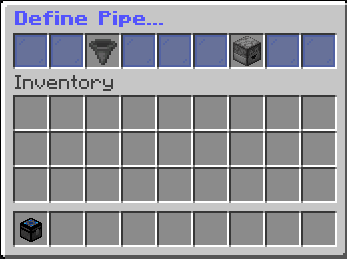
After clicking, a GUI will open with two options: - Define as Output - Define as Output
Input Pipe
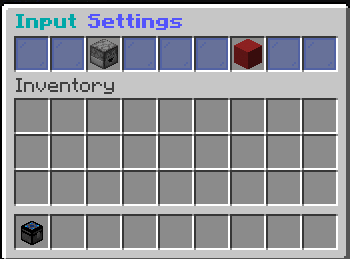
If you set a container as *Input*, the GUI lets you: - Change it to an Output node - Remove it from the network
Output Pipe
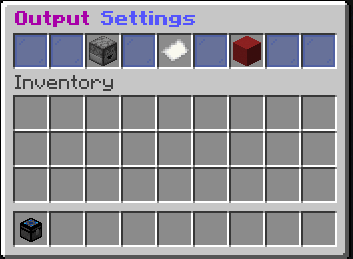
If you set a container as *Output*, the GUI lets you: - Change it to an Input node - Remove it from the network - Manage filters
Filters
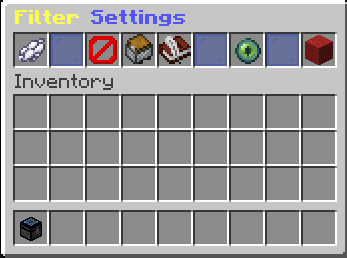
When you open the filter GUI, you’ll see: - Ender Eye → Switch between whitelist (default) and blacklist - Ender Eye → Add the item in your offhand to the filter - Ender Eye → Add all items from the container to the filter - Ender Eye → Add items manually via chat command: `/pipe addFilterItem [Item]` (Replace [Item] with the actual item) - Ender Eye → Reset the filter - Ender Eye → View the full filter. There you can click on an item to remove it from the filter. Ender Eye %%MD1%%
---
📄 Permissions
| Permission | Default | Description | |-------------------------------------|---------------|--------------------------------------------| | `pipelesspipes.command.pipe` | true | Use the `/pipe` command | | `pipelesspipes.command.language` | true | Set the displayed language | | `pipelesspipes.command.pipe.addFilterItem` | true | Add a filter item via command | | `pipelesspipes.command.pipe.admin` | false (op) | Get a Pipewrench |
