

ModernConfig
ModernConfig is a Configuration Library for Modern Fabric Mods
 20,36k
Quick challenge
How far can you run before the mobs catch you?
Minecraft check
Confirm your run
Complete the quick check to get your code.
ModernConfig
ModernConfig





🌟 Overview
ModernConfig is a sleek configuration library for Minecraft Fabric mods that makes managing settings easy. No more config commands - ModernConfig has animations, a modern style, and its really easy to implement in your mods.
✨ Features
🧩 Configuration Options
- 📁 Categories: Boolean switches - on or off - 📁 Categories: String inputs - 📁 Categories: Numeric inputs with customizable ranges and precision - 📁 Categories: Dynamic string lists with add/remove functionality - 📁 Categories: HSV color selection with hex input support - 📁 Categories: Selection menus - 📁 Categories: Organized sections with nested configurations
🚀 Easy to Develop with
- Listeners for config updates: Easy to use Builder - Listeners for config updates: Register a listener to fire when the config changes
🔧 Other Features
- Performance Optimized: One place to access all mods configs - Performance Optimized: Right Shift opens the config (configurable) - Performance Optimized: Non FPS draining animations
📸 Screenshots
Main Interface
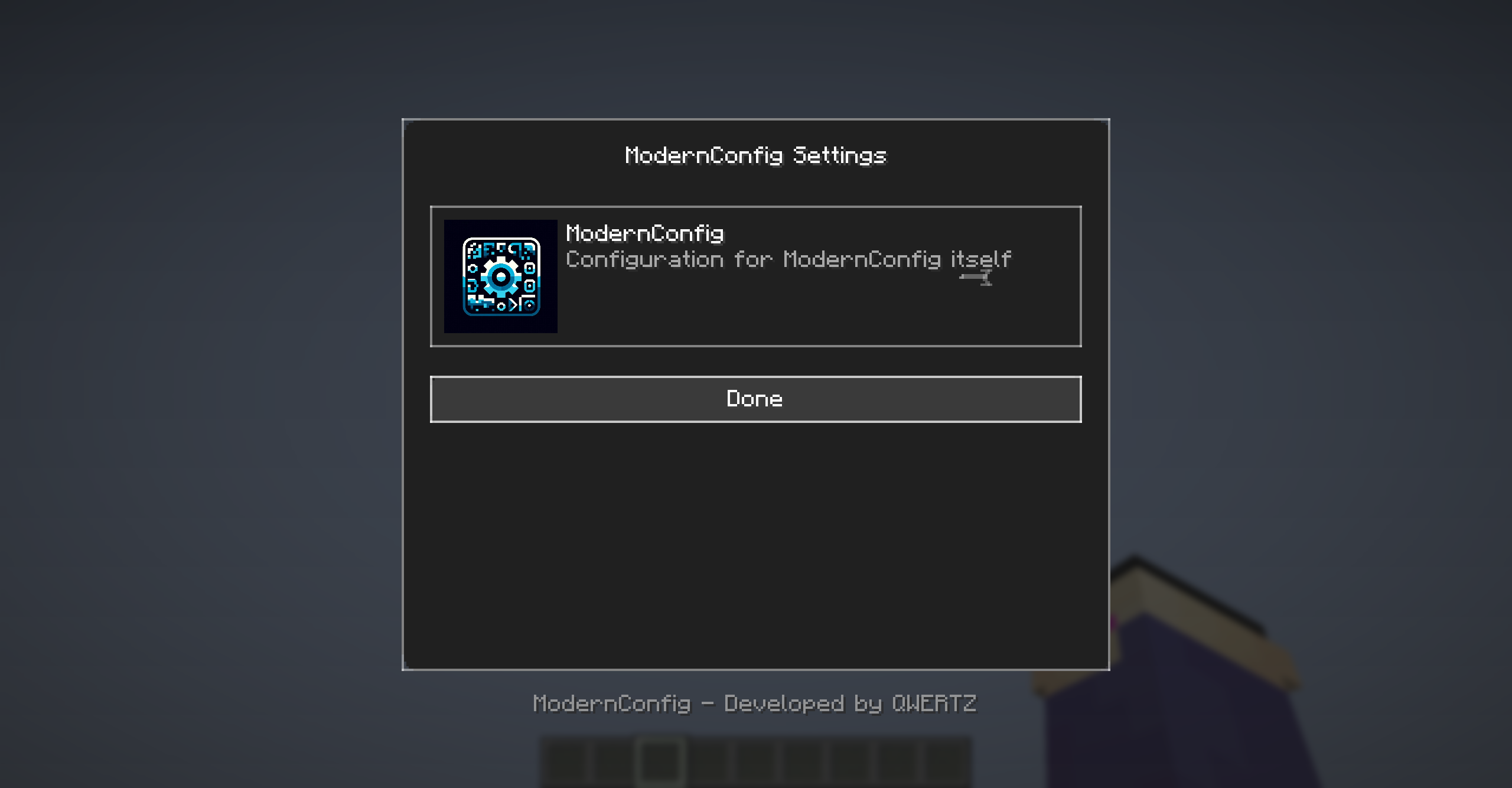
*Main interface with animations and modern design*
Configuration Options
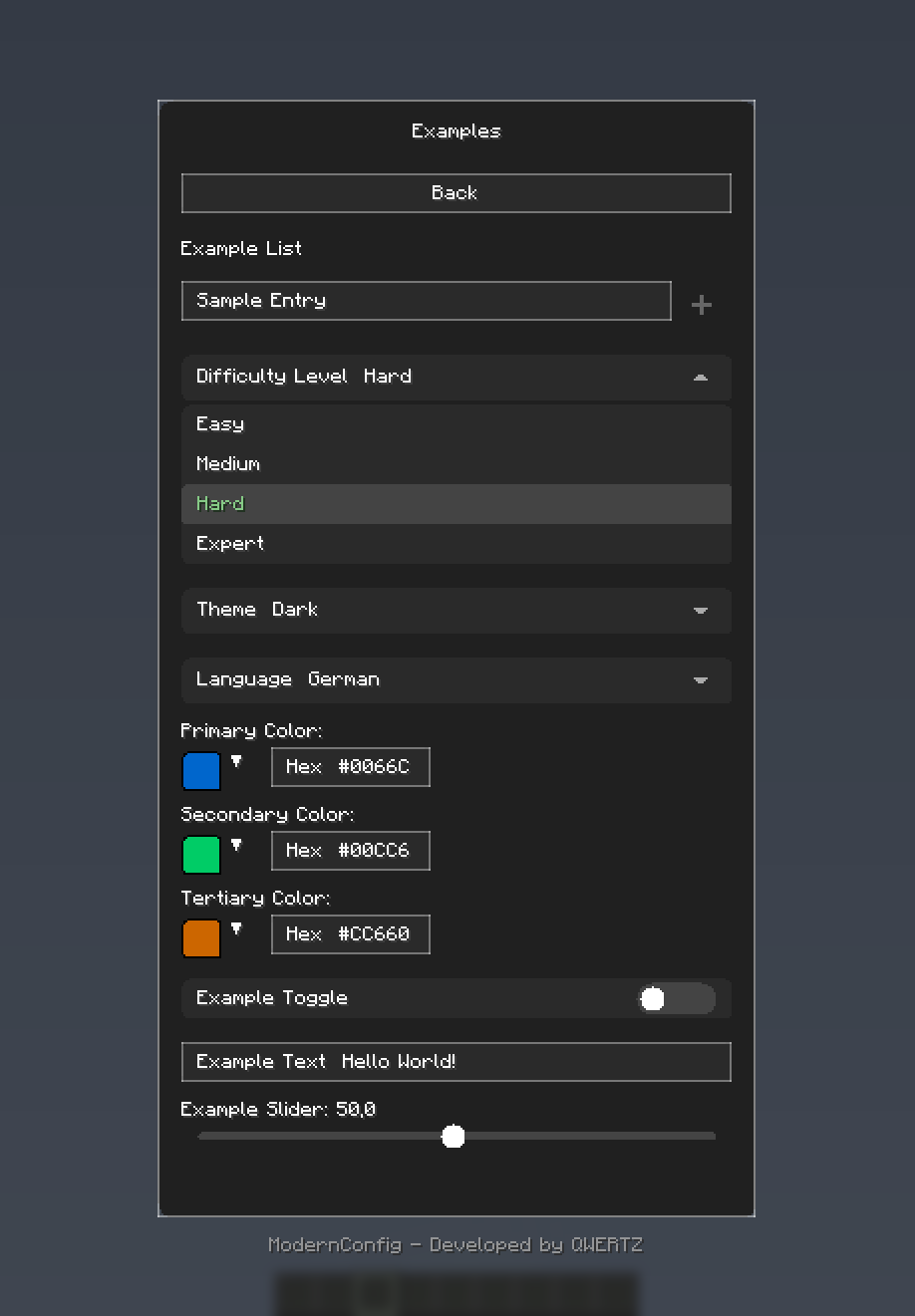
*Rich variety of input types: toggles, sliders, text fields, and more*
Color Picker
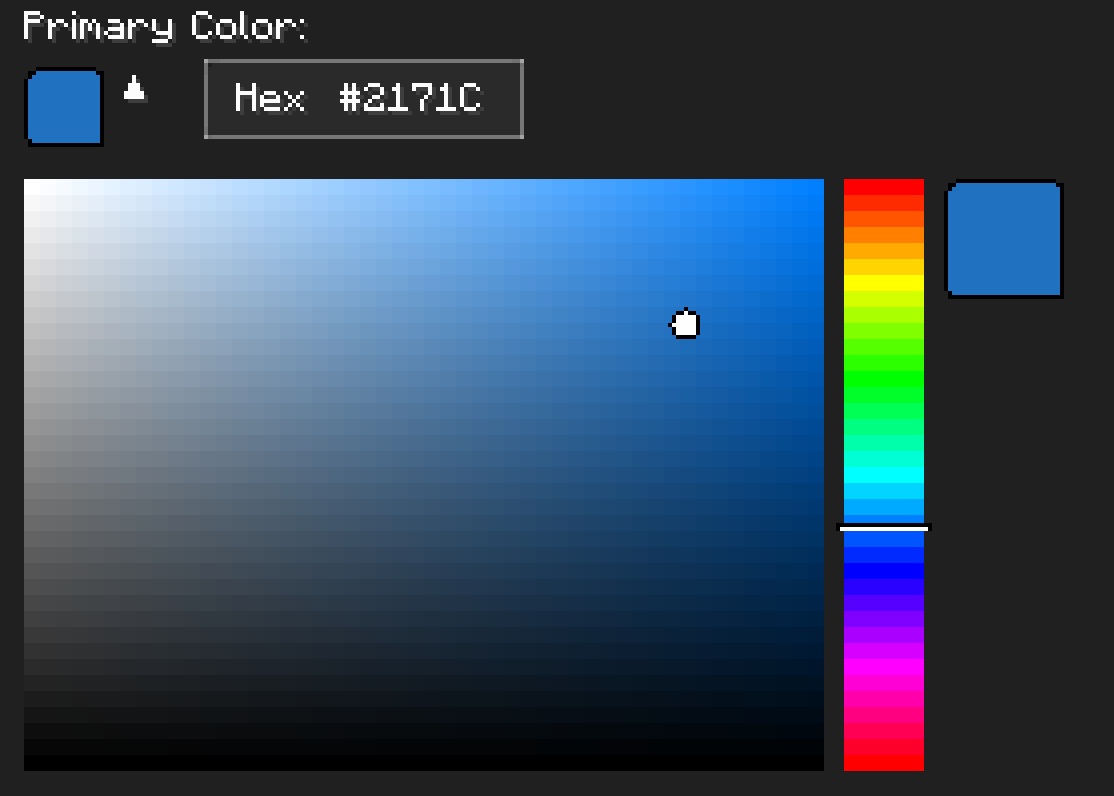
*HSV color picker with real-time preview*
🚀 Installation
For Players
1. Download and Install Fabric - Get Download and Install Fabric - Install %%MD1%%
2. Download ModernConfig - Download from Download ModernConfig
3. Install the Mod - Place the `.jar` file in your `mods` folder - Launch Minecraft with the Fabric profile
For Developers
Add ModernConfig to your `build.gradle`:
```gradle repositories { maven { name = 'QWERTZ-Repo' url = 'https://repo.qwertz.app/' } }
dependencies { modImplementation 'app.qwertz:modernconfig:1.3' } ```
🎮 Usage
Opening the Configuration
- In-Game: Press `Right Shift` (you can change this keybind)
Navigation
- Back Button: Shows all mods that use ModernConfig - Back Button: Opens that mod's settings - Back Button: Goes back to the previous screen
🔧 Developer Guide
Quick Start
Here is how easy it is to set up a config:
```java public class YourMod implements ClientModInitializer {
@Override public void onInitializeClient() { ModernConfig config = ConfigBuilder.create("YourMod", "Your Mod Configuration") .toggle("enabled", "Enable Mod", true) .slider("power", "Power Level", 50, 0, 100, 1) .text("username", "Player Name", "Steve") .color("theme_color", "Theme Color", 0x4A90E2) .list("whitelist", "Player Whitelist", "Player Name") .dropdown("difficulty", "Difficulty", Arrays.asList("Easy", "Normal", "Hard"), "Normal") .build(); } } ```
Using Categories
When you have lots of settings, organize them into categories:
```java ModernConfig config = ConfigBuilder.create("AdvancedMod", "Advanced Mod Settings") .category("general", "General Settings", "Main configuration options", category -> category .toggle("enabled", "Enable Mod", true) .slider("update_interval", "Update Interval", 20, 1, 100, 1) .text("server_url", "Server URL", "https://api.example.com") ) .category("ui", "User Interface", "Customize the user interface", category -> category .color("primary_color", "Primary Color", 0x4A90E2) .color("secondary_color", "Secondary Color", 0x2ECC71) .dropdown("theme", "Theme", Arrays.asList("Dark", "Light", "Auto"), "Dark") .slider("ui_scale", "UI Scale", 1.0f, 0.5f, 2.0f, 0.1f) ) .category("advanced", "Advanced Settings", "Advanced configuration options", category -> category .toggle("debug_mode", "Debug Mode", false) .list("blocked_items", "Blocked Items", "Item ID") .list("whitelist", "Whitelisted Servers", "IP") .text("api_key", "API Key", "") ) .build(); ```
Accessing Configuration Values
```java // Get configuration options by category path ConfigOption<?> enabledOption = config.getOption("general", "enabled"); ConfigOption<?> updateOption = config.getOption("general", "update_interval"); ConfigOption<?> whitelistOption = config.getOption("advanced", "whitelist");
// Get the actual values boolean isEnabled = (Boolean) enabledOption.getValue(); int updateInterval = (Integer) updateOption.getValue(); List<String> whitelist = (List<String>) whitelistOption.getValue(); ```
🎨 Configuration Options
Toggle (Boolean)
```java .toggle("toggle_id", "Display Name", defaultValue) ``` - Examples: On/off switches - Examples: Feature flags, enable/disable options
Text Field (String)
```java .text("text_id", "Display Name", "default_value") .text("text_id", "Display Name", "default_value", maxLength) ``` - Examples: Text input fields - Examples: Player names, server URLs, file paths, API keys
Slider (Numeric)
```java .slider("slider_id", "Display Name", defaultValue, minValue, maxValue, step) ``` - Examples: Numeric input with range constraints - Examples: Percentages, scales, intervals, counts, delays
Color Picker (Integer)
```java .color("color_option_id", "Display Name", 0xRRGGBB) ``` - Examples: Color selection with color picker - Examples: Theme colors, highlighting, UI customization
List (String Array)
```java .list("list_id", "Display Name", "Item Display Name") ``` - Examples: Lists of text entries - Examples: Player whitelists, blocked items, keywords
Dropdown (String Selection)
```java .dropdown("dropdown_id", "Display Name", Arrays.asList("Option1", "Option2"), "Default") ``` - Examples: Pick one option from a list - Examples: Difficulty levels, themes, render modes, language selection
Categories (Organization)
```java .category("category_id", "Category Name", "Description", category -> category // Add options here ) ``` - Examples: Organize related options - Examples: Group related settings logically
🤝 Contributing
Pull Request Process
1. Fork the repository 3. Make your changes 4. Test it 5. Submit a pull request
🙏 Credits
Development Team
- QWERTZ - *Lead Developer* - QWERTZ
📞 Support
- Discord: Discord
🌟 Star History
---
Made with ❤️ and many tears 🥲
⬆ Back to Top
