WorldPluginManager is the filter that determines which commands work in which world.
You can set a mode for each world: “Whitelist” means only approved commands work, while “Blacklist” means all commands work except for the blocked ones. If a player attempts to execute a prohibited command, the command is intercepted directly in the event and a configurable message is displayed—meaning the command is never actually passed on to the respective plugin. All management is handled via a GUI with world selection, a mode toggle, and lists for allowed and prohibited commands. Players with the bypass permission ignore all rules, so admins can always get through. Changes are saved in rules.yml and can be reloaded at runtime with /wpm reload.
Commands:
/wpm gui – opens the GUI management
/wpm allow – allow command
/wpm deny – block command
/wpm list – display all rules for a world
/wpm mode – switch mode
/wpm reload – reload configuration
/wpm stats – overview of all configured worlds
This plugin outputs the information about the player’s location in the dimension through Placeholder in the Tab or game chat.
– World – green color
– World_nether – red color
– World_end – purple color
Placeholder:
“`
%worldplaceholder%
“`
“`
messages:
noPermission: “&#dc143cYou do not have sufficient permissions to perform this action!”
reloaded: “�ff7fPlugin successfully reloaded”
# It will look like &#c0c0c0◆
worldSymbol: “◆”
# Default color, used for worlds not specified below
defaultColor: “&#c0c0c0”
# You can use both HEX colors in the format &#abcdef and regular colors using &a
worlds:
world: “�ff7f”
world_nether: “&#dc143c”
world_the_end: “a2be2”
“`
In the config.yml, you can change the colors as well as the symbol.
WorldNamePacket
# WorldNamePacket
Server-side companion for mapping mods. Automatically sets world name
in Multiworld mode – no more manual configuration and “world not recognized”
messages.
This mod helps in a specific situation: where you connect to a server
that has more than the 3 vanilla dimensions, mapping mods easily get confused
and can either mix up the maps or ask you which one you’re on. This can
happen on many modded servers – but also vanilla servers if there are behind
a proxy (Bungeecord/Velocity/etc).
This tool solves this problem by telling the mapping mod which world it’s connected to.
## Installation
Download a jar from the Releases section and drop it in your mods/plugin folder on the
**server side**. If you’re using a proxy (Bungecord/Velocity/etc.) make sure to have
it installed on all servers.
The jar works on both Fabric and Spigot – cursed, I know.
## Configuration
There’s nothing to configure. The mod will automatically read the world name from
your server configuration (`level-name` on vanilla, dimension name on modded).
One common issue is that all your worlds are named `world` – you’ll have to fix that
for the mod to operate correctly.
## Where’s the Forge version?
I don’t know Forge, sorry. If you can code it up, please let me know!
WorldMaster
WorldMaster
Prefixes for players: [Player] + [Owner] (If enabled chat message won’t be signed and can’t be reported)
New welcome text and join, leave message and chat style
Player counter bossbar
Elevators [/elevator]
Enable flying on server, if used in survival
Chest Shops: See documentation
Chunk loader [/chunk_loader]
May produce lag, if you have to many chunk loaders
Inventory Managment System [/inventory]
Mulitple Worlds [/world]
May produce lag, if world is created or regenerated
Every world has always loaded spawn chunks which may produce lag
Level-Name in server.properties has to be “world”
Permission for all commands of the plugin + shop owner permission
Installation
Copy the .jar file into your plugins directory of your server. Start the server. If the server was already started, type “/reload” in the server console.
Documentation Documentation on GitHub
WorldLockPlus
# WorldLockPlus
🔒 **Secure world access with enterprise-grade password protection**
WorldLockPlus is a powerful Bukkit/Spigot plugin that adds password protection to worlds managed by Multiverse-Core. **Even server operators must enter passwords to access protected worlds** (unless they have the bypass permission).
## ✨ Features
– 🔐 **Enterprise Security**: Uses bcrypt password hashing (work factor 12) for maximum security
– 🛡️ **Operator Protection**: Even server operators must enter passwords unless they have bypass permission
– 🚫 **Comprehensive Blocking**: Prevents teleportation, world changes, and unauthorized access
– ⏱️ **Session-Based Access**: Authorization lasts until player logout for convenience
– 💾 **Persistent Storage**: Passwords are securely stored in config files
– 🎯 **Multiverse Integration**: Seamlessly works with Multiverse-Core
– 🔄 **Automatic Migration**: Detects and warns about legacy password formats
1. Install Multiverse-Core first
2. Download WorldLockPlus and place it in your `plugins/` folder
3. Restart your server
4. Configure world passwords using the commands below
## 📖 Commands
### Admin Commands
**`/worldlock`** or **`/wlock`** (aliases)
– `/worldlock set ` – Set a password for a world
– `/worldlock remove ` – Remove password protection from a world
– `/worldlock list` – List all password-protected worlds
**Permission**: `worldlock.admin` (default: OP)
### Player Commands
**`/wunlock`**
– `/wunlock ` – Enter password to unlock access to a protected world
**Permission**: `worldlock.use` (default: true)
## 🔑 Permissions
– `worldlock.admin` – Full access to world lock management (default: OP)
– `worldlock.use` – Ability to unlock password-protected worlds (default: true)
– `worldlock.bypass` – Bypass world password protection entirely (default: false)
## 💡 Usage Example
“`
# Admin protects the “lobby” world
/worldlock set lobby MySecurePassword123
# Player tries to teleport (blocked)
/mv tp lobby
# Message: “⚠ This world is password protected! Use /wunlock lobby to enter.”
# Player unlocks access
/wunlock lobby MySecurePassword123
# Message: “Password correct! Teleporting to ‘lobby’…”
# Message: “Access granted until logout.”
# Player can now access the world
/mv tp lobby
“`
## 🔒 Security Features
– **bcrypt Hashing**: Industry-standard password hashing with work factor 12 (4096 iterations)
– **Built-in Salt**: Each password hash includes a unique salt automatically
– **Brute-Force Resistant**: Adaptive hashing makes attacks computationally expensive
– **Secure Storage**: Passwords are never stored in plain text
– **Session Management**: Access is cleared on logout for security
## ⚙️ Configuration
Passwords are automatically stored in `plugins/WorldLockPlus/config.yml` using bcrypt format. The configuration file is managed automatically – no manual editing required.
## ❓ Troubleshooting
– **Plugin won’t enable**: Ensure Multiverse-Core is installed and enabled first
– **Can’t access world**: Use `/wunlock ` to authorize yourself
– **Operators bypassing**: Check they don’t have `worldlock.bypass` permission
– **Legacy passwords**: If you see warnings about legacy formats, reset passwords using `/worldlock set`
## 📝 Notes
– Authorization persists until player logout for convenience
– Players are automatically teleported away from protected worlds if they lose authorization
– The plugin works with all Multiverse-Core world management features
– Passwords are case-sensitive

Please join the Streamline Hub Discord in order to get updates and for me to fully assist you with bugs, questions, or suggestions.
Discord: **click here**

Block players from entering or teleporting to specified worlds — All configurable with commands.

This offers a very simple configuration and setup all while remaining very light-weight.

1. Download and install BukkitOfUtils. Found here: BukkitOfUtils
2. Download the correct version of this plugin for you server version.
3. Place in your `plugins` folder.
4. Stop server.
5. Start server.
6. Use to your liking.

## How to block a world
1. Install plugin. (Shown above.)
2. `/manageworlds add ` – where `` is replaced with the world you want to block.
## Notes
Players with operator or the `*` permission can access all worlds by default.
To disable these players from bypassing the world block, set their permission for `worldlock.bypass.*` to false.
## Functions
* Block specified worlds from:
* Teleportation.
* Moving to.
* Portal-Warping to.
* List blocked worlds.
* Bypassable with permissions.
* Permission: `worldlock.bypass.`

## Commands
* `/manageworlds`
* `/manageworlds add `
* Adds a world to the blocked worlds.
* `/manageworlds remove `
* Removes a world from the blocked worlds.
* `/manageworlds list`
* Lists all worlds in the blocked worlds list.
WorldLobbyAnchor
A lightweight yet powerful lobby & spawn management plugin for modern Minecraft servers.
Designed for Hubs, Networks, Survival, and VIP servers.
#
# ✨ Features
✔ Automatic Lobby Teleport on Join
Players are sent to the lobby when they join the server.
✔ VIP Lobby Support
VIP players can be redirected to a separate lobby with a single permission.
✔ /lobby, /hub, /spawn Commands
Fully configurable teleport commands with delay and cancel-on-move support.
✔ Teleport Countdown System
Configurable countdown messages with color support.
✔ Movement Cancel Protection
Cancel teleport if the player moves (optional).
✔ Admin Control Commands
Set lobby locations and reload config in-game.
✔ Bypass System
Allow staff or special players to bypass forced lobby teleport.
✔ Color Codes Supported
Use & color codes everywhere in messages.
✔ Ultra Lightweight
No database, no dependencies, no performance impact.
✔ Modern API
Built for Paper / Spigot 1.21+
#
# Commands
Command Description
“`
/lobby Teleport to the lobby
/hub Alias of /lobby
/spawn Alias of /lobby
/wla set lobby Set lobby location
/wla set vip-lobby Set VIP lobby location
/wla reload Reload config.yml
“`
# Permissions
Permission Description Default
“`
wla.use Use /lobby, /hub, /spawn ✅ true
wla.admin Use /wla set, /wla reload ❌ op
wla.vip-lobby Spawn in VIP lobby ❌ false
wla.bypass Bypass forced lobby on join ❌ false
“`
No unnecessary features
Fast & stable
Predictable behavior
Fully configurable
Perfect for hub & network setups
If you just want a clean lobby system that works – this is it.
Installation
Download the plugin
Drop it into /plugins
Restart the server
Configure config.yml
Set your lobby with /wla set lobby
Done ✔
Support & Feedback
Found a bug?
Have a feature idea?
Use the Discussion / Review section on Spigot
I actively maintain this plugin.
⭐ Like the plugin?
Leave a ⭐ review
Share it with others
Use it on your server
It really helps a lot ❤️
WorldLobby999
## Core Features
1. World Management System
World Creation
– Players can create unlimited personal worlds
– Worlds persist between server restarts
– Automatic world loading/unloading based on player activity
– Support for different world types and environments
World Categories
– **Creative Build**: Traditional creative building worlds
– **Adventure/Story**: Narrative-driven worlds
– **Parkour**: Obstacle course and challenge worlds
– **PvP/Minigame**: Competitive gameplay worlds
– **Prototype/Development**: Testing and development worlds
World Visibility Settings
– **Public**: Anyone can join
– **Private**: Owner access only
– **Friends Only**: Invited players only
– **Whitelisted**: Specific player whitelist
2. Advanced Mode System
Build Mode
– Unlimited creative inventory
– Flight enabled
– No damage taken
– Fast block breaking
– Access to build tools (copy, paste, fill, brush)
Play Mode
– Game rules enforced
– Adventure/survival restrictions
– Scripts and events active
– Normal gameplay experience
Dev Mode
– Creative permissions with script access
– Developer tools available
– Debugging features enabled
– Testing environment
3. Player Context System
Player Roles
– **Owner**: Full control over world (scripts, settings, delete, invite, promote)
– **Developer**: Can modify scripts and world logic, but not delete world
– **Builder**: Can modify blocks and world structures
– **Player**: Can play the world, subject to script-triggered rules
– **Visitor**: Limited access, cannot modify world unless explicitly allowed
Context Management
– Persistent player settings across sessions
– World-specific preferences and configurations
– Mode-aware player behavior
– Player location tracking across worlds
4. World Permission System
Fine-grained Access Control
– Add/remove builders for your worlds
– Grant developer access for script editing
– Maintain whitelist for restricted worlds
– Manage player roles dynamically
World Browser
– GUI-based world browsing system
– Category filtering
– Search functionality
– World information display
– Pagination for large server lists
– Visual world representation
World Discovery
– `/worldlobby games` – Open world browser
– `/worldlobby list` – Text-based world list
– `/worldlobby join ` – Join specific world
– `/worldlobby locate ` – Find player’s location
6. World Configuration
Dynamic Settings
– Change world visibility (public/private/etc.)
– Set world categories
– Toggle weather systems
– Enable/disable mob spawning
– Update world descriptions
– Configure game rules
Advanced Lobby System
– Themed lobby areas (Space, Ocean, Forest)
– Interactive lobby elements
– Featured worlds display
– Quick travel options
– Lobby-specific features
World Statistics
– Track world usage and metrics
– Player count tracking
– Creation timestamps
– `/worldlobby stats [world-name]`
Data Management
– Persistent world metadata
– Player context preservation
– Configuration file management
– World state tracking
Performance Optimization
– Automatic world unloading
– Efficient player tracking
– Minimal resource usage
– Asynchronous operations where possible
Commands Reference
Basic Commands
– `/worldlobby` – Main command
– `/worldlobby help` – Show help
– `/worldlobby create ` – Create world
– `/worldlobby list` – List all worlds
– `/worldlobby join ` – Join world
– `/worldlobby delete ` – Delete world
– `/worldlobby lobby` – Return to lobby
Feature Parity
WorldLobby999 includes comprehensive feature parity with OpenCreative+:
✅ **World Management**: Full world creation, deletion, and management
✅ **Mode System**: Build, Play, and Dev modes with appropriate rule sets
✅ **Player Roles**: Owner, Developer, Builder, Player, and Visitor roles
✅ **Visibility Controls**: Public, Private, Friends Only, Whitelisted worlds
✅ **World Categories**: Creative, Adventure, Parkour, PvP, and Development categories
✅ **World Browser**: GUI-based world discovery system
✅ **Player Context**: Advanced context system with persistent settings
✅ **Permission System**: Comprehensive access control system
✅ **World Configuration**: Full settings and configuration management
WorldListTrashCan
## Allows players to customize their home world’s trash bin.
This cleaning plugin operates within a specific world (the player’s home) and, when cleaning items, gathers them into a trash bin that the player has personally set up in their home. It combines various features, supports Folia, boasts highly configurable settings, and is compatible with multiple languages.
(This plugin is more suitable for pairing a world with a team’s server, such as the Home server (using the PlayerWorldsPro plugin or other Home plugin servers). If you close the World Garbage can, its functions can also completely replace other cleaning plugins)
**Now, here’s a hellish joke for you:**
**Player** : Hey, my quantum solar panels got swept away by the cleaning plugin. Can you compensate me?
**OP** : No way, you can’t prove it, and my cleaning plugin doesn’t keep records.
**Player** : I just bought them!
**OP** : What if you hid them, and I compensate you, essentially doubling them?
**Player** : ***
**OP** : Even if there were public trash bins on the server, someone would snatch up those solar panels.
**OP** : What should I do?
And there you have it, this plugin was born.
When Foila supports multiple worlds, this cleaning plugin will benefit everyone
### Features:
—
– **Fully customizable tip**
Support multiple prompt messages
You can achieve fully customized prompts
For example, when there are three seconds left, let “bossbar”, “actionbar”, “chat”,and “title” prompt together,
Alternatively, you can have the bossbar change its style every second (solid, non solid, including its color, can be different every second)
After version 5.7.0, it supports switching between different prompt sounds per second, as well as setting different volumes and tones per second
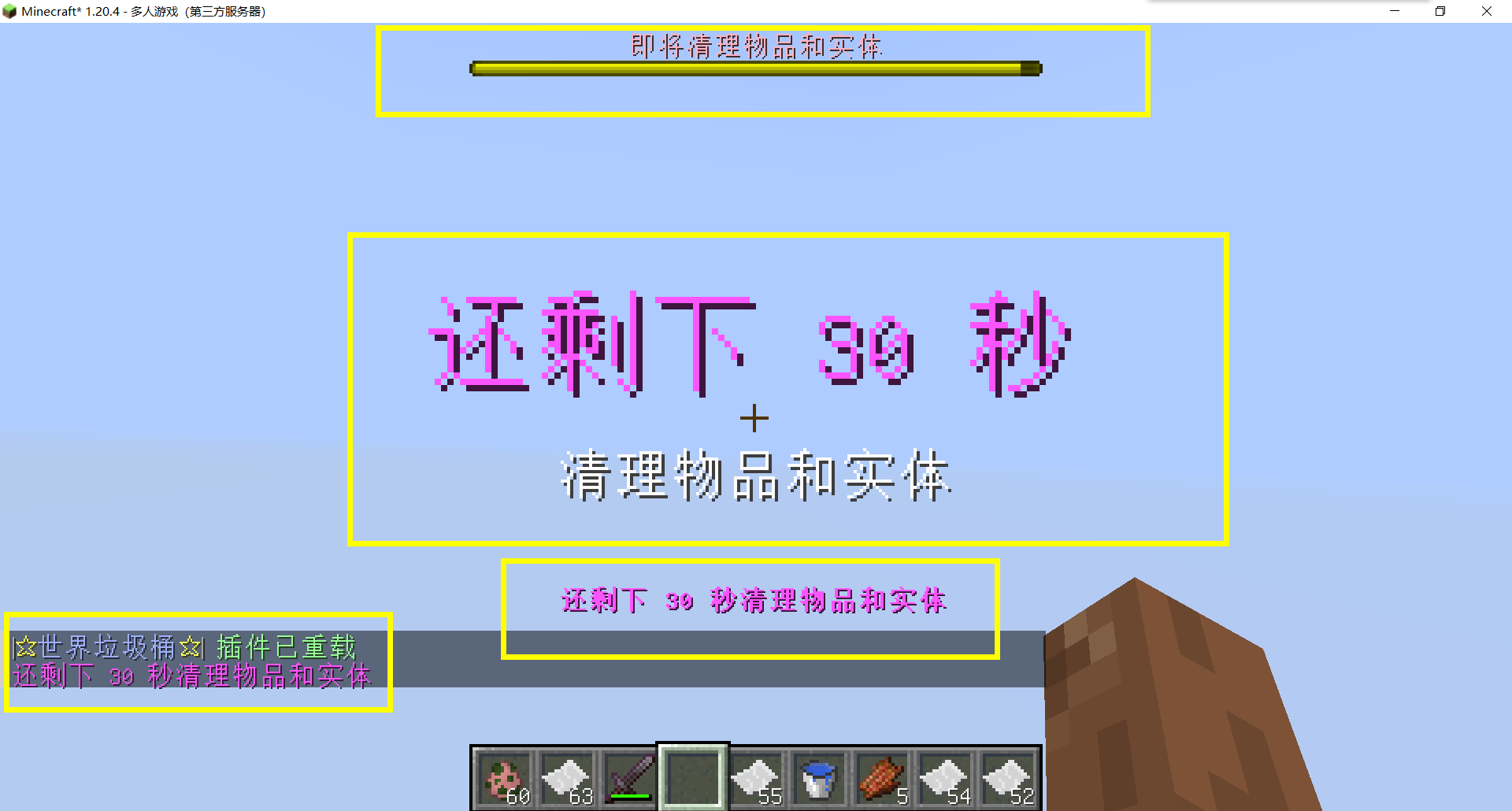
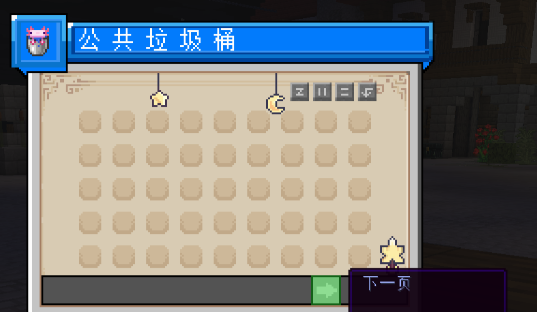
– Thank you to QQ 1664907770 (“笑脸猫”) for providing the material package for the “itemsadder” plugin (applicable to public trash cans) Click here to download (IteamsAdder/WorldTrashCan config and resource)
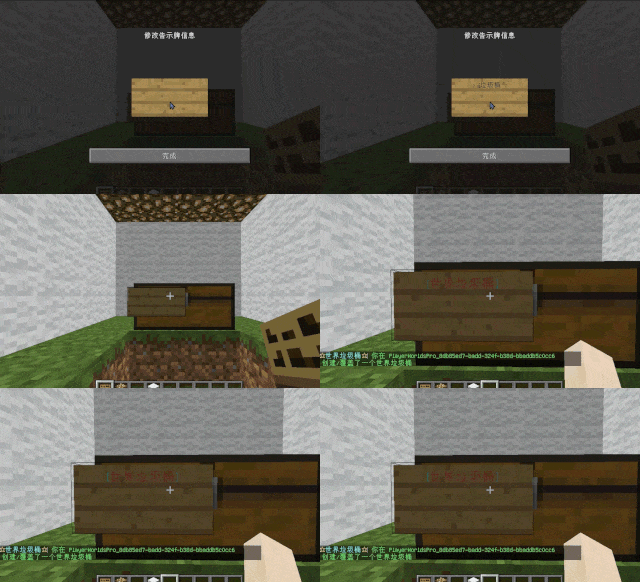
– **Player-Created World Trash Bin:**
Players have the ability to create a trash bin in their world.
Similar to the mechanics of previous sign-locked chests, the font on the sign will undergo a
transformation after creation.
When the cleaning process is initiated, items will be automatically added to the home trash bin.
Configurable settings allow players to specify detection names and transformed names after cleaning.
“To meet the demands of a small number of people, here is a reminder”
How to create a world trash can:
Place the chest on the ground, hold the signboard and right-click on the chest. Enter [世界垃圾桶] in the configuration file (configured in Set. SighCheckName), and once the font is converted, it is created. Every time the garbage is cleaned, it will be placed in the marked chest
In the default configuration file, the names of the three worlds “world, dim-1, dim1” are disabled, creating a “world trash can” (excluding op)
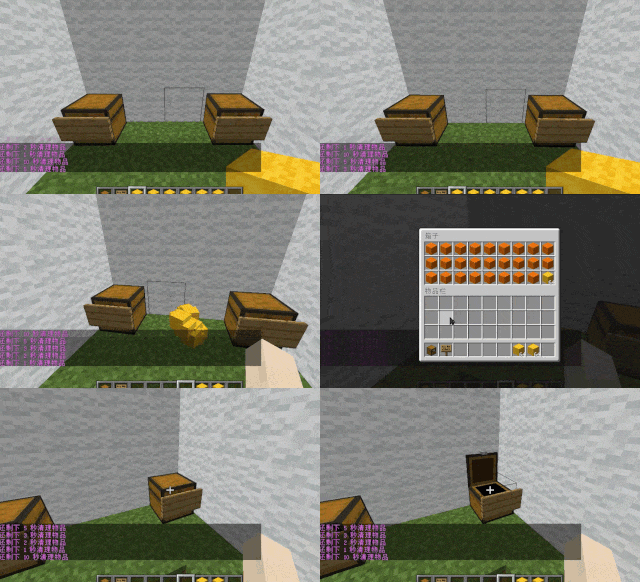
– **Support for Multiple Home Trash Bins:**
Players can use commands to grant special players the ability to place additional home trash bins.
Default quantities for home trash bins are configurable.
– **Home Trash Bin Overflow to Public Trash Bin:**
Items from home trash bins overflow into the public trash bin.
Public trash bins can have a configurable maximum page count and a blacklist.
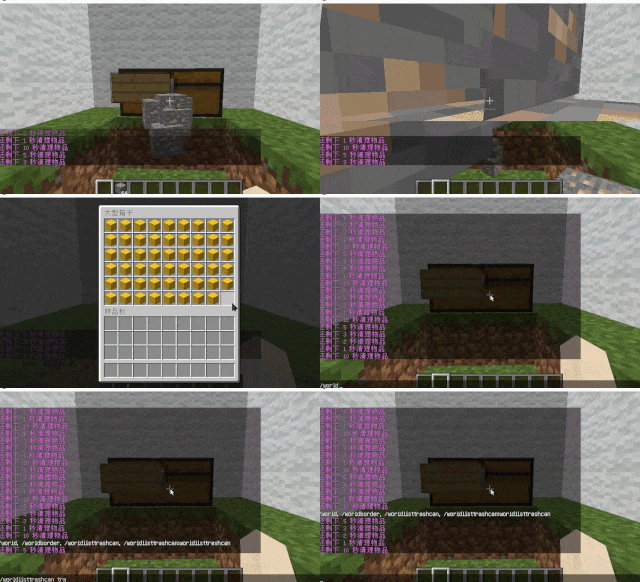
– **Item Exclusion and Public Trash Bin Handling:**
Players can add items to the home trash bin blacklist to prevent their recycling.
Excluded items go directly to the public trash bin.
Configuration includes support for excluding items with special lore (e.g., items from the QS shop with
showLocation).
Public trash bins can either clear new items during each sweep or accumulate all trash without clearing.
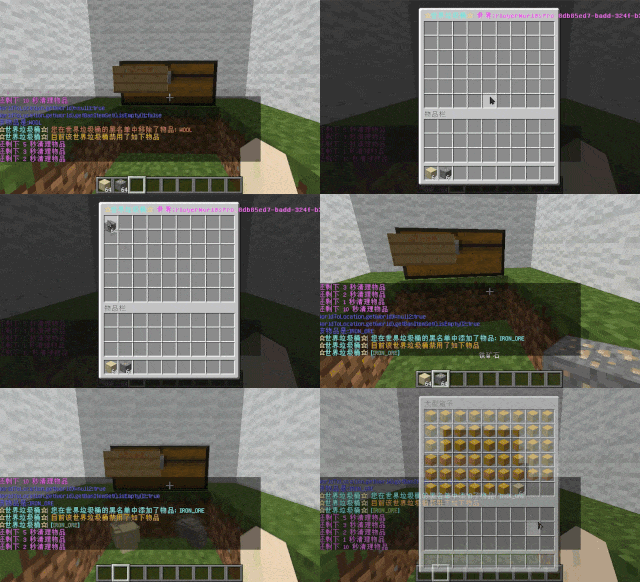
– **The public trash can can enable logging:**
Record what items the player took away

– **Entity Cleanup:**
Optional cleanup of all animals/monsters.
Command (/WorldListTrashCan Look) to view entity types and configure entity blacklists/whitelists.
Support for cleaning special entities from mod.
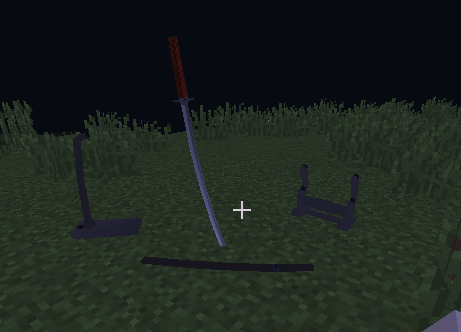
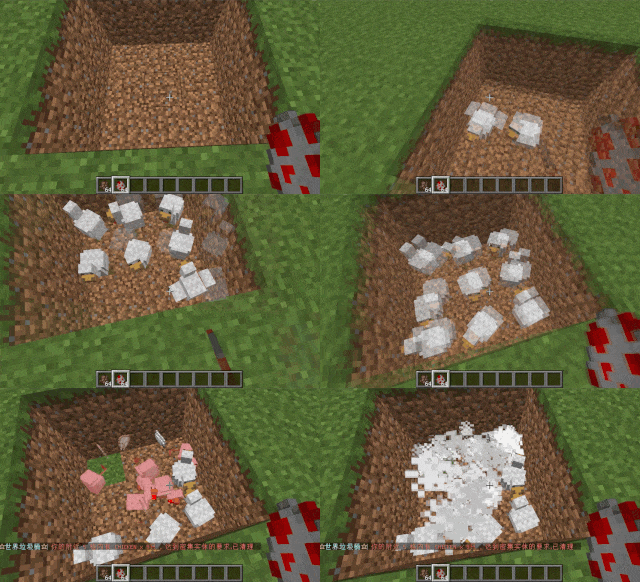
– **Dense Entity Cleanup:**
Configurable radius, target quantity, kill or remove options, and player notifications for dense entity
cleanup.
– **Spam/Command Limitations:**
Configurable chat/command intervals, whitelist commands, and informative messages.
Defense against item dropping.
Players can manually enable or disable the item-drop defense mode.
– **Performance Optimization:**
All optimizations have configurable options in the settings.
1. Quick removal of uncollectible arrows (e.g., arrows from skeletons or bows with infinite
enchantments).
2. Prohibit players from trampling on farmland
### How to Install
—
– **Throw it into the Plugins folder**
### Commands:
—
– **/wtc reload**
Reloads the plugin.
– **/wtc GlobalTrash**
Opens the public trash bin.
– **/wtc help**
Displays help information.
– **/wtc ban**
Opens the local world trash blacklist GUI.
– **/wtc Look**
Right-click to get entity type (useful for adding to the configuration blacklist/whitelist).
– **/wtc GlobalBan**
Opens the global world trash blacklist GUI.
– **/wtc add [WorldName] [Quantity]**
Sets the maximum quantity for the trash bin in the specified world (defaults to the world at your feet if not specified).
– **/wtc DropMode**
Opens or closes drop mode.
### Placeholders
—
– **%WTC_ClearTime%**:
Time until the next cleaning.
### Permission
—
– **WorldListTrashCan.BanGui**:
Permission to open the GUI for adding items to the player’s home trash bin blacklist.
– **WorldListTrashCan.GlobalTrashOpen**:
Permission to open the global trash bin.
– **WorldListTrashCan.help**:
Permission to access command help.
– **WorldListTrashCan.DropMode**:
Permission to open or close drop mode.
***(The above is available by default)***
– **WorldListTrashCan.GlobalBan**:
Permission to open the global trash bin blacklist GUI.
– **WorldListTrashCan.Look**:
Permission to right-click and query the entity type.
***(The above is not available by default)***
A lightweight and intuitive plugin that displays in-game time and player coordinates directly on the screen. Designed for Minecraft servers using Spigot, Paper, or Bukkit, this plugin adds practical functionality without clutter.
💡 Features:
– Displays Minecraft time in a readable format (Day/Night)
– Shows XYZ coordinates precisely
– Compatible with most modern server versions
– 📁 Installation Instructions
– Download the .jar file from the Modrinth page
– Place it inside your server’s /plugins folder
– Restart or reload the server
– Edit config.yml to customize display options