## 📖 Description
This datapack adds commands to make building way easier!
Explore the seamless functionality in both single-player and multiplayer modes.
## Commands
Operator permission is **required** to use this datapack/mod.
## How to use:
Use “`/function we:give/wand“` to get the selector item.
When you have selected two positions named **#1** and **#2**, you can start using the tools.
Use “`/function we:give/brush“` to get the brush item.
Instructions are on the item description.
Use “`/function we:misc/outline“` to enable/disable the outline particles that appear when you select two positions.
Use “`/function we:misc/phasing“` to enable/disable the player being able to phase through blocks when flying.
## Copy-Paste info
You must have an area already copied to use the **paste** function.
Pasted areas will be pasted facing up and south-east. You can also use F3. Make sure that the X, Y, and Z axis lines are all facing away from you. The build is also facing that way.
World Eater
# World Eater
World Eater adds blocks and items that aid in the complete destruction of a Minecraft World.
## Blocks
– World Eater
– World Eater Eater
– World Eater Ore
– World Eater Eater Ore
– Diamond Glass
## Items
– World Eater Gem
– World Eater Eater Gem


![Report an Issue][issues]
![Wiki][wiki]
![Support me on Ko-fi][ko-fi]
![World Dimension Nexus Logo][logo]
**The ultimate serverside tool for managing dimensions, worlds, and player data without requiring
any client-side installation.**
🛠️ *This mod is created as part of
the [NeoForged Serverside Summer Modjam 2025][neoforged-modjam].*
⚠️ **Beta Version Notice**: This mod is currently in beta. Features and commands may change before
the stable release.
## ✨ Key Features
### 🌍 Dimension Management
– **Multi-World Support** – Create and manage unlimited custom dimensions with various world types
– **World Import/Export** – Easy dimension sharing and migration between servers
– **Game Mode Management** – Set different game modes per dimension (creative, survival, adventure,
spectator)
– **Cross-Dimension Safety** – Void protection, safe landing, and automatic fallback systems
### 🚀 Teleportation & Movement
– **Cross-Dimensional Teleportation** – Seamless travel between worlds with built-in safety features
– **📍 Warp System** – Create private and public teleportation points for quick travel
– Private warps for personal bases and locations
– Public warps for community areas and landmarks
– Configurable limits and cooldown protection
– Cross-dimension warp support
– **🤖 Auto-Teleport System** – Automated player movement based on events and triggers
– First join, death, respawn triggers
– Customizable destination coordinates
– Event-based player routing
### 🏛️ Portal Network
– **Physical Portals** – Create visible gateways between dimensions
– **Portal Management** – Bind and configure portal connections
– **Visual Portal System** – Interactive portal blocks for immersive travel
### ⚙️ Server Administration
– **Fully Serverside** – Works with vanilla clients – no client mods required
– **Comprehensive Commands** – Intuitive command system with tab completion
– **Flexible Configuration** – Extensive config options for all systems
– **Permission Integration** – Supports server permission levels and moderation tools
## 🚀 Quick Start (Demo)
This quick start guide will show you a limited set of commands to get you started with the
World Dimension Nexus mod.
Please use a test world to try out the commands and features before using them in your main world.
### 🌍 Dimension Setup
The following commands will help you create and manage dimensions:
“`bash
# Import a new dimension like lobby and fishing
/wdn dimension import lobby_dimension.wdn
/wdn dimension import fishing_dimension.wdn
# Optionally, create a new dimension with a preset
/wdn dimension create my_skyblock skyblock
# List all dimensions
/wdn dimension list
“`
### 🚀 Teleportation & Auto-Teleport Workflow
Set up automated player movement between dimensions using auto-teleport rules:
“`bash
# Teleport to a dimension
/wdn teleport dimension world_dimension_nexus:my_skyblock
# Set up auto-teleport rules
/wdn autoteleport add always world_dimension_nexus:lobby_dimension # 🏠 Send new players to lobby
/wdn autoteleport add on_death world_dimension_nexus:fishing_dimension # 🎣 Send players to fishing on death
# List all auto-teleport rules
/wdn autoteleport list
“`
After running these commands:
– 🏠 Players will be sent to the lobby dimension when they join for the first time.
– 🎣 Players will be sent to the fishing dimension when they die.
💡 *Tip: You can customize triggers, target dimensions, and even coordinates!
See* [Auto-Teleport Commands][commands-auto-teleport] *for advanced options.*
Note: The hot-creation of dimensions is limited, so you might need to restart the server
to get the dimensions fully functional with all features and entities.
### 🏛️ Portal Setup
Create and manage portals between dimensions:
“`bash
# Teleport to the fishing dimension (if not already in the dimension)
/wdn teleport dimension world_dimension_nexus:fishing_dimension
# Use a good location for the portal, e.g. at one of the trees
/wdn portal create unbound green 43 49 20
# Teleport to the lobby dimension
/wdn teleport dimension world_dimension_nexus:lobby_dimension
# Use a good location for the portal, e.g. in the woods
/wdn portal create unbound green -36 9 -27
“`
After running these commands, you will have two portals created in the lobby and fishing.
You can now use the portals to teleport between the dimensions.
## 🎯 Use Cases
– **Creative Servers** – Separate building worlds with different themes
– **Survival Networks** – Multiple survival worlds with different difficulties
– **Minigame Servers** – Dedicated arenas and lobbies
– **Hub Servers** – Central lobby connecting to various game modes
– **Event Hosting** – Temporary dimensions for special occasions
## 📚 Documentation
📖 **[Complete Wiki Documentation][wiki]** – Comprehensive guides and tutorials
### Quick Links
– [⚡ Quick Start Guide][quick-start] – Get started in 5 minutes
– [🌍 Dimension Commands][commands-dimension] – Create and manage dimensions
– [🚀 Teleport Commands][commands-teleport] – Player teleportation
– [🤖 Auto-Teleport Commands][commands-auto-teleport] – Automated rules
– [🏗️ Example Tutorials][examples-creative] – Step-by-step setups
## 🤝 Contributing
We welcome contributions! Please:
1. Check existing [issues][issues] and [pull requests][pull-requests]
2. Follow the existing code style and conventions
3. Test your changes thoroughly
4. Update documentation as needed
**It takes some additional configuration to be able to attach screenshots to comments – See Instructions on Configuration**.
This mod is inspired by the feedback tool in *Subnautica*. Players can take a screenshot and leave a comment to send feedback to the production team, the feedback will be sent in association with location information and the production team can see a map of the location with an overall rating. Also, the visual style of the comment “posts” is inspired by *Death Stranding*.
And it also got me thinking about the idea of Danmaku; they have the advantage over normal comments in that they relate to the content of the video at a given time, enhancing the viewing experience for the viewer. In this way, something similar could be done for Danmaku in the game world of Minecraft.
In addition, in order to ensure the normal operation under the multi-server cluster configuration of Teacon 2023, a Redis-based synchronization function has been added, so that the comments in each sub-server can be synchronized with each other and saved in a persistent manner.
World Border is a minimalistic configurable mod which allows the creation of a configurable world border, limiting the world size. This can prevent infinitely large file sizes or keep a community of players closer together. You can also loop around the world when hitting a world border, configurable in the config. This will teleport you to the negative coordinate if you hit the positive border and vice versa. Makes for infinitely looping worlds while still limiting the size.
Configurable:( how do I configure? ) enableCustomOverworldBorder (default = true): When enabled, uses the overworldBorderCoords to set the border. enableCustomNetherBorder (default = false): When enabled, uses the netherBorderCoords to set the border. enableCustomEndBorder (default = true): When enabled, uses the endBorderCoords to set the border.
shouldLoopToOppositeBorder (default = true): When enabled, instead of teleporting the player inside near where they were, teleports them from the positive to the negative x/z coord and vice versa. distanceTeleportedBack (default = 10, min 0, max 1000): The amount of blocks the player is teleported inside after hitting the border.
nearBorderMessage (default = “You’re getting close to the world border!”): The message which will be sent to the player when they are within ‘distanceTeleportedBack’ to the world border. hitBorderMessage (default = “You’ve hit the world border, and were teleported inside!”): The message which will be sent to the player when they hit the world border. loopBorderMessage (default = “You’ve hit the world border, and have looped around the world!”): The message sent to the player when they hit the border and ‘shouldLoopToOppositeBorder’ is enabled.
overworldBorderPositiveX (default = 5000, min 0, max 100000): The overworld border located at the positive x coordinate. overworldBorderNegativeX (default = -5000, min -100000, max 0): The overworld border located at the negative x coordinate. overworldBorderPositiveZ (default = 5000, min 0, max 100000): The overworld border located at the positive z coordinate. overworldBorderNegativeZ (default = -5000, min -100000, max 0): The overworld border located at the negative z coordinate.
netherBorderPositiveX (default = 625, min 0, max 100000): The nether border located at the positive x coordinate. netherBorderNegativeX (default = -625, min -100000, max 0): The nether border located at the negative x coordinate. netherBorderPositiveZ (default = 625, min 0, max 100000): The nether border located at the positive z coordinate. netherBorderNegativeZ (default = -625, min -100000, max 0): The nether border located at the negative z coordinate.
endBorderPositiveX (default = 5000, min 0, max 100000): The end border located at the positive x coordinate. endBorderNegativeX (default = -5000, min -100000, max 0): The end nether border located at the negative x coordinate. endBorderPositiveZ (default = 5000, min 0, max 100000): The end nether border located at the positive z coordinate. endBorderNegativeZ (default = -5000, min -100000, max 0): The end nether border located at the negative z coordinate.
When getting close to the border, players will receive the following message:
The message when hitting the world border and enableLoop enabled. On hitting the border with enableLoop disabled, players will receive a message and be teleported 10 blocks inside the border.
Looping works like this: Looping in the nether uses clever code to not end up in lava or on the nether roof.
——————
You may freely use this mod in any modpack, as long as the download remains hosted within the Modrinth ecosystem.
Serilum.com contains an overview and more information on all mods available.
Comments are disabled as I’m unable to keep track of all the separate pages on each mod. For issues, ideas, suggestions or anything else there is the Github repo. Thanks!
Workshop for handsome adventurer
## Introduction
This mod doesn’t add new stuff. It’s a weird way to start a description but it’s unnatural to the author so he had to say it. This mod re-adds blocks that authors lived with in past versions of minecraft and misses now. If you tried Bibliocraft, you miss it without doubt. Tinker’s construct is still around but maybe you don’t want overpowered tools just because you liked the crafting table. etc.
## Features
– **Crafting tables** – you know what they do…
…except maybe you like them to keep remaining contents after closing the crafting screen;
…or, you want to access nearby chests and barrels from the crafting screen?
And once you try our dual table you will never go back. Two crafting grids don’t sound that amazing but when you get used to it, you’ll know.
– **Toolracks** – right-click to hang your tool onto it, right-click to take it back.
It’s not glorious, we won’t pretend that it is.
But just make one and put it on a tree near your farm – never again forget where your shears are; never again craft a stone hoe to tile a single block.
Oh and craft another one and put it in your kitchen – knives and pans easy to reach.
– **Potion shelves** and **disc shelves** – right-click to place bottles, right-click to pick them up.
Similar to toolracks except single shelf slot accepts multiple bottles even if an inventory slot accepts just one.
– **Book shelves** – single click access to your books.
Again, nothing glorious but you shouldn’t dredge through chests to find instruction books. Will not be dropped in 1.20 onward because chiselled bookshelves aren’t as good as we have hoped.
– **Task lists** (todo lists) – keep track of plans and tasks.
Either keep the item with you or attach it to a wall.
## Third-party mods to use together with this one
As of mod version 1.14, this mod provides its blocks in all the wood types offered by your mods that you use.
The support is magical and mostly automatic (you may need to add some weird wood to a config file, see wiki, which makes old addons that I listed here obsolete.
The only dependency is Dynamic asset generator and even that one is optional. There is a backup subsystem that does the same, but DAG is still recommended for some rare cases that the backup system dismisses. Editions for 1.18 and 1.19 don’t use DAG, only editions for 1.20.1 (game version) and onward.
Working Windmills & Watermills
**Abandoned. Contributions are welcome for continuing this project. Ask via Discord if wanted.**
Adds animated Windmills & Watermills to Minecraft! See the video below for a more detailed demonstration. (See the Gallery for credits.)
– **NOTE:** If you wish to use this on all created/current worlds, use the Mod version. If you only want this pack on certain worlds, then stick with the Datapack version.
Working Trains
A datapack that adds working trains to Minecraft! See the video below for a more detailed demonstration. (See the Gallery for credits.)
– **NOTE:** If you wish to use this on all created/current worlds, use the Mod version. If you only want this pack on certain worlds, then stick with the Datapack version.
Working Full Bright
# World Full Brightness
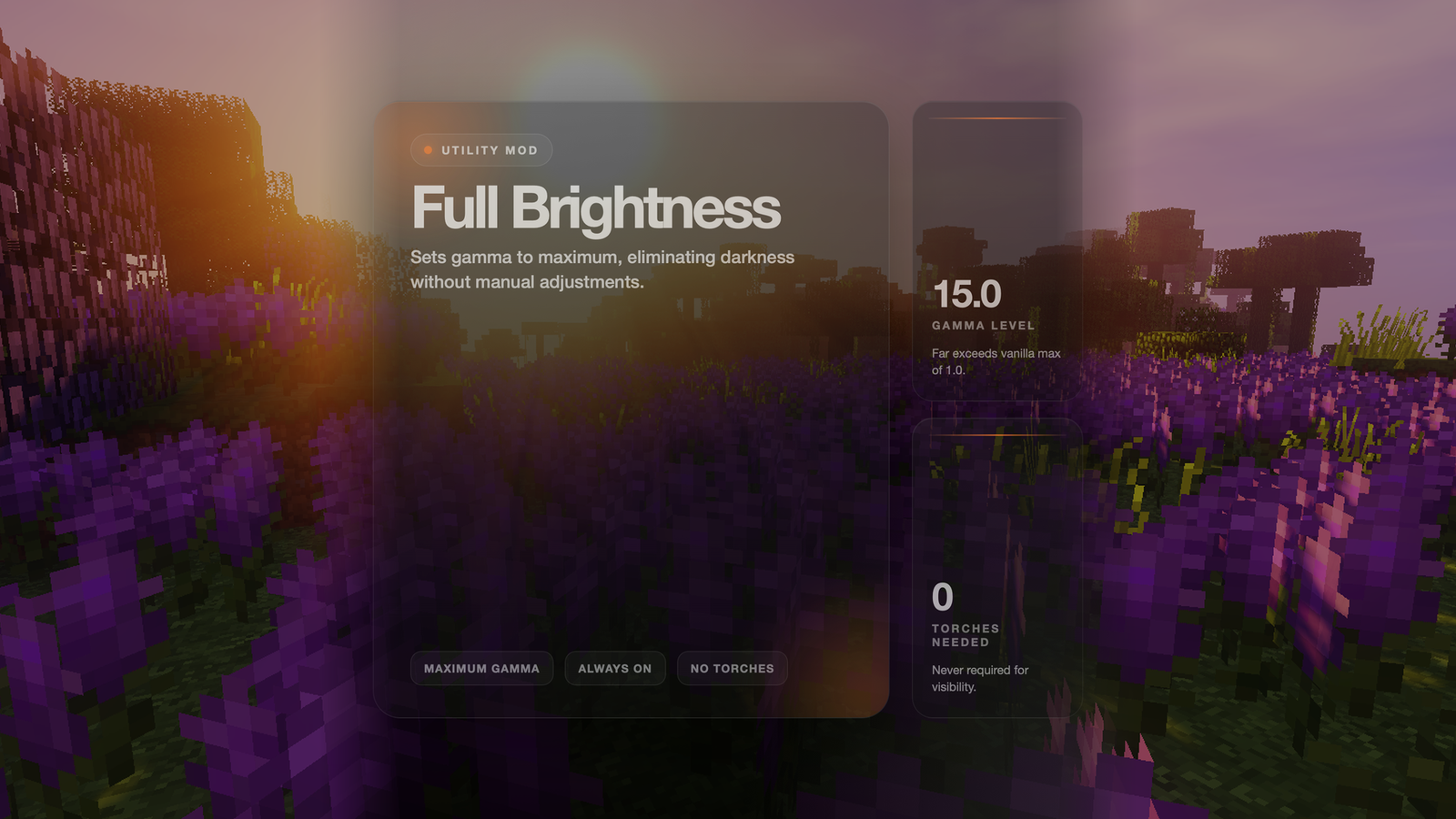
Never struggle to see in dark caves or at night again! This mod sets your game to maximum brightness at all times.
## Features
– ✅ **Maximum Brightness** – Sets gamma to 15.0 (way beyond normal max of 1.0)
– ✅ **Always Active** – No need to adjust brightness settings manually
– ✅ **No Darkness** – See clearly in caves, at night, and underwater
– ✅ **Lightweight** – Minimal performance impact
## How It Works
The mod automatically sets your gamma (brightness) setting to maximum when you load the game. This makes everything visible without needing torches or other light sources.
## Benefits
– **Cave Exploration** – See every block clearly without placing torches everywhere
– **Night Time** – No more waiting for day or sleeping through the night
– **Underwater** – See clearly in ocean depths
– **Building** – Work on projects at any time without lighting concerns
– **PvP** – Spot enemies in dark areas
Working Ferris Wheels
**Abandoned. Contributions are welcome for continuing this project. Ask via Discord if wanted.**
A datapack that adds functional and rideable Ferris Wheels to Minecraft! See the video below for a more detailed demonstration. (See the Gallery for credits.)
– **NOTE:** If you wish to use this on all created/current worlds, use the Mod version. If you only want this pack on certain worlds, then stick with the Datapack version.







