MoonMoonMoon
## About
MoonMoonMoon is a mod that adds a cosmic new material to BTA called Moonsteel. Moonsteel is a magical material which grants tools the ability of fortune and looting, and weight reduction armor. It also adds fallen stars which will drop down from the sky at night and can be used to craft all of the new items and blocks found in MoonMoonMoon.
## Features
– Fortune on Moonsteel tools
– Looting on Moonsteel swords
– Moonsteel tools have the same mining speed as steel, and durability of diamond
– Moonsteel armor has the durabilty of diamond, with protection stats of [65, 45, 100, 45] when wearing the full set
– Each piece of Moonsteel armor reduces your gravity slightly, wear a full set for maxiumum gravity reduction
– Fallen Stars rain on your world at night, pick them up fast before they despawn at day
– Connected stars can be used on a Stellar Rewinder to set the location for the Connected to teleport you to
– Stardust Backpack (if better with backpacks installed) acts like an enderchest, all star dust backpacks share they same inventory linked to each individual player
– Star Zombies, if an Armored Zombie spawns while stars are falling it will spawn as a Star Zombie
– Stardust Torches, even brighter than normal torches with custom particles
– Fallen stars can be used a furnace and blast furnace fuel to smelt 48 items
## Languages
– English – en_US
– Russian – ru_RU
## Installation
### Requires:
– BTA
– Babric (https://github.com/Turnip-Labs/babric-instance-repo/releases)
– HalpLibe (https://modrinth.com/mod/halplibe)
### Recommends:
– BetterWithBackpacks (https://github.com/UselessSolutions/bta-backpacks/releases)
## Credits
MoonMoonMoon is soley developed by Useless and is comissioned by @thesillydot
### Libraries used:
– Turnip Labs – halplibe
### BTA Developers:
– jonkadelic
– maggandgeez
– nebulabc
– bestsoft100
– sunsetsatellite (Martin)
– useless
### Babric (fork of Fabric for Beta Minecraft) Maintainers:
– calmilamsy
– 6pak
### Special thanks:
– Better than Adventure Discord Server (biggest fork of b1.7.3 with many cool features)
– BTA Modding Discord Server (community of modding pioneers of this fork, because it was possible and nobody stopped us)
MineGIT
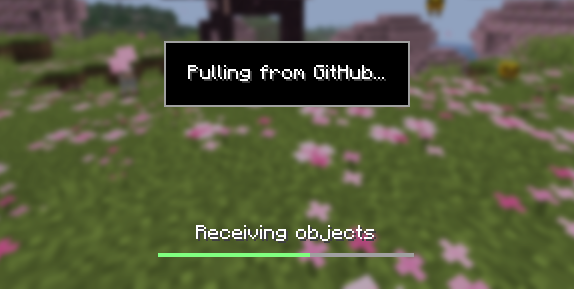
### Cloud sync for Minecraft worlds!
Sync and back up your worlds between multiple devices! Fully integrated into the Minecraft client for a seamless experience when loading, saving, and downloading worlds from the cloud.
## How does it work?
Worlds that you select are uploaded to your GitHub account as repositories. Every time you quit to the title screen, a commit of the current state of your world is created and pushed to the repository on GitHub. Whenever the world is loaded, the mod will check if any new versions of the world are available in the cloud, and if so, they will be downloaded to your device.
Since this mod uses Git internally, it also means that only the files in your world save folder that you modify will be uploaded and downloaded each time, saving storage space and internet bandwidth.
## How do I set it up?
There are several steps to setting up this mod, which include creating a personal access token for GitHub, as well as choosing the worlds you would like to enable MineGIT for.
### Video guide:
### Creating a GitHub personal access token
In order to do the first-time setup, you will need to generate a GitHub personal access token through the following steps:
1. Create an account on GitHub if you do not have one already (https://github.com)
2. Navigate to the [page to create a personal access token](https://github.com/settings/personal-access-tokens)
3. Click `Generate new token`
4. Enter any name (such as MineGIT) under `Token name`
5. Scroll to `Expiration` and set it to `No expiration` (so that you do not have to repeat this process when the token expires)
6. Under `Repository access` choose `All repositories`
7. Under `Permissions`, click `Add permissions` and select `Administration` and `Contents`
8. Set `Access` on the `Administration` and `Contents` lines to `Read and write`
9. Press `Generate token` and copy the generated token to be pasted into Minecraft later (the generated token should start with `github_pat_` and be followed by a long string of letters and numbers)
### Setting up in-game
Once the mod is installed and you are in-game, do the following steps to link your GitHub account with the mod:
1. Click on the cloud button on the bottom left corner of the world creation or world selection screen (If the button does not appear, you have already previously linked your account; see the section below entitled ‘Reconfiguring account linking’)
2. Enter your GitHub username and personal access token (PAT) that you created in the previous step on the new page that appears
3. Press the button labeled `Test credentials` to make sure you’ve entered the information properly
4. You may now exit the screen and proceed to either enable sync for a world or clone an existing one
#### Reconfiguring account linking
If you have already previously set up account linking and would like to change settings afterwards, you have a couple of options to get back to the configuration screen:
– **Configure through ModMenu:** If you have [ModMenu](https://modrinth.com/mod/mod-menu) installed, simply find the mod in the mods list and open the configuration from there
– **From the world clone screen:** There is a button in the top right corner of the world cloning screen that will open the configuration screen
– **From the world selection screen:** By holding alt and clicking on the world sync button on the bottom left of the world selection screen, you will be brought back into the configuration screen
### Enabling sync for a world
World syncing needs to be enabled individually for each world you would like to sync to your GitHub account. To enable sync for a world, do the following:
1. Select a world on the world selection screen
2. Press the cloud button in the bottom left of the screen labeled `Enable world sync`
3. Confirm your decision on the next screen
This process will create a new repository named `minegit_[world folder name]` on your GitHub account, initialize a Git repository in your world save folder, and push its current state to GitHub. From this point forward, loading the world will pull the world’s latest changes from GitHub, and exiting the world will push changes to GitHub.
You can now download this world on another device to effectively sync changes between them through the next step: cloning.
### Downloading a world on a different device (Cloning)
Cloning a world will download the exact state of the world as it was last saved to GitHub. Use the following steps to clone a world:
1. Navigate to [github.com](https://github.com) in a web browser
2. Click on your profile picture in the top right corner and then `Repositories`
3. Find the repository corresponding to the world you would like to clone and copy its name
4. Back in Minecraft, click on the button with an arrow pointing downwards labelled in the bottom left corner of either the world selection screen or world creation screen
5. Paste the name of the repository you copied earlier and press `Clone`
6. You are now able to load the world like normal and have changes be synced across your devices!
### Tips & Tricks
– If you want to exit a world without pushing it to GitHub (for example, if you wanted to restart Minecraft and load the same world without having to wait for changes to be pushed), you can hold `Alt` while clicking `Save and Quit to Title`. This will skip the ‘pushing to GitHub’ step.
– Git keeps a list of all of the worlds changes every time you exit the world. This is useful, since if you have a little knowledge of how to use the Git command line interface you can rollback your world to a previous version!
– If you want to save some storage space taken up by the size of the Git repository on your computer, or make the world quicker to clone on other devices, use the `Prune World Commits` button in the edit world menu. This will delete all of the old versions of your world, leaving only the most recent one.
## Report an issue
If you run into bugs, crashes, or simply have a suggestion on how to improve the mod, please feel free to open an issue on the mod’s [issue tracker](https://github.com/ModMonster/MineGIT/issues)!
Please include the current Minecraft version, Fabric version, mod version, and any relevant game logs when submitting an issue.
Matrix Bridge
👉 *If you need any assistance, please reach out in our [Matrix Room](https://matrix.to/#/#sophie.projects:aenead.net)*
🔥 _Need a version for Forge? Check out [MC Matrix Bridge](https://modrinth.com/mod/mc-matrix-bridge)!_
⚠️ _Bridge versions v1.4 and prior are [incompatible](https://gitlab.aenead.com/luxumshire/matrix-bridge/-/issues/28) with Fabric Language Kotlin (FLK) versions newer than [1.13.3+kotlin.2.1.21](https://modrinth.com/mod/fabric-language-kotlin/version/1.13.3+kotlin.2.1.21), throwing a ‘NoClassDefFoundError’. FLK is not required starting with v1.4.1._
☕ _Bridge versions for ‘Better Than Adventure’ require Java 11 or newer, and will crash on Java 8. Additionally, a dependency override for Fabric Language Kotlin is necessary for bridge versions v1.4 and prior. More information available below._
# Matrix Bridge
Matrix Bridge allows users to bridge a Minecraft server’s chat with a Matrix room. This mod enables Matrix users to talk with Minecraft players, without logging into the Minecraft world.
This bridge will send server start, server stop, player join, player leave, player death and player chat messages. This bridge also includes bridge commands ‘!list’, ‘!ping’ and ‘!invite’, which allows Matrix-side users to retrieve a player list, ping the server and whitelist a player respectively.
This mod uses password-based login, and supports encrypted rooms and session verification. Additionally, a YAML-based configuration file is available, alongside support for various databases including H2 (default), SQLite, MariaDB and PostgreSQL.
This mod will be ported to different game versions as requested. Should you wish to submit feedback, request a new port or otherwise need general assistance, please join our [support room](https://matrix.to/#/#sophie.projects:aenead.net).
Matrix Bridge utilises the [Trixnity](https://trixnity.gitlab.io/trixnity/) Matrix SDK, and depends on the [Fabric Language Kotlin](https://modrinth.com/mod/fabric-language-kotlin) mod.
# Configuration
Spoiler
**config.yaml**
“`
# +—————————————————+
# | |
# | Matrix Bridge Configuration |
# | |
# +—————————————————+
# Please ensure that all values follow the YAML standard.
# Indentation is important! Tabs are not allowed.
# Refer to “https://www.tutorialspoint.com/yaml/” for a detailed explanation.
#
# Improperly set values will default. Integers -> 0, Booleans -> false, Verify Type -> DISABLED, Database Type -> H2.
# Please ensure your values are set properly!
#
# This file is never modified. This file is only written to when it is being generated.
# This file is comment-safe. They will not disappear.
#
# If you need assistance, please join our Matrix room “https://matrix.to/#/#sophie.projects:aenead.net”.
# Thank you! <3
# DO NOT MODIFY. Used to detect when you need to update config.
version: 2
# Reveals Trixnity log messages. Useful for debugging.
verbose: false
# +---------------------------------------------------+
# | |
# | Account |
# | |
# +---------------------------------------------------+
# Settings used to sign in to the bot account.
account:
# Synapse URL. Supports delegation.
homeserver: "https://matrix.example.org"
# Account login username. Localpart of user's MXID.
username: "user"
# Account login password. Does not support tokens or SSO.
password: "pass"
# Bridge session device name.
device_name: "Matrix-Minecraft Bridge"
# Internal ID of room to send messages to.
room: "!sdfDsdfsA:matrix.example.org"
# +---------------------------------------------------+
# | |
# | Verification |
# | |
# +---------------------------------------------------+
# Settings used to enable session verification and encryption.
verification:
# Either KEY, PASSPHRASE or DISABLED. All other values will be rejected.
type: "KEY"
# Token (either a key or passphrase) to verify bridge session.
token: "AaAA aaAa AAaa..."
# +---------------------------------------------------+
# | |
# | Database |
# | |
# +---------------------------------------------------+
# Settings used for database configuration.
database:
# Either H2, SQLITE, MARIADB or POSTGRESQL. All other values will be rejected. Default is H2.
type: "H2"
# Name of database. If type is H2 or SQLITE, represents file name. Otherwise, represents database to connect to.
name: "database"
# Host and port to connect to database.
hostname: "localhost:3306"
# Database login username. Only used with MARIADB and POSTGRESQL.
username: "user"
# Database login password. Only used with MARIADB and POSTGRESQL.
password: "pass"
# +---------------------------------------------------+
# | |
# | Commands |
# | |
# +---------------------------------------------------+
# Settings for bridge commands.
commands:
# '!list' command. Lists online players. Supported placeholders: %players%
list:
format: "📜 Online players: %players%"
enabled: true
# '!ping' command. Bridge prints message to ensure connection.
ping:
format: "🏓 Pong!"
enabled: true
# '!invite' command. Whitelists a player. Supported placeholders: %player%
invite:
format:
success: "🔵 '%player%' has been whitelisted!"
error: "🔵 '%player%' could not be found. Usage: !invite ”
already: “🔵 ‘%player%’ is already whitelisted!”
enabled: false
# Message sent to Matrix when a performed command is invalid. Supported placeholders: %commands%
invalid_command: “⛔ Command not found! Available commands: %commands%”
# Message sent to Matrix when a performed command is disabled.
disabled_command: “⛔ Command disabled! Please contact an administrator.”
# +—————————————————+
# | |
# | Messages |
# | |
# +—————————————————+
# Message formats! Some messages use placeholders. Available placeholders are stated in the comments.
# Available placeholders: %player%, %message%, %commands%
messages:
# Message sent when the server starts.
start:
format: “❇ Server started”
enabled: true
# Message sent when the server stops.
stop:
format: “🛑 Server stopped”
enabled: true
# Chat message format as viewed in Minecraft. Supported placeholders: %player%
chat_matrix_to_minecraft:
format: “[§e%player%§r] ”
enabled: true
# Chat message format as viewed on Matrix. Supported placeholders: %player%
chat_minecraft_to_matrix:
format: “<%player%> ”
enabled: true
# Message sent to Matrix when a player joins the server. Supported placeholders: %player%
player_join:
format: “🔹 %player% joined the game”
enabled: true
# Message sent to Matrix when a player quits the server. Supported placeholders: %player%
player_quit:
format: “🔹 %player% left the game”
enabled: true
# Message sent to Matrix when a player dies. Supported placeholders: %message%
player_death:
format: “🪦 %message%”
enabled: true
# Message sent to Matrix when a player makes an advancement. Supported placeholders: %player%, %advancement%
player_advancement:
format: “🎉 %player% has made the advancement ‘%advancement%’!”
enabled: true
“`
# Better Than Adventure
Please ensure that you are using Java 11 or newer, as this mod will crash on Java 8.
As of 2025-08-06, a dependency override for Fabric Language Kotlin (FLK) is necessary. FLK requires Fabric Loader 0.16.9+, which is unavailable for BTA Babric. Such a new version of FLK is required to support the most recent Matrix features (such as room v12).
Please place the following file in your server’s config directory.
Spoiler
**fabric_loader_dependencies.json**
“`
{
“version”: 1,
“overrides”: {
“fabric-language-kotlin”: {
“-depends”: {
“fabricloader”: “IGNORED”
}
}
}
}
“`
Lighty
Instead of rendering crosses or numbers on the top face of blocks, Lighty takes a different approach – It renders a transparent carpet-like block on top! Or, new in version 1.1.0 – Renders the actual light level numbers, but Lighty Style!
Make sure to check out [the Gallery](https://modrinth.com/mod/lighty/gallery) for some pictures!
## Configuration
– To activate the overlay, press `F7` and choose the desired mode. This key is configurable in the key binds menu.
– As of version 1.2.0, you can quickly toggle the light overlay on or off using `F8`! This key is configurable in the key binds menu.
– As of version 1.3.0, you can change the “red”/”orange” threshold in the new config menu (accessible using `F7`). Useful for those that want to light their places up aesthetically, or maybe you are playing with some mods that change the mobs spawning rules.
## Meaning of colors:
– Green: No mobs can spawn here!
– Orange: If the sun goes down, Mobs will spawn! Be careful!
– Red: Mobs can spawn here!
If you have some ideas for this mod, feel free to open [a new Codeberg Issue](https://codeberg.org/SchmarrnDevs/Lighty/issues)!
If you like this mod, consider following the project to get notified about new updates!
This mod was inspired by [LightLevel](https://github.com/Parzivail-Modding-Team/LightLevel).
LegacyVoiceChat
# LegacyVoiceChat
**LegacyVoiceChat** adds proximity voice chat to legacy — including **Ornithe**, **StationAPI**, **Better than Adventure!**, **Project Poseidon**, **Risugami Modloader** and **More!**.
## ⚠️ WARNING
> **LegacyVoiceChat is currently a WIP mod.**
> Expect bugs, UI changes, and protocol changes at any time.
## Features
### Proximity Voice Chat
– 3D positional audio
– Directional sound based on player orientation
– Dynamic volume fading with distance
### Audio Device Management
– Choose custom **input** and **output** devices
– **Push-to-Talk** or **Voice Activation** modes
– Adjustable mic sensitivity
### Groups / Parties
– Create or join voice groups
– Talk privately with teammates (ignores distance)
### Mute & Deafen
– Mute specific players or yourself
– Deafen to silence all incoming voice
Looking for the raw jar file for MultiMc or Prism Launcher? [Click Here](https://legacyvoicechat.com/)
### Server Notes
Make sure to port forward “`25566 UDP“` or change the port in the server config
Infdev+ Paintings Port BTA
This mod is only for BTA! fabric. It is not compatible with Legacy+ or b1.7.3.
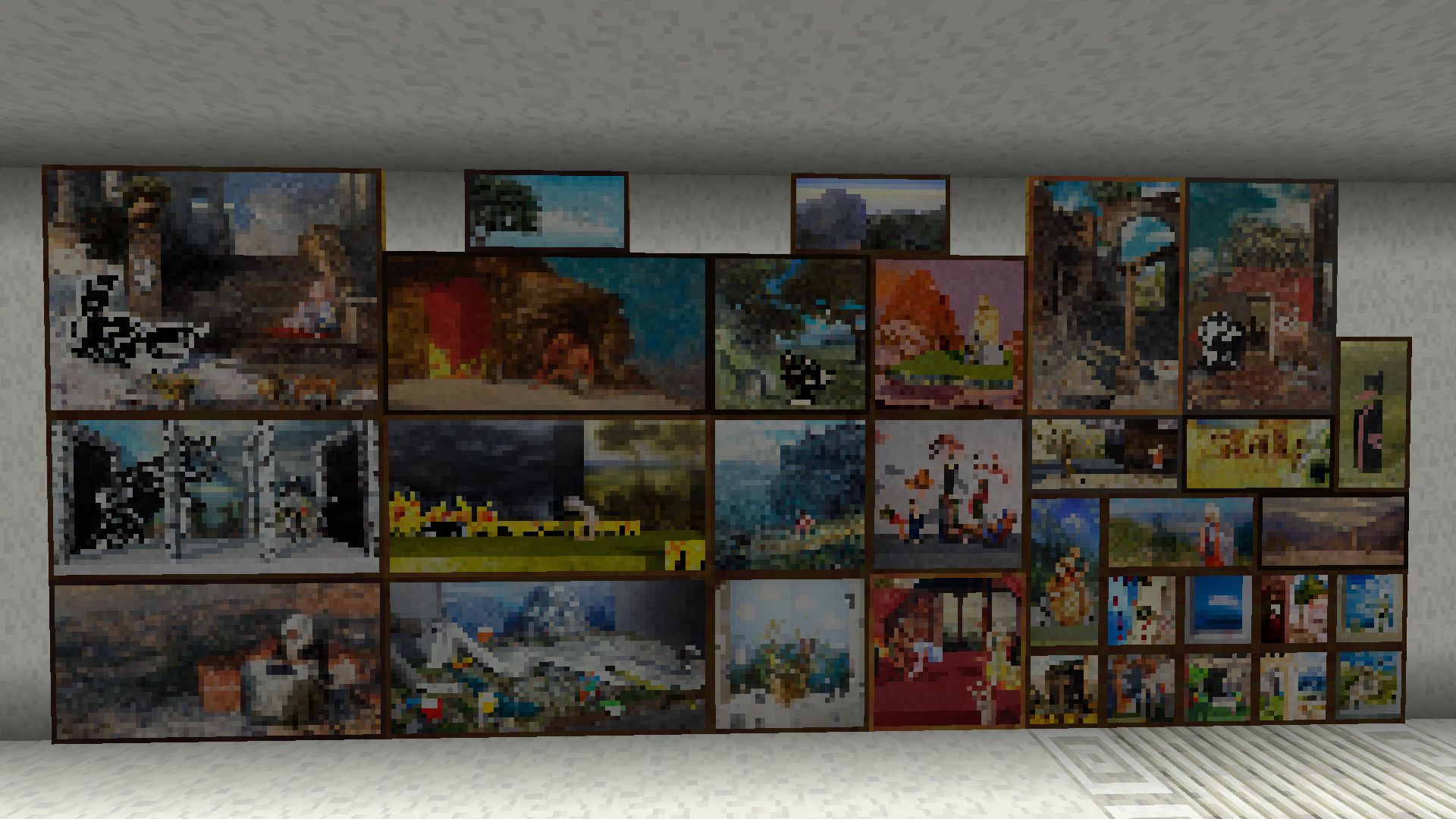
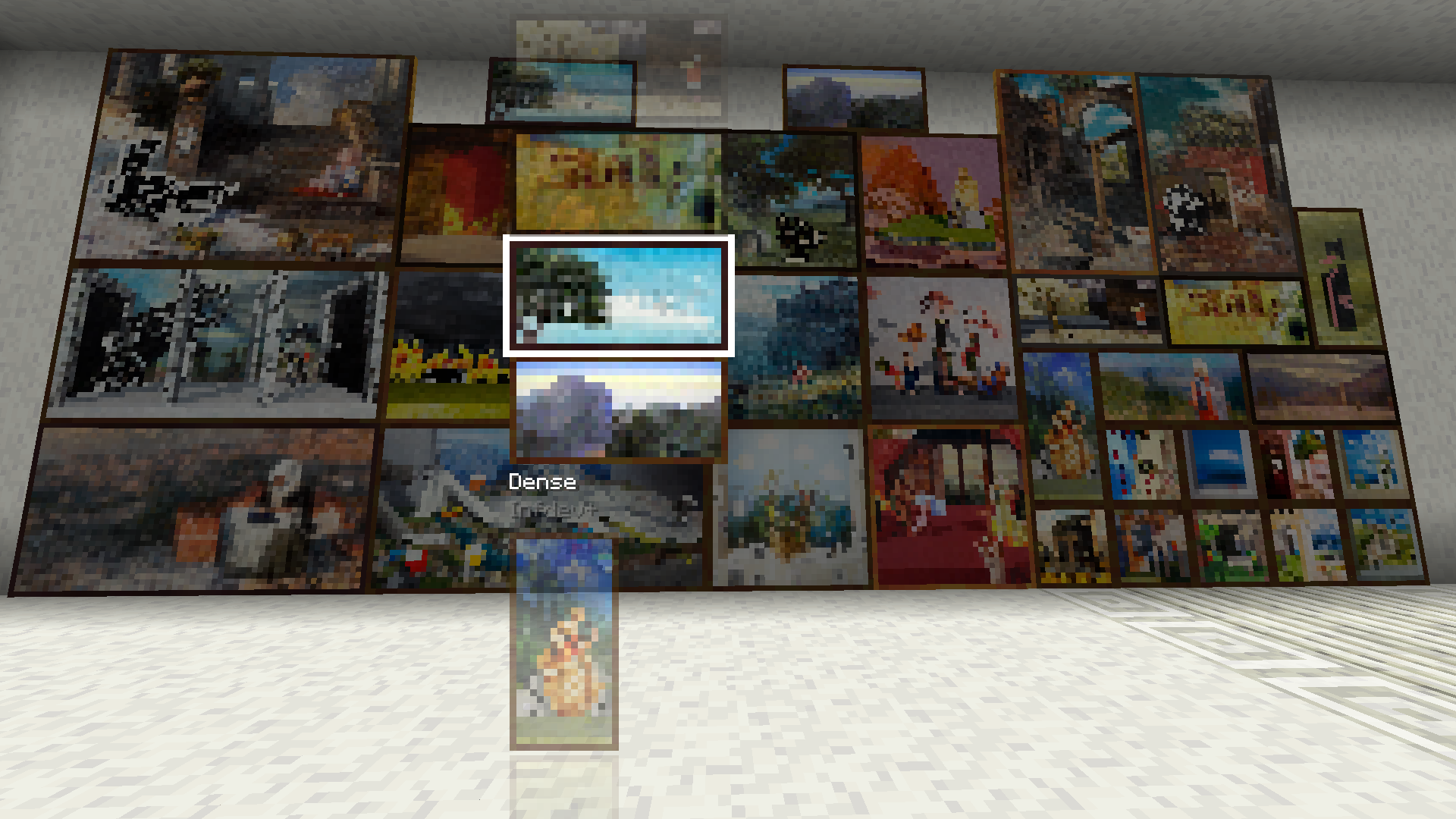
Adds paintings from Infdev+ to BTA!
Paintings can be accessed just like normal through the in game menu.
Names and assets are taken directly from Infdev+
HalpLibe
# HalpLibe
A library for the “[Better Than Adventure!](https://www.minecraftforum.net/forums/mapping-and-modding-java-edition/minecraft-mods/3106066-better-than-adventure-for-beta-1-7-3-timely)” fork-mod, using Babric loader.
HalpLibe provides a wide range of functions for common use cases such as adding blocks, items, entities, particles, recipes, sounds, commands, etc. in a way that ensures compatibility between mods.
Requires a specific [MultiMC/Prism Launcher](https://github.com/Turnip-Labs/babric-instance-repo) instance to run.
More development info can be found at [the mod’s repo](https://github.com/Turnip-Labs/bta-halplibe).
# Credits
– azurelmao
– pkstDev
– ICantTellYou
– youngsditch
– Sunsetsatellite
– Useless
Flowered Leaves
Flowered Leaves is a Better Than Adventure! mod that allows you to interact with a leaves block while holding a flower to attach it to the block.
Flowered leaves can be interacted with an empty hand or broken to return the flower.
Edible Moss BTA
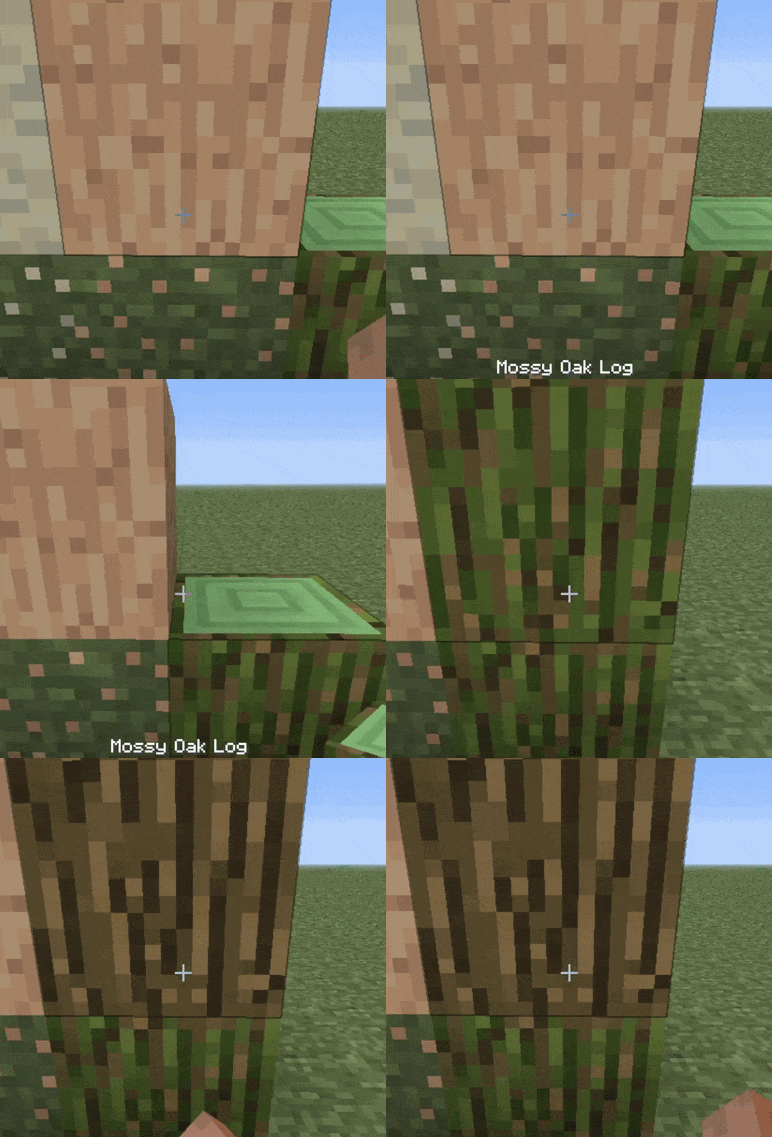
☻ Simply right click the moss while holding no item.
☻ Works serverside, but recommended on client.
☻ Eating the moss provides no positives or negatives, other than the satisfaction of a job well done.
DropConfirm
# DropConfirm
### Think twice before you drop.
—
## What *is* DropConfirm, exactly?
DropConfirm is a **configurable quality-of-life mod** that adds a confirmation dialog when dropping items. I made it
because I was tired of accidentally dropping my items to other players or into lava/voids.
I use this mod personally, and I wanted to share it with others because I’ve noticed that a lot of my friends have had
this exact problem (and I assume others have too).
## Compatibility
DropConfirm actively supports **all major versions from 1.14.4 onward**, with the help of Stonecutter and Modstitch.
## Configuration
– **Enable:**
– Whether or not to enable DropConfirm.
– **Play Sounds:**
– Whether or not to play sounds when doing various actions related to DropConfirm, e.g.:
– Enabling/Disabling
– Dropping items
– **Reset Delay:**
– Amount of time (in seconds) before the confirmation status is reset.
– **Blacklist**
– Allows for disabling the confirmation prompt on certain items.
– Can also be used like a whitelist instead.
– **Confirmation Mode**
– The mode to be used for displaying the confirmation prompt.
– Options: Actionbar (default), chat, popup.