Mod Remapping API
# Mod Remapping API
Remaps non-Fabric mods made for a different environment (by default obfuscated) to the current runtime mappings.
Provides hooks to expand the remapping process from other mods.
This mod doesn’t depend on a specific Minecraft version and should work on any version that Fabric Loader can launch.
### Mods depending on this API:
– [Fabricated Legacy Forge](https://modrinth.com/mod/fabricated-forge)
– [Apron](https://modrinth.com/mod/Apron)
– [Fabricated-Rift](https://modrinth.com/mod/fabricated-rift)
## Credits
### Most of the original code of the mod remapper
– paulevsGitch’s mod BetaLoader
Mod Loading Screen
# Mod Loading Screen
An advanced loading screen with the loading progress of mods. It works on all Minecraft versions, as it doesn’t even require Minecraft. Its only requirement is Fabric Loader 0.12.0 or later or Quilt Loader (specific versions of Quilt support are unknown). Do note that if you run this mod on a game other than Minecraft, the loading screen may not close itself.
## Agent
Mod Loading Screen provides a Java agent, which allows opening the loading screen before even the mod loader itself loads. This feature is primarily targeted at modpack developers who want to make a seamless loading experience. The agent can be used by passing `-javaagent:mod-loading-screen-1.0.4.jar` as a JVM argument. If the agent is used, the loading screen should *not* be installed as a mod.
## API
To depend on the API, use the Modrinth Maven. The API should be JiJed, and doing so will not include Mod Loading Screen inside your mod (it will only include the API, which is only a few kilobytes). The API is designed to have both forwards and backwards binary compatibility with future Mod Loading Screen versions. An API is provided for checking which API calls will return stubs and which ones are real.
“`gradle
repositories {
exclusiveContent {
forRepository {
maven {
name = “Modrinth”
url = “https://api.modrinth.com/maven”
}
}
filter {
includeGroup(“maven.modrinth”)
}
}
}
dependencies {
// implementation, not modImplementation!
include(implementation(“maven.modrinth:mod-loading-screen:1.0.4:api”))
}
“`
The API has two top-level classes: `LoadingScreenApi` and `AvailableFeatures`. Full javadocs are available for both classes.
MineGIT
### Cloud sync for Minecraft worlds!
Sync and back up your worlds between multiple devices! Fully integrated into the Minecraft client for a seamless experience when loading, saving, and downloading worlds from the cloud.
## How does it work?
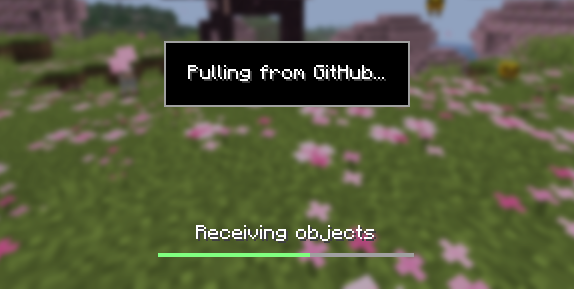
Worlds that you select are uploaded to your GitHub account as repositories. Every time you quit to the title screen, a commit of the current state of your world is created and pushed to the repository on GitHub. Whenever the world is loaded, the mod will check if any new versions of the world are available in the cloud, and if so, they will be downloaded to your device.
Since this mod uses Git internally, it also means that only the files in your world save folder that you modify will be uploaded and downloaded each time, saving storage space and internet bandwidth.
## How do I set it up?
There are several steps to setting up this mod, which include creating a personal access token for GitHub, as well as choosing the worlds you would like to enable MineGIT for.
### Video guide:
### Creating a GitHub personal access token
In order to do the first-time setup, you will need to generate a GitHub personal access token through the following steps:
1. Create an account on GitHub if you do not have one already (https://github.com)
2. Navigate to the [page to create a personal access token](https://github.com/settings/personal-access-tokens)
3. Click `Generate new token`
4. Enter any name (such as MineGIT) under `Token name`
5. Scroll to `Expiration` and set it to `No expiration` (so that you do not have to repeat this process when the token expires)
6. Under `Repository access` choose `All repositories`
7. Under `Permissions`, click `Add permissions` and select `Administration` and `Contents`
8. Set `Access` on the `Administration` and `Contents` lines to `Read and write`
9. Press `Generate token` and copy the generated token to be pasted into Minecraft later (the generated token should start with `github_pat_` and be followed by a long string of letters and numbers)
### Setting up in-game
Once the mod is installed and you are in-game, do the following steps to link your GitHub account with the mod:
1. Click on the cloud button on the bottom left corner of the world creation or world selection screen (If the button does not appear, you have already previously linked your account; see the section below entitled ‘Reconfiguring account linking’)
2. Enter your GitHub username and personal access token (PAT) that you created in the previous step on the new page that appears
3. Press the button labeled `Test credentials` to make sure you’ve entered the information properly
4. You may now exit the screen and proceed to either enable sync for a world or clone an existing one
#### Reconfiguring account linking
If you have already previously set up account linking and would like to change settings afterwards, you have a couple of options to get back to the configuration screen:
– **Configure through ModMenu:** If you have [ModMenu](https://modrinth.com/mod/mod-menu) installed, simply find the mod in the mods list and open the configuration from there
– **From the world clone screen:** There is a button in the top right corner of the world cloning screen that will open the configuration screen
– **From the world selection screen:** By holding alt and clicking on the world sync button on the bottom left of the world selection screen, you will be brought back into the configuration screen
### Enabling sync for a world
World syncing needs to be enabled individually for each world you would like to sync to your GitHub account. To enable sync for a world, do the following:
1. Select a world on the world selection screen
2. Press the cloud button in the bottom left of the screen labeled `Enable world sync`
3. Confirm your decision on the next screen
This process will create a new repository named `minegit_[world folder name]` on your GitHub account, initialize a Git repository in your world save folder, and push its current state to GitHub. From this point forward, loading the world will pull the world’s latest changes from GitHub, and exiting the world will push changes to GitHub.
You can now download this world on another device to effectively sync changes between them through the next step: cloning.
### Downloading a world on a different device (Cloning)
Cloning a world will download the exact state of the world as it was last saved to GitHub. Use the following steps to clone a world:
1. Navigate to [github.com](https://github.com) in a web browser
2. Click on your profile picture in the top right corner and then `Repositories`
3. Find the repository corresponding to the world you would like to clone and copy its name
4. Back in Minecraft, click on the button with an arrow pointing downwards labelled in the bottom left corner of either the world selection screen or world creation screen
5. Paste the name of the repository you copied earlier and press `Clone`
6. You are now able to load the world like normal and have changes be synced across your devices!
### Tips & Tricks
– If you want to exit a world without pushing it to GitHub (for example, if you wanted to restart Minecraft and load the same world without having to wait for changes to be pushed), you can hold `Alt` while clicking `Save and Quit to Title`. This will skip the ‘pushing to GitHub’ step.
– Git keeps a list of all of the worlds changes every time you exit the world. This is useful, since if you have a little knowledge of how to use the Git command line interface you can rollback your world to a previous version!
– If you want to save some storage space taken up by the size of the Git repository on your computer, or make the world quicker to clone on other devices, use the `Prune World Commits` button in the edit world menu. This will delete all of the old versions of your world, leaving only the most recent one.
## Report an issue
If you run into bugs, crashes, or simply have a suggestion on how to improve the mod, please feel free to open an issue on the mod’s [issue tracker](https://github.com/ModMonster/MineGIT/issues)!
Please include the current Minecraft version, Fabric version, mod version, and any relevant game logs when submitting an issue.
LegacyVoiceChat
# LegacyVoiceChat
**LegacyVoiceChat** adds proximity voice chat to legacy — including **Ornithe**, **StationAPI**, **Better than Adventure!**, **Project Poseidon**, **Risugami Modloader** and **More!**.
## ⚠️ WARNING
> **LegacyVoiceChat is currently a WIP mod.**
> Expect bugs, UI changes, and protocol changes at any time.
## Features
### Proximity Voice Chat
– 3D positional audio
– Directional sound based on player orientation
– Dynamic volume fading with distance
### Audio Device Management
– Choose custom **input** and **output** devices
– **Push-to-Talk** or **Voice Activation** modes
– Adjustable mic sensitivity
### Groups / Parties
– Create or join voice groups
– Talk privately with teammates (ignores distance)
### Mute & Deafen
– Mute specific players or yourself
– Deafen to silence all incoming voice
Looking for the raw jar file for MultiMc or Prism Launcher? [Click Here](https://legacyvoicechat.com/)
### Server Notes
Make sure to port forward “`25566 UDP“` or change the port in the server config
Jappaified
Jappaified backports new Jappa-styled textures to every single version of Minecraft before 1.14 except for snapshots and April Fools updates, and I mean it. EVERY. SINGLE. VERSION. (There’s also a Classicube version)
This pack aims to port the modern textures as accurately as possible. This includes having correct ore textures, new cloud textures, and new changes when new updates drop if possible.

## Installation (pre a1.2.2)
### Prism Launcher / MultiMC
In the instance menu (click “Edit Instance” to get there), go to the Version section and click “Add to Minecraft.jar”. Once your file explorer of choice opens up, find the version you downloaded and select it. After that, it should be installed and you can launch the game with it.

I’d also recommend using [LegacyFix](https://github.com/betacraftuk/legacyfix) to get those old versions running idealy.
### Optifine and MCPatcher for old versions
Optifine and MCPatcher can be used to get the water and lava working properly in versions between a1.1.2_01 and r1.4.7. You can get the version you want [here](https://github.com/backporteverything/Backport-Everything/tree/main/Supplementary%20Files) and then you can add them by doing the same thing you do when using pre a1.2.2 versions of this pack to add MCPatcher.
## Version Numbering Scheme
game1(-game2).bigpatch.smallpatch.bugfix
game1 is the earliest Minecraft version a version of this pack supports
game2 is the latest Minecraft version a version of this pack supports
bigpatch is if I add or change something to every single version of the pack. Whenever this happens, I will make a downloadable .zip file with every version of the pack (it saves me a LOT of time)
smallpatch is if I want to add or change something in certain versions of the pack
bugfix is if I need to fix something in certain versions of the pack
The current version of a pack right now would be game1(-game2)(-OP).2.X.X
## Also Check Out
[Tunes: Backport](https://modrinth.com/resourcepack/tunes-backport): A pack that adds new songs to r1.6 and later. It works great alongside this pack.
[MC New Textures: Sound Pack](https://modrinth.com/resourcepack/mcnt-sound): A pack that backports the new sounds to r1.7 and later. It’s meant to go with MC New Textures, but it should work with this pack too.
[Modernity: Climate Mapped Water](https://modrinth.com/resourcepack/modernity): There are water climate resource packs that truly add the new water colors to r1.6 to r1.12.2. Though, you’ll have to copy the stuff from this to my pack if you are using r1.6 specifically.
[Modernity Adjunct](https://modrinth.com/resourcepack/modernity-adjunct): A pack that added Jappa-like textures to old mods on old versions. It’s meant to go with Modernity, a pack similar to this one, but I think mine should work as well if you want to give it a shot.
[Backport Everything](https://modrinth.com/resourcepack/backport-everything): A pack with a very similar goal as this one, that was made around the same time by pure coincidence! If there are changes in this pack you like more, use it instead of my pack. Also, this pack works with the StationAPI port of The Aether mod on b1.7.3 if you like that and Jappa textures.
Invisible Armor for Old Minecraft
Invisible armor for old Minecraft! Just drop into your texture pack folder and enjoy!
Icon Bubbles
**This resource pack changes your hearts and hunger bar icons to be circles.**
### Features:
– Round hearts
– Round hunger bar
– Changes all types of hearts (poison, freezing, hardcore…)
– Compatible with the [AppleSkin mod](https://modrinth.com/mod/appleskin)
**♡ Make sure to follow!**
Happier Pumpkin
# **😊Happier Pumpkin🎃**
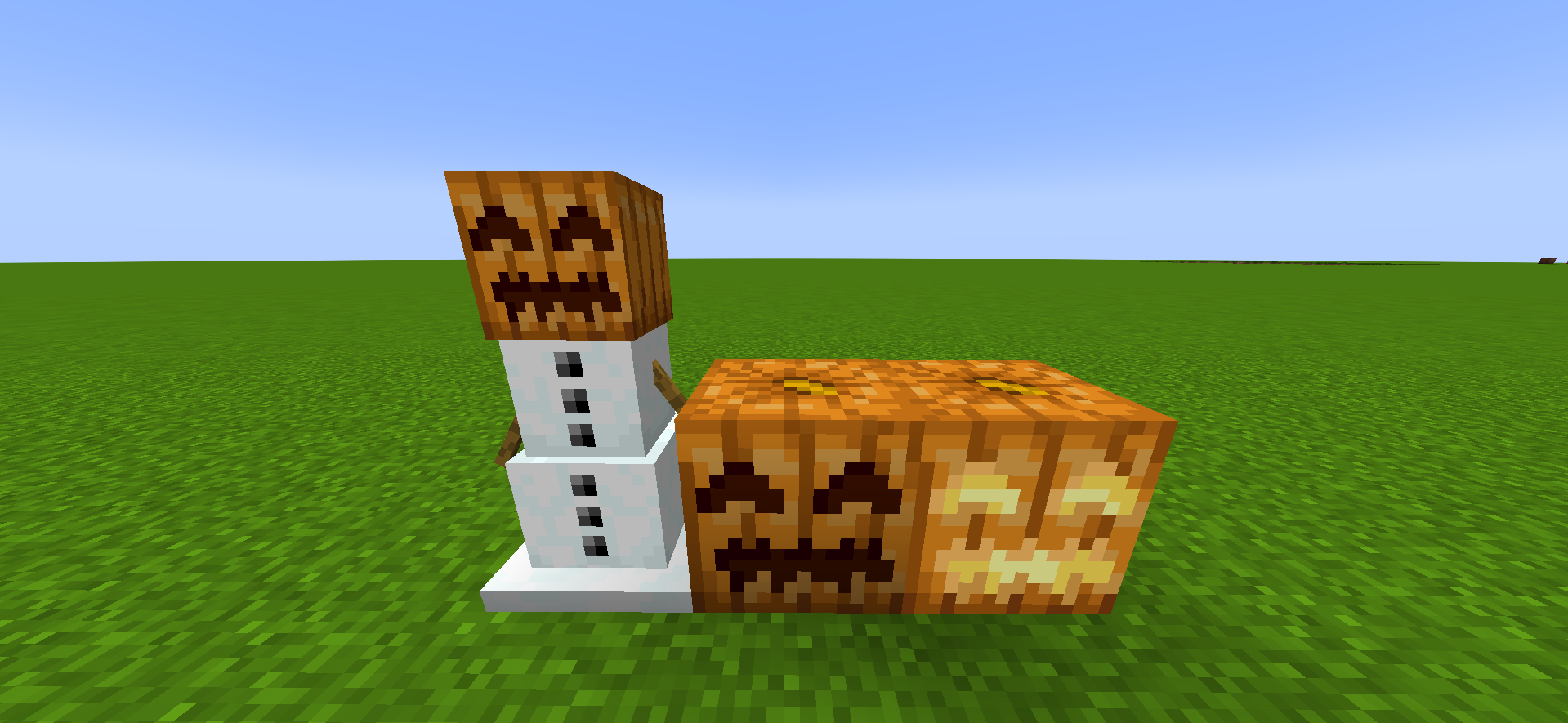
**Happier Pumpkin** makes pumpkins happier the **HAPPIEST** in the **PUMPKING KINGDOM**
Gerudoku Faithful

**About**:
————
This pack is a faithful continuation of the Gerudoku texture pack (by Tom Bones/Ganonline),
which was a mix of textures from Doku’s RPG, Dustycraft, and various texture artists (Credits included in zip file),
over 13 years ago I was inspired by other continuations and remixes of Gerudoku to try my hand at updating it,
I’ve tried to keep as many of the original textures as possible and maintain the style with anything new added over the years.
**Tyken132** (creator of Tydoku) contacted many of the old texture artists to collaborate on Gerudoku Genesis,
it is through this collaboration that Gerudoku Faithful is now maintained.
**Links and Other Information**
——————————
I recommend **Optifine** for full functionality of the pack.
For Fabric I’d recommend the **Fabulously Optimized** modpack for ease of use, or https://lambdaurora.dev/optifine_alternatives/ for a list of Optifine alternatives
**Optifine**
– https://www.optifine.net/downloads
**Fabulously Optimized**
– https://modrinth.com/modpack/fabulously-optimized
– https://www.curseforge.com/minecraft/modpacks/fabulously-optimized
——————————
Permission to use textures were mostly given on a case by case basis or as a blanket rule by the individual texture artists,
an example of one such blanket rule can be found on https://www.johnsmithlegacy.co.uk
and another example can be found on Tom Bones Minecraft Forum Account Bio
https://www.minecraftforum.net/members/tombones
Unfortunately finding everyone who ever contributed to the pack is nearly impossible now, as throughout the years, many have left the Minecraft community behind.
I cannot give anyone permission to use anything I did not make.
——————————
– [Gerudoku Genesis](https://www.curseforge.com/minecraft/texture-packs/gerudoku-genesis)
– [Original Gerudoku](http://www.minecraftforum.net/topic/72914-32x-14-gerudoku-31-mar-2011-outdated-see-pg100/|)
– [Gerudoku Faithful on CurseForge](https://www.curseforge.com/minecraft/texture-packs/gerudoku-faithful)
– [Gerudoku Faithful on Minecraft forums](https://www.minecraftforum.net/forums/mapping-and-modding-java-edition/resource-packs/3069369-gerudoku-faithful)
– [Doku’s RPG](https://modrinth.com/resourcepack/dokus-rpg)
Alternate Textures & add-on files
——————————
Fresh Animations Add-On
– [Gerudoku Faithful Fresh Animations Add-On](https://modrinth.com/resourcepack/gerudoku-faithful-fresh-animations-add-on)
Alternate Textures & additional add-on files available on Github:
– [Gerudoku Faithful Github](https://github.com/ShadySalesGnome/Gerudoku-Faithful)
Credits
——————————
Tom Bones/Ganonline, Richasackboy, Clyde, John Smith, Teknician, Jademalo, SMP, Vattic,
Lil_Jening, Tyken132, Emkay443, Doku, Dustyshuori, Kas, Monsieurd, Hozz, Eldrone, Visigoth, Lilyo, Shadounnet, Agentfyre, Shiny, Cng, Vilkalizer, Ganstriker, Skizot, Danscottbrown, Runesmith, Andrewdance, Coagulated, Slayvus, Dante80, Ayun, Riverc, Kingphantom, Eric The Racoon, Fish2, Azaindustries, Dancrum, Ducci, Dvan, Andenno, Rapidninja42, Krayloon, Jzus, Overwhelmed,
GameslayerX2, TDWP_FTW, Xthlon, DooDooRoonys, Equivalant, DrZhark,
EnderSlayer317, TC_Concept, zombieassasin417, MikeZilla, TBP, Ikezou, Hellmage20, Gregory24, Steve Riddett,
Bloody_Toast, PapaBleeks, Paul_Mc,
Font Tweak
Changes the look of 7, 4, w, W, and H. My first resource pack. This resource pack was made for me to test how Minecraft handles custom fonts. Feel free to use this mod without any copyright or license issues.