MineCore
# ⛏️MineCore
MineCore is a resource pack designed for players who want to maximize their mining efficiency while maintaining a clean, competitive style. Whether you’re into UHC, hardcore survival, or speedrunning, this pack gives you the visual advantage you’ve been looking for.
## 🎯 Pack Objective
– Optimize **ore visibility** in all conditions
– Improve the **readability of underground textures**
– Provide a **smooth, clear, and efficient** mining experience
## 💎 Key Features
– **Enhanced and contrasted** ore textures
– **Simplified** stone and cave blocks for better detection
– Minimalist HUD for **better focus**
– **Slightly modified** mining sounds for more responsiveness
## ⚙️ Compatibility
– Works with **1.8+ up to 1.20+**
– Compatible with **Optifine**, **Lunar**, **Badlion**, and other PvP clients
– No mods required, **plug-and-play**
## 🧠 Who is it for? – **Tryhard** players in UHC, Bedwars, Skywars, or survival
– Speedrunners who want to **spot veins quickly**
– Builders looking for a **clean and readable** base
## 📦 Bonus
– Lightweight version for **small builds**
– Pack regularly **updated**
– Available in **FR & EN**
## 🚀 Why MineCore?
Because mining is more than just a click. It’s a strategy, a race against time, a quest for precision. **MineCore** gives you the visual tools to dominate the depths.
🔗 Download it, gear up, and dig like never before.
**MineCore** – Mining, tryhard version.
MineGIT
### Cloud sync for Minecraft worlds!
Sync and back up your worlds between multiple devices! Fully integrated into the Minecraft client for a seamless experience when loading, saving, and downloading worlds from the cloud.
## How does it work?
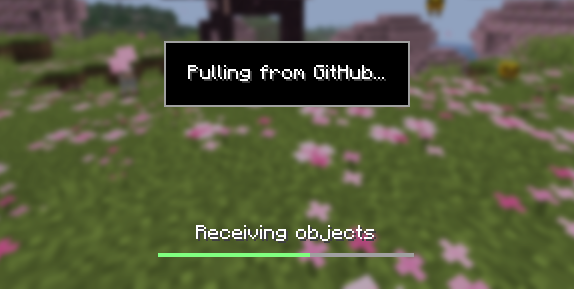
Worlds that you select are uploaded to your GitHub account as repositories. Every time you quit to the title screen, a commit of the current state of your world is created and pushed to the repository on GitHub. Whenever the world is loaded, the mod will check if any new versions of the world are available in the cloud, and if so, they will be downloaded to your device.
Since this mod uses Git internally, it also means that only the files in your world save folder that you modify will be uploaded and downloaded each time, saving storage space and internet bandwidth.
## How do I set it up?
There are several steps to setting up this mod, which include creating a personal access token for GitHub, as well as choosing the worlds you would like to enable MineGIT for.
### Video guide:
### Creating a GitHub personal access token
In order to do the first-time setup, you will need to generate a GitHub personal access token through the following steps:
1. Create an account on GitHub if you do not have one already (https://github.com)
2. Navigate to the page to create a personal access token
3. Click `Generate new token`
4. Enter any name (such as MineGIT) under `Token name`
5. Scroll to `Expiration` and set it to `No expiration` (so that you do not have to repeat this process when the token expires)
6. Under `Repository access` choose `All repositories`
7. Under `Permissions`, click `Add permissions` and select `Administration` and `Contents`
8. Set `Access` on the `Administration` and `Contents` lines to `Read and write`
9. Press `Generate token` and copy the generated token to be pasted into Minecraft later (the generated token should start with `github_pat_` and be followed by a long string of letters and numbers)
### Setting up in-game
Once the mod is installed and you are in-game, do the following steps to link your GitHub account with the mod:
1. Click on the cloud button on the bottom left corner of the world creation or world selection screen (If the button does not appear, you have already previously linked your account; see the section below entitled ‘Reconfiguring account linking’)
2. Enter your GitHub username and personal access token (PAT) that you created in the previous step on the new page that appears
3. Press the button labeled `Test credentials` to make sure you’ve entered the information properly
4. You may now exit the screen and proceed to either enable sync for a world or clone an existing one
#### Reconfiguring account linking
If you have already previously set up account linking and would like to change settings afterwards, you have a couple of options to get back to the configuration screen:
– **Configure through ModMenu:** If you have ModMenu installed, simply find the mod in the mods list and open the configuration from there
– **From the world clone screen:** There is a button in the top right corner of the world cloning screen that will open the configuration screen
– **From the world selection screen:** By holding alt and clicking on the world sync button on the bottom left of the world selection screen, you will be brought back into the configuration screen
### Enabling sync for a world
World syncing needs to be enabled individually for each world you would like to sync to your GitHub account. To enable sync for a world, do the following:
1. Select a world on the world selection screen
2. Press the cloud button in the bottom left of the screen labeled `Enable world sync`
3. Confirm your decision on the next screen
This process will create a new repository named `minegit_[world folder name]` on your GitHub account, initialize a Git repository in your world save folder, and push its current state to GitHub. From this point forward, loading the world will pull the world’s latest changes from GitHub, and exiting the world will push changes to GitHub.
You can now download this world on another device to effectively sync changes between them through the next step: cloning.
### Downloading a world on a different device (Cloning)
Cloning a world will download the exact state of the world as it was last saved to GitHub. Use the following steps to clone a world:
1. Navigate to github.com in a web browser
2. Click on your profile picture in the top right corner and then `Repositories`
3. Find the repository corresponding to the world you would like to clone and copy its name
4. Back in Minecraft, click on the button with an arrow pointing downwards labelled in the bottom left corner of either the world selection screen or world creation screen
5. Paste the name of the repository you copied earlier and press `Clone`
6. You are now able to load the world like normal and have changes be synced across your devices!
### Tips & Tricks
– If you want to exit a world without pushing it to GitHub (for example, if you wanted to restart Minecraft and load the same world without having to wait for changes to be pushed), you can hold `Alt` while clicking `Save and Quit to Title`. This will skip the ‘pushing to GitHub’ step.
– Git keeps a list of all of the worlds changes every time you exit the world. This is useful, since if you have a little knowledge of how to use the Git command line interface you can rollback your world to a previous version!
– If you want to save some storage space taken up by the size of the Git repository on your computer, or make the world quicker to clone on other devices, use the `Prune World Commits` button in the edit world menu. This will delete all of the old versions of your world, leaving only the most recent one.
## Report an issue
If you run into bugs, crashes, or simply have a suggestion on how to improve the mod, please feel free to open an issue on the mod’s issue tracker!
Please include the current Minecraft version, Fabric version, mod version, and any relevant game logs when submitting an issue.
Minecraft Movie Iron Golem
This is a simple resourcepack that changes the look of the Iron Golem with the Iron Golem from the Minecraft Movie Event from Bedrock(Includes cracked golem visuals).
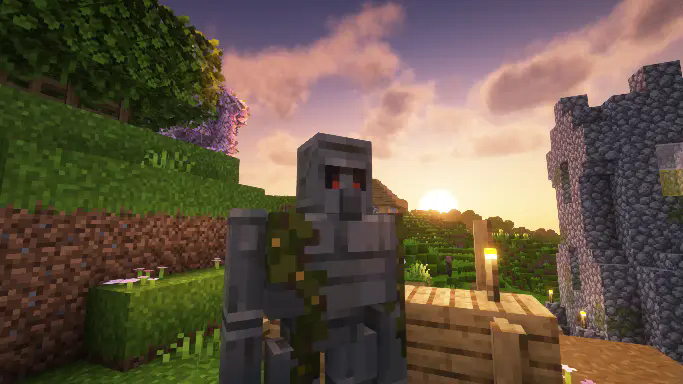
This resourcepack doesn’t change anything else in the game, and it does not change sounds for the Iron golem, just visual changes.
if you use Fresh Animations, i have also made compatible version of this same resourcepack here.
Mindful SMP Resources
# Mindful SMP Resource Pack
This resource pack is to be used with Mindful Optimized
MI-PBR
A minimal PBR resource pack for the Modern Industrialization mod. Requires a shader supporting “Lab” or “Old/seus” PBR.
This project is still an early work-in-progress so not all blocks are complete.
Methane
 
Note: **Methane is no longer being developed. The ‘new’ mod’s codebase and features became far too large after a few weeks, which combined with other commitments + minecraft’s frequent updates, really isn’t something I can keep developing.**
In the unlikely case that the mod is later finished, it will not replace Methane.
For now, report any non-bug related issues here
## What is this?
**Methane** is a highly configurable optimization mod focused on **destructively** gaining lots of performance, with optimizations on the following:
– Disabling a lot of the functionality of the lightmapper, which **improves performance on the CPU drastically.**
– Allowing the user to adjust fog behavior, which allows you to see all your chunks, without them being occluded by fog. (optional)
– Optimizing how all particles behave in-game, causing them to be **way less intensive on your computer when ticking.** (2.3+ only)
**Note:** Methane (by default) will apply a “fullbright” effect on the client as a symptom of not calculating block lighting. You can disable this in Mod Menu, but this will limit the potential performance gains and restrict you to particle (always on) and destructive (optional) optimizations. **Methane also removes toasts by default,** but you can turn this behaviour off.
– As a side effect of some optimizations, world saving acts differently to vanilla MC, but shouldn’t be noticable (aside from less save jitter), and will still save properly for the ***vast* majority of crashes and rage ALT+F4’s**. If this scares you, please use the legacy lighting engine.
If you want mob spawning to behave properly, turn on the legacy lighting engine.
## Benefits
– **increased framerate, with significantly less noticable stutter.** 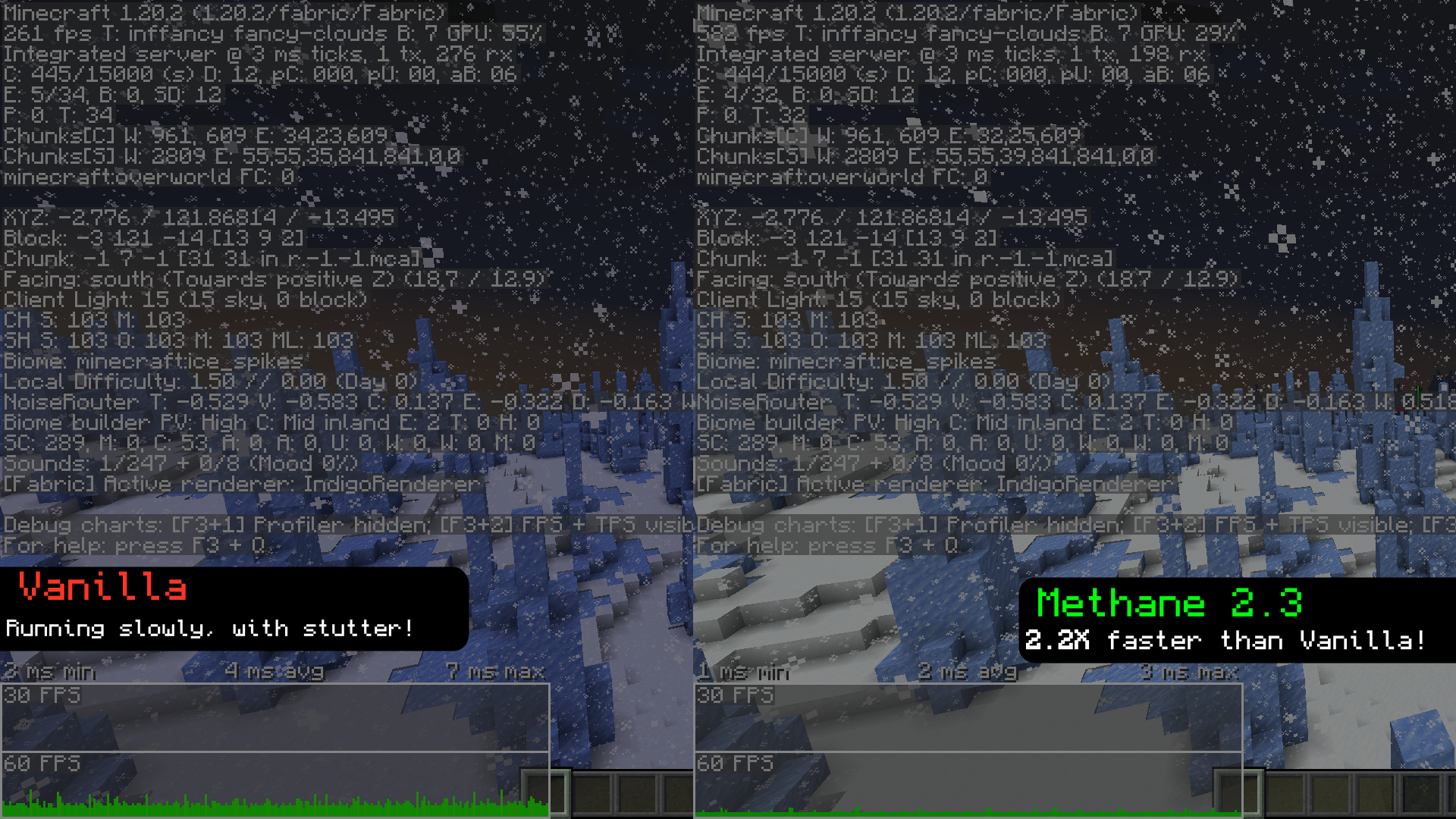
_*recorded with Methane 2.3, with everything set to `Fancy`, and with render + sim distance set to `12`._
– The same effect as fullbright, but with actual performance gains.
– Methane can help your game run faster on Distant Horizons (toggle twice), but usually leaves random dark patches in LoD’s.
## Compared to fullbright
while fullbright (also known as “brightness” and “gamma”) makes the world look fully lit, it still performs all those lighting calculations. Methane instead skips those, resulting in the same end product but with much better performance.
## Configuration
– Methane has a variety of options available to customize a lot of the aspects of the mod, mainly its startup and fog behavior. 1.19.3 and up should also have the ability to toggle the mod with “ (will be unbound by default on 2.15+), but has some issues when re-enabling.
– **Server admins** are now able to control the settings of Methane clients from version 2.2 onward, and you can get it here.
– Starting from **2.3 onwards:** There are now a handful of settings called “Destructive Settings”, that allow you to gain a lot of performance by removing certain renderer features (e.g. HUD backgrounds, sky renderers, etc). This can help in GPU-constrained scenarios.
## Can i use this with starlight?
Starlight should work on 1.19.x (obviously it only does things when Methane is OFF), and Methane will crash on 1.20+ with starlight (although most of Starlight’s functionality has been merged into 1.20).
## Compatibility
– Methane has had quite a bit of time to mature, and compatibility has improved greatly since the first release. Most mods should work just fine with methane. If not, make an issue!
Methane should be playable on forge via Sinytra Connector, but past that there probably wont be much in the way of forge support.
## Getting early builds
Most of the time, a perfectly stable update will be pushed to the repository, but the mod wont be uploaded, usually because I’m planning on adding other things. If you really want to grab one early, you can do it here
## Dependencies
– Fabric API
– Mod Menu
– Cloth Config
### modpacks
feel free to put Methane in your modpack, but please link back to Methane’s Modrinth and/or GitHub repo.
### Translations
Methane has a small amount of (likely very outdated) translations. If you want to help translate the mod, feel free to make a PR.



Mellstroy (Я уже красный) Totem of Undying
**EN**: This resource pack replaces the original **Totem of Undying** with the Meme from Mellstroy **I’m already red, it won’t work out culturally** with sound. This meme has become very popular on TikTok over the past couple of years.
**RU**: Этот ресурспак заменяет оригинальный **Тотем бессмертия** на Мем от Меллстроя **Я уже красный, культурно не получится** со звуком, данный мем за последние пару лет стал очень популярным в Тик Ток
– Омайгадность Тотем
– Тотем Меллстрой
– ПОЛНАЯ КОЛЛЕКЦИЯ РЕСУРСПАКОВ – МЕМЫ + СТРИМЕРЫ

Medium Biomes
# Medium biomes
Medium Biomes is a Minecraft datapack that adjusts world generation by introducing a biome scale between default and large biomes.
This creates a more balanced terrain layout, where biomes are neither too small and fragmented nor excessively large and repetitive.
The result is a smoother exploration experience with improved biome transitions and more coherent world generation.
## Features
– Adds a biome scale between default and large biome generation
– Creates more cohesive and naturally distributed biomes
– Improves exploration by reducing excessive biome fragmentation
– Only affects newly generated chunks
## Installation
– Download the datapack
– Move the datapack inside “.minecraft/saves//datapacks“ (How to find .minecraft?)
– Reload the world or run “/reload“
## Support the Project
If you enjoy this datapack and find it useful, please consider giving the repository a star and following me on GitHub.
This helps the project gain visibility and motivates further development and maintenance.
## Contributing
Contributions are welcome! Please read CONTRIBUTING.md for commit conventions and guidelines.
MCSM enchantment glint
**Enchantment glint in Minecraft story mode looks different than the one in minecraft**, so i decided to **make a texture pack** that **looks similar** to the one seen in Minecraft story mode, it **isnt the same** but its good enough. this texture pack **will be updated in the future** because it **isnt perfect**
Minecraft Earth Mud
**This pack still works** _at least_ up to Minecraft 1.21.8 (likely higher).
You can ignore the warning that the pack was made for an older version. I will update the metadata soon to reflect that it still works.
—
Who wants grey Mud in Minecraft when you can have the brown Mud from Minecraft Earth?
RIP Minecraft Earth 🙁
This pack implements the Mud textures from Minecraft Earth, including having different textures for the top/bottom versus the sides. The textures are also animated just as they were in Minecraft Earth. The mud inside of Muddy Mangrove Roots is also affected.
No need to unzip the file or do anything really, just drop it right in the `resourcepacks` folder, and you’re good to go.
Have fun,
-kk iris
Also available for Bedrock Edition!
The provided textures are edited versions of textures from Minecraft & Minecraft Earth. The rights to the original textures belong to the games’ developers.