zOverlay
# A clean Overlay designed to increase overall visibility.
## Features
**Item Models**
– Small Food
– Small Totem
– Small Shield
**Block Textures**
– Low Fire
– Clear Water
**Environment Textures**
– Clean Sun/Moon
– Clear Snow/Rain
**Misc Textures**
– White Enchanting Glint
– No Nauseablur
– No Pumpkinblur
– No Vignette
**Particles Textures**
– No Enchanted Hit Particle
– No Sweep Hit Particle
– No Explosion Particle
– No Damage Particle
****
Join my [**Discord**](https://discord.gg/4GKytn9RRb) for Updates and Feedback!
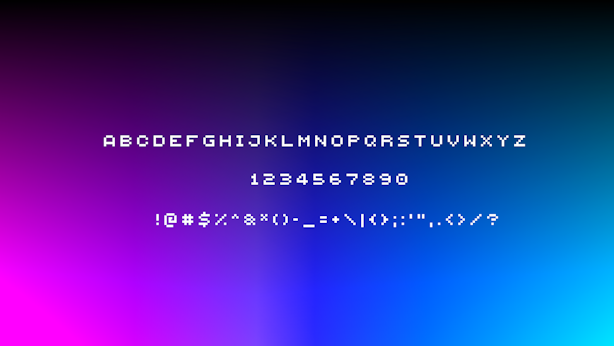
Small Caps Font
This simple texture pack replaces Minecraft’s default font with the Minecraft Five font, giving your game a clean, modern look. The Minecraft Five font is widely used across many modded servers and community projects, making your in-game text feel familiar and polished while keeping the overall vanilla style intact.
This pack is also inspired by [qrafty’s capitalized font](https://modrinth.com/resourcepack/qraftys-capitalized-font)
Fancy Hearts
**Fancy Hearts** is a texture pack that replaces the default hearts with cleaner, more detailed versions that look a lot fancier without ruining the original style. Along with the hearts, the pack also updates parts of the HUD and even tweaks the jumping bar you see when you’re riding a horse or any other mount. It’s a small visual change overall, but it makes everything feel cleaner and more polished while still fitting right into the game.

> _Zoro_
zOres
# Emissive Ores in the style of Programmer Art.
Requires [**Continuity**](https://modrinth.com/mod/continuity) or [**OptiFine**](https://optifine.net/home) to function properly.
## Ores
**Non-Emissive**
– Coal
**Emissive**
– Copper
– Diamond
– Emerald
– Gold
– Iron
– Lapis
– Redstone
– Nether Gold
– Nether Quartz
****
Join my [**Discord**](https://discord.gg/4GKytn9RRb) for Updates and Feedback!
ZoomX Smooth
# ZoomX Smooth – Smooth Zoom for Minecraft
**ZoomX Smooth** is an enhanced version of ZoomX, designed for players who want a more cinematic and customizable zoom experience. It keeps everything lightweight and performance-friendly, while adding adjustable smoothness and zoom speed controls.
Built for **Fabric**, and fully compatible with **vanilla**, **Sodium**, and other performance mods, ZoomX Smooth gives you complete control over how your zoom feels.
—
## What Makes ZoomX Smooth Different?
Unlike the standard ZoomX, this version allows you to customize:
– **Zoom Smoothness (ms)**
– **Zoom Speed (multiplier)**
You can fine-tune the zoom transition exactly how you like it. whether you want instant zoom or a slow, cinematic camera effect.
—
## Adjustable Settings
By using keybinds (default B), you can configure:
### Smoothness (ms)
Control how smoothly the zoom transitions in and out.
– Lower values = faster transition
– Higher values = slower, more cinematic effect
### Zoom Speed (x)
Adjust how fast the zoom effect is.
– Lower multiplier = slower zoom
– Higher multiplier = faster zoom
All settings are easy to modify using simple sliders inside the menu.
—
## Features
– 🔍 Smooth adjustable zoom
– 🎚 Customizable transition timing
– 🎯 Adjustable zoom strength
– ⚡ Lightweight & optimized
– 🧩 Built for Fabric
– 🟩 Fully compatible with Sodium
– 🎮 Clean and simple UI
– 🚀 No FPS drops
ZoomX
# ZoomX – A Simple & Lightweight Zoom Mod
**ZoomX** is a simple, lightweight, and performance-friendly zoom mod for **Minecraft Fabric**. It adds a zoom feature to the game without changing the vanilla feel. The mod works perfectly with **vanilla Minecraft**, **Sodium**, and other popular Fabric optimization mods.
If you are looking for a clean zoom experience without heavy features or FPS drops, ZoomX is the perfect choice.
### Want Smooth Zoom? Try ZoomX Smooth 👇
[](https://modrinth.com/mod/zoomx-smooth)
—
## What is ZoomX?
ZoomX allows players to zoom in and out while playing Minecraft. It is designed to be minimal and efficient, focusing only on zoom functionality. There are no unnecessary settings or complex menus—just install and use.
—
## Features
### ⚡ Lightweight & High Performance
ZoomX is extremely lightweight and has minimal impact on FPS, even on low-end systems.
### 🧩 Fabric Based
Built specifically for the Fabric mod loader, ensuring fast load times and modern mod compatibility. (Will add more compatible loaders in future)
### 🟩 Vanilla & Sodium Compatible
– Works with vanilla-style gameplay
– Fully compatible with Sodium
– Safe to use with other Fabric performance mods
### 🎮 Easy to Use
No complicated configuration. Install the mod and start zooming instantly.
—
Got issues? Join [Discord](https://discord.com/invite/spunky-insaan-851780887271571456)
Zoomi
Enhance your exploration and observation capabilities in Minecraft with the Zoomi Mod! This handy modification introduces a simple yet powerful zoom feature that allows you to get a closer look at distant objects and landscapes without compromising your gameplay experience.
## Features
**Easy Zoom Controls:** Activate the zoom feature effortlessly with a configurable keybind. Zoom in and out seamlessly to adjust your view as needed. (Default Keybind ‘C’)
**Scroll Zoom:** Fine-tune your zoom level with ease using your mouse scroll wheel. This feature provides more control and flexibility over your viewing experience.
## Compatibility
**Minecraft:** Works smoothly for Minecraft 1.21 and Fabric API.
**Mod Loader:** Fabric
## Requirements
**Fabric API:** Ensure you have the Fabric API installed for the Zoomi Mod to function properly.
**owo Lib**
Have fun!
Zoomglass
A Fabric mod that quickly puts a spyglass into your hand with a press of a button.
Made for people who prefer roleplaying aspects of a spyglass but don’t want to miss out on convenience!
Additionally, you can use a fake spyglass while in Spectator gamemode, or in Creative when you don’t have
it in your inventory.
The default keybind is `z`, and you can find it under the “Inventory” section in keybinding settings.
Requires Fabric API
Zones
# Zones
This plugin allows server administrators and players to create and manage protected regions within their Minecraft
world. It provides a flexible system for defining areas, setting permissions, and controlling interactions within those
areas.
## Features
* **Region Creation:** Create regions using in-game selection or manual coordinates.
* **Sub-Regions:** Create sub-regions within existing regions for more granular control.
* **Permission Management:** Set detailed permissions for players within regions, controlling actions like breaking,
placing, interacting, and more.
* **Member Management:** Add and remove members from regions with specific permissions.
* **Region Overlap Control:** Configure whether regions can overlap.
* **Bypass Permissions:** Allow specific players to bypass region restrictions.
* **Configuration:** Customize messages and region settings through configuration files.
* **Beacon Visualization:** Visualize selected regions using temporary beacons.
## Commands
The plugin provides the following commands:
* `/zone create`: Creates a new region using the currently selected locations.
* Usage: `/zone create`
* Requires two locations to be selected using left and right click, starts selection if not present.
* Prevents creation if the new region would overlap an existing region, unless the `zones.create.overlap`
permission is set.
* `/zone subcreate`: Creates a new sub-region within an existing region using the currently selected
locations.
* Usage: `/zone subcreate [regionKey]`
* `regionKey` is optional, if not provided, the region at the player’s location will be used.
* Requires two locations to be selected using left and right click, starts selection if not present.
* Player needs to be considered an admin in the region, or have the `zones.subcreate.other` permission
* `/zone delete`: Deletes an existing region.
* Usage: `/zone delete `
* Requires the `regionKey` of the region to be deleted.
* Player needs to be the owner of the region, or have the `zones.delete.other` permission
* `/zone expand`: Expands an existing region by a specified amount.
* Usage: `/zone expand [overlap]`
* Player needs to be an admin of the region, or have the `zones.expand.other` permission
* If `overlap` is set to `true` and the player has the `zones.expand.overlap` permission,
* the region will be expanded even if it overlaps with other regions.
* `/zone info`: Displays information about a region.
* Usage: `/zone info [regionKey]`
* If `regionKey` is not provided, the region at the player’s location will be used.
* To show region members, the player needs to be an admin of the region, or have the `zones.info.other` permission
* `/zone list`: Lists all regions the player is a member of.
* Usage: `/zone list`
* Only shows regions the player is a member of, unless the player has the `zones.list.other` permission
* `/zone cancel`: Cancels the current region selection.
* Usage: `/zone cancel`
* `/zone set`: Sets a permission for a member of a region.
* Usage: `/zone set `
* `` is the key of the region.
* `` who to set the permission for.
* e.g., `Player1` – to create or modify a group, use `+group-GROUPNAME`, where GROUPNAME can be any name.
* `` is the permission to set (e.g., `role`, `break`, `place`, `interact`).
* `` is the value to set for the permission (
* e.g., `owner`, `true`, `false`, `*`, `!*`, `GRASS_BLOCK`, `!GRASS_BLOCK`).
* `/zone rename`: Renames a region.
* Usage: `/zone rename `
* `` is the key of the region, `` is the new name of the region.
* Player needs to be an admin of the region, or have the `zones.rename.other` permission
* `/zone select`: Selects a region.
* Usage: `/zone select [regionKey]`
* If `regionKey` is not provided, the region at the player’s location will be used.
* Visually highlights the region in the world using particles.
* Player needs to be a member of the region, or have the `zones.select.other` permission
* `/zone mode`: Changes the selection mode.
* Usage: `/zone mode `
* `` is the new mode to set the player to.
* e.g., `3d` for 3D selection mode, `2d` for 2D selection mode.
* `/zone save`: Manually saves all regions to file.
* Usage: `/zone save`
* Admin only, requires the `zones.save` permission (not given by default)
* `/zone load`: Manually loads all regions from file.
* Usage: `/zone load`
* Admin only, requires the `zones.load` permission (not given by default)
* `/zone import`: Imports regions from another plugin.
* Usage: `/zone import `
* Currently only supports WorldGuard.
* Admin only, requires the `zones.import` permission (not given by default)
## Usage
### Creating a Region
1. Use the `/zone create` command to start the creation process.
2. Use left-click on a block to set the first corner of the region. A green beacon will appear.
3. Use right-click on a block to set the second corner of the region. A red beacon will appear.
4. Use the `/zone create` command to create the region.
### Creating a Sub-Region
1. Use the `/zone subcreate` command to start the creation process.
2. Select the two corners of the sub-region as described above.
3. Use the `/zone subcreate` command to create the sub-region within the region you are standing in or
use `/zone subcreate ` to create a sub-region within the specified region.
### Setting Permissions
1. Use the `/zone set ` command to set permissions for a member of a region.
* Example: `/zone set Player1 break true` allows “Player1” to break blocks in the specified region.
* Example: `/zone set Player2 break GRASS_BLOCK` allows “Player2” to break only `GRASS_BLOCK` blocks
in the specified region.
* Example: `/zone set Player3 interact !OAK_DOOR` denies “Player3” to interact with `OAK_DOOR`in
the specified region.
* Example: `/zone set Player4 place *` allows “Player4” to place all blocks in the specified region.
* Example: `/zone set Player5 break !*` denies “Player5” to break all blocks in the specified region.
* Groups:
* To assign a group, set the value of the permission `group` to the group name.
* e.g.: Create a group and assign permission: `/zone set +group-some-group-name break true`
* e.g. `/zone set ExamplePlayer group some-group-name`
* ExamplePlayer now inherits the permission `break` from the group `some-group-name`
### Viewing Region Information
1. Use the `/zone info` command to view information about the region you are standing in.
2. Use the `/zone info ` command to view information about a specific region.
## Integrations
### WorldGuard
Zones supports importing WorldGuard regions via the `/zone import WorldGuard` command. To use this feature,
you must have WorldGuard installed and enabled. Zones will automatically import all Cuboid regions, including
their members.
### WorldEdit
WorldEdit can only be used to modify blocks in a region if the executing player would be allowed to manually
modify the region.
### PlaceholderAPI
Zones provides multiple placeholders for use with the PlaceholderAPI plugin, displaying region information for the
region the player is standing in. It currently supports the following placeholders:
* `%zones_get_name%`
* `%zones_get_key%`
* `%zones_get_members%`
* `%zones_get_owner%`
* `%zones_get_min%`
* `%zones_get_min_x%`
* `%zones_get_min_y%`
* `%zones_get_min_z%`
* `%zones_get_max%`
* `%zones_get_max_x%`
* `%zones_get_max_y%`
* `%zones_get_max_z%`
* `%zones_is_member%`
* `%zones_can_place_hand%`
* `%zones_can_break_target%`
* `%zones_can__%`
## Design Choices
* **YAML Configuration:** The plugin uses YAML files for configuration and storage, making it easy to read and modify.
Additional storage options are planned for future releases.
* **Permission System:** The permission system is designed to be flexible and granular, allowing for fine-grained
control over player interactions.
* **Event-Driven:** The plugin uses Bukkit’s event system to handle player interactions, making it efficient and
responsive.
* **Caching:** The plugin uses a caching system to improve performance when checking permissions.
## Contributing
Contributions to the plugin are welcome! If you have any ideas for new features, bug fixes, or improvements, please feel
free to submit a pull request or open an issue.
## License
This plugin is distributed under the MIT License.
ZoneRental
# ZoneRental – Complete WorldGuard Region Rental System
**A comprehensive Minecraft plugin for managing rental regions with clickable signs, multi-world support, and complete lifecycle automation.**



## What is ZoneRental?
ZoneRental is a feature-rich rental management plugin that allows players to rent WorldGuard regions through clickable signs. The plugin handles the complete rental lifecycle including automatic expiration, block restoration, item storage, and economy integration.
Perfect for servers with player shops, market stalls, or any rentable spaces where you need automatic management and restoration.
## Why Download This?
– **Zero Manual Management** – Everything is automated from rental to expiration
– **WorldEdit Restoration** – Regions automatically restore to original state
– **Item Safety** – All items from containers are saved and retrievable
– **Multi-World Support** – Works across overworld, nether, end, and custom worlds
– **Flexible Configuration** – Per-region pricing, durations, and settings
– **Economy Integration** – Full Vault support with any economy plugin
– **Member System** – Allow friends to access your rented regions
– **Extension System** – Players can extend rentals with configurable limits
– **Complete Refund Tracking** – Full transaction history for all refunds
– **EzChestShop Integration** – Automatic shop removal on expiration
## Essential Information Before Downloading
### Requirements
**Required Dependencies:**
– Vault (economy API)
– WorldGuard 7.0.14+ (region management)
– WorldEdit 7.3.16+ (block restoration)
– Any economy plugin (EssentialsX, CMI, etc.)
**Optional Dependencies:**
– LuckPerms (advanced permissions)
– EzChestShop (automatic shop removal)
### Compatibility
– **Server Software:** Paper, Spigot, or any Paper-based fork
– **Minecraft Version:** 1.21+
– **Java Version:** Java 21 required (OpenJDK recommended)
### Installation Steps
1. Install required dependencies (Vault, WorldGuard, WorldEdit, Economy plugin)
2. Download ZoneRental JAR file
3. Place in `plugins/` folder
4. Restart server (configuration files will be auto-generated)
5. Configure `config.yml` to your preferences
6. Create WorldGuard regions: `/rg define `
7. Place signs and create rental signs: `/zrcreatesign `
## Core Features
### Rental Management
– **Clickable Signs** – Right-click to rent, shift-click to extend
– **Multi-World Support** – Same region names work independently across worlds
– **Automatic Expiration** – Regions automatically expire and restore
– **Extension System** – Players can extend rentals up to configured limits
– **Member Management** – Add/remove members to share rented regions
– **Teleportation** – Players can teleport to their rented regions
### Economy & Pricing
– **Vault Integration** – Works with any economy plugin
– **Per-Region Pricing** – Set custom prices for specific regions
– **Extension Pricing** – Configurable extension costs
– **Permission-Based Discounts** – VIP pricing through permissions
– **Full Refund System** – Admin resets provide 100% refunds
– **Extension Refunds** – Optional refunds when duration is reset
### Block Restoration
– **WorldEdit Integration** – Captures and restores block states
– **Entity Restoration** – Optionally restore entities (mobs, armor stands)
– **Biome Restoration** – Optionally restore biome data
– **Auto-Cleanup** – Configurable automatic schematic deletion
– **World-Aware** – Restoration happens in the correct world
### Item Storage
– **Container Scanning** – Automatically saves items from all containers
– **Player Retrieval** – `/zrretrieve` command to get stored items
– **Notification System** – Players notified when items are stored
– **Auto-Cleanup** – Items removed after retrieval
### Admin Tools
– **Command-Based Config** – All per-region settings via `/zroverride` commands
– **Region Groups** – Group regions for mass configuration changes
– **Duration Management** – Add, remove, set, or reset rental time
– **Auto-Verification** – Startup verification of region configurations
– **Refund History** – Complete transaction tracking per rental
– **Sign Protection** – Signs and support blocks are protected from breaking
### Integration Features
– **EzChestShop** – Automatic chest shop removal on expiration
– **WorldGuard** – Automatic member management
– **LuckPerms** – Full permission system integration
– **Notification System** – Configurable expiration warnings
## User Commands
– `/zr help` – Show help menu
– `/zrinfo ` – View rental information
– `/zrlist [player]` – List active rentals
– `/zrextend ` – Extend a rental
– `/zrretrieve` – Get stored items from expired rentals
– `/zrmember add/remove ` – Manage members
– `/zrmembers ` – List members of rented region
– `/zrtp ` – Teleport to rented region
## Admin Commands
– `/zrcreatesign ` – Create rental sign
– `/zrreload` – Reload configuration
– `/zrreset ` – Reset rental with full refund
– `/zrduration [time]` – Modify duration
– `/zroverride ` – Per-region settings
– `/zrgroup ` – Manage region groups
– `/zrremove ` – Remove rental setup completely
– `/zrrefundhistory ` – View refund transaction history
– `/zrverify` – Verify region configurations
## Permissions
**User Permissions (default: true):**
– `ZoneRental.rent` – Rent regions
– `ZoneRental.extend` – Extend rentals
– `ZoneRental.retrieve` – Retrieve stored items
– `ZoneRental.info` – View rental info
– `ZoneRental.list` – List your rentals
– `ZoneRental.member` – Manage members
– `ZoneRental.members` – View members
– `ZoneRental.tp` – Teleport to rentals
**Admin Permissions (default: op):**
– `ZoneRental.admin.*` – All admin permissions
– `ZoneRental.admin.reload` – Reload plugin
– `ZoneRental.admin.createsign` – Create rental signs
– `ZoneRental.admin.reset` – Reset rentals
– `ZoneRental.admin.duration` – Modify durations
– `ZoneRental.admin.override` – Per-region settings
– `ZoneRental.admin.remove` – Remove rental setup
– `ZoneRental.admin.refundhistory` – View refund history
– `ZoneRental.admin.verify` – Verify configurations
– `ZoneRental.admin.bypass` – Bypass restrictions
– `ZoneRental.admin.breaksign` – Break rental signs
– `ZoneRental.admin.list.others` – List others’ rentals
– `ZoneRental.admin.group` – Manage region groups
## Configuration Files
The plugin creates six configuration files:
1. **config.yml** – Main configuration (economy, durations, messages)
2. **regions.yml** – Per-region overrides (managed via commands)
3. **groups.yml** – Region group definitions
4. **signs.yml** – Sign locations and support blocks
5. **storage.yml** – Item storage from expired rentals
6. **rentals.yml** – Active rental data (runtime)
Plus a `schematics/` folder for WorldEdit region snapshots.
## Quick Start Guide
1. **Install dependencies** (Vault, WorldGuard, WorldEdit, Economy plugin)
2. **Restart server** to generate configs
3. **Configure settings** in `config.yml`
4. **Create a WorldGuard region:** `/rg define shop1`
5. **Place a sign** where you want players to interact
6. **Create rental sign:** `/zrcreatesign shop1`
7. **Optionally customize:** `/zroverride price shop1 500.0`
8. **Done!** Players can now right-click the sign to rent
## Support & Documentation
– **Full Documentation:** See repository README.md
– **Build Instructions:** See BUILDING.md
– **Version History:** See CHANGELOG.md
## Source Code & License
– **Repository:** https://github.com/Warstorm548/ZoneRental
– **License:** AGPL-3.0 (open source)
## Development Note
– this plugin was Developed utilizing claude code, ai-assisted Development
– The plugin is tested manually in a test server environment to ensure minimal bugs and reduce issues that may be persent in the code.