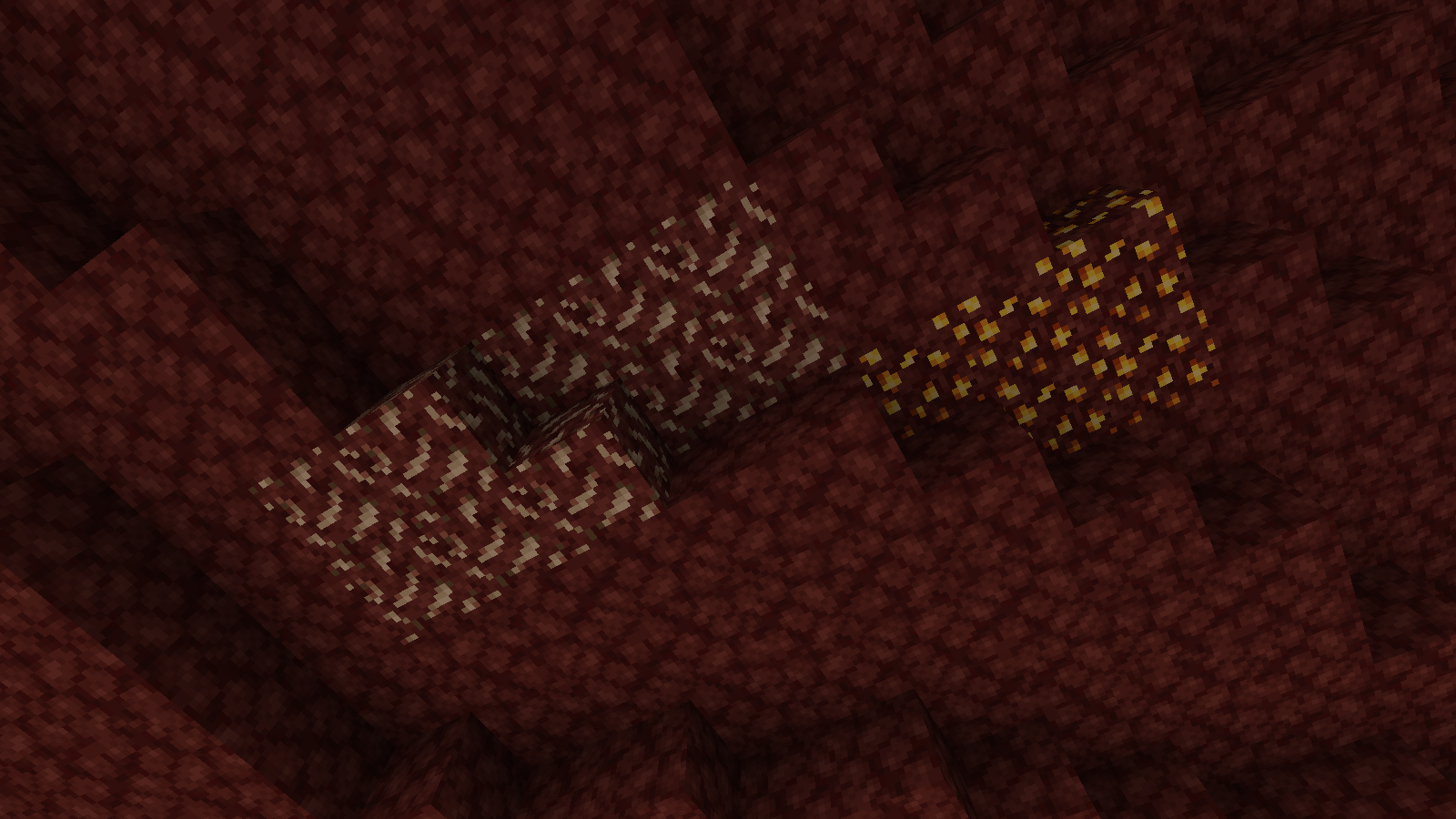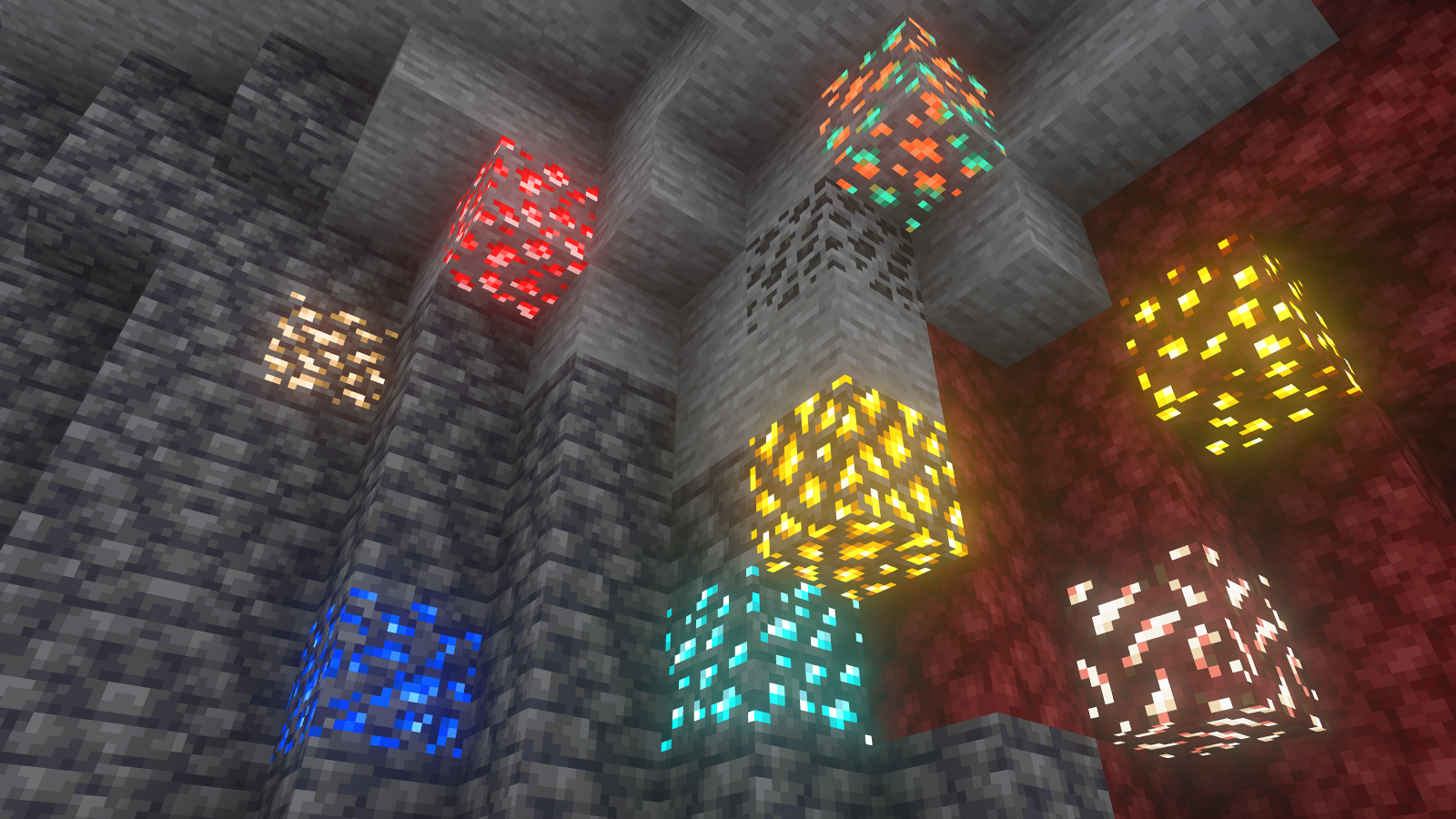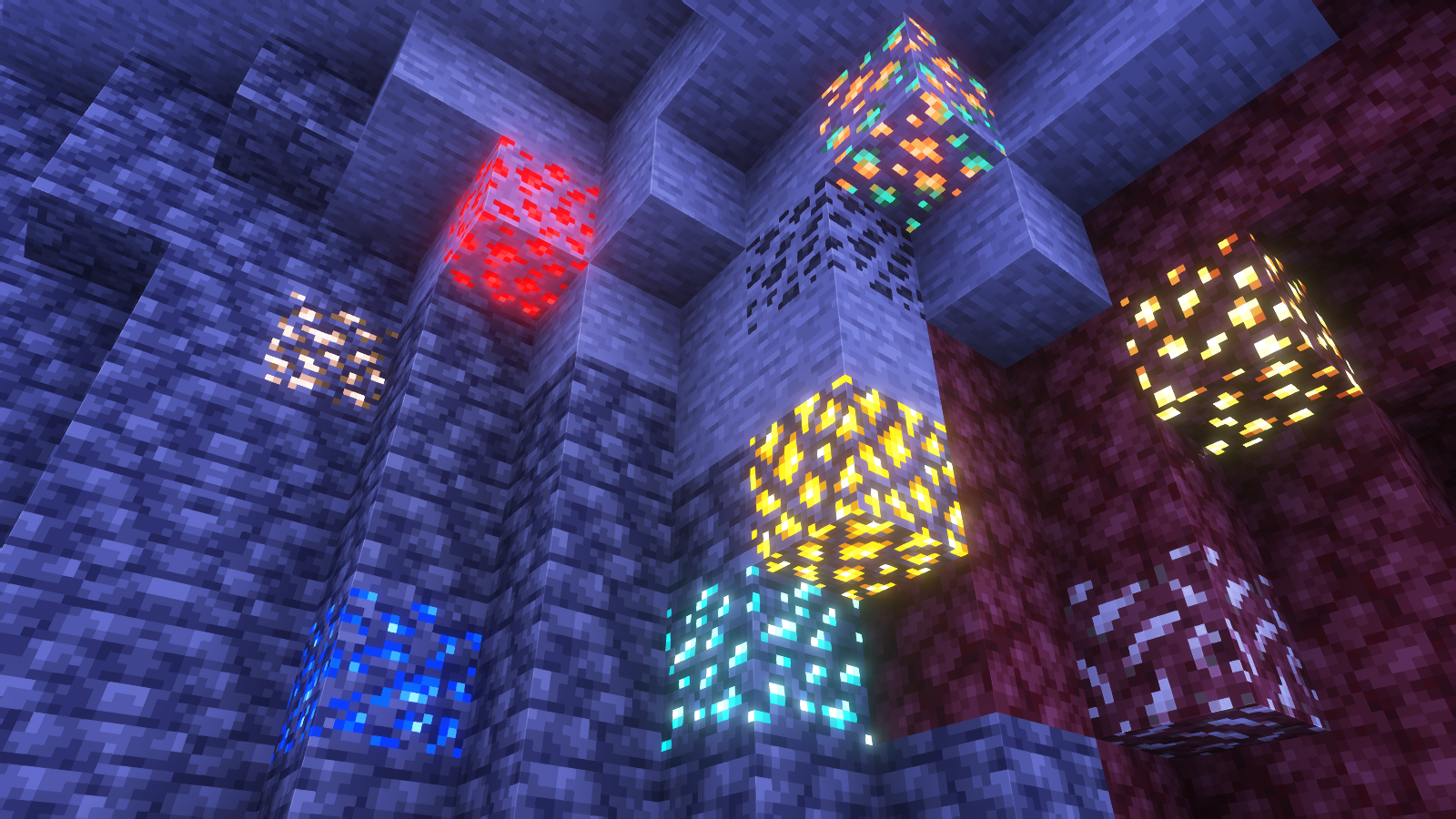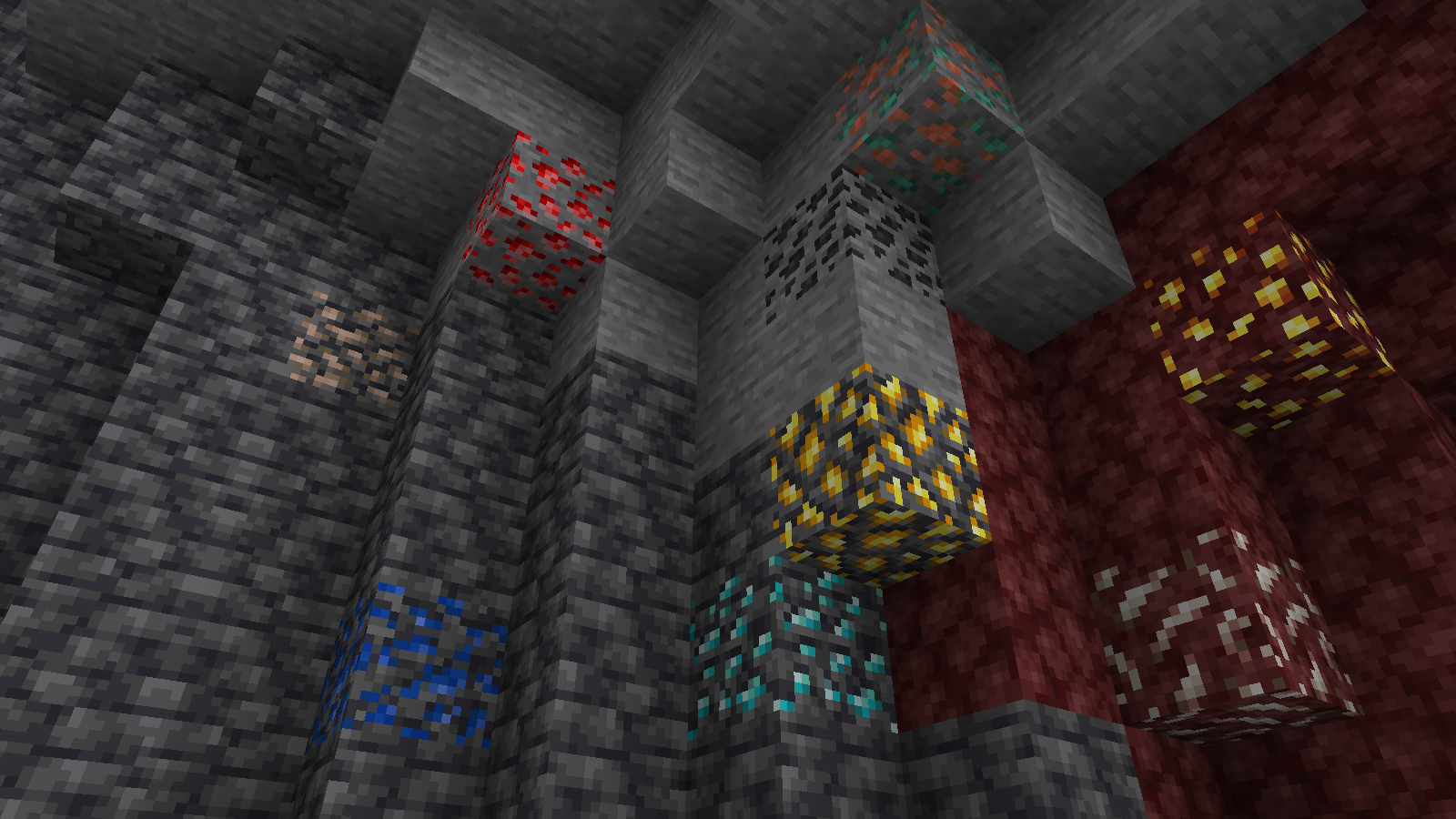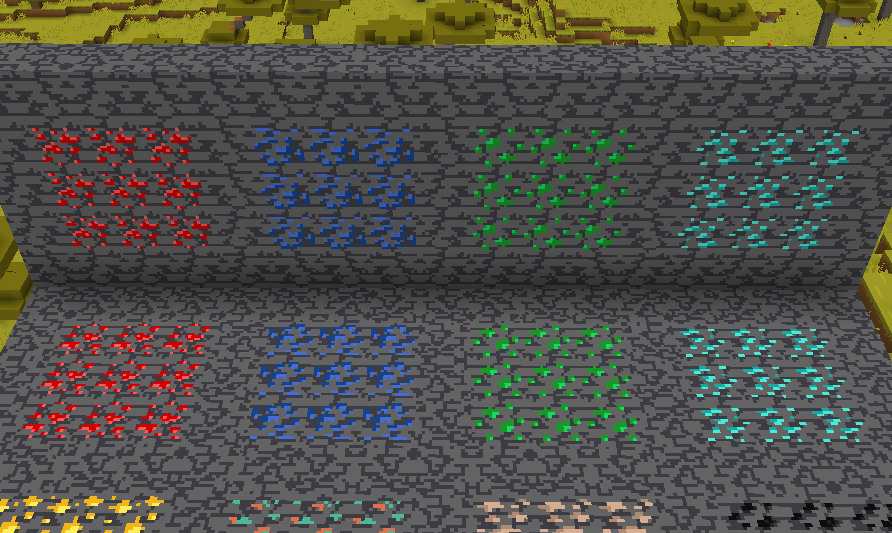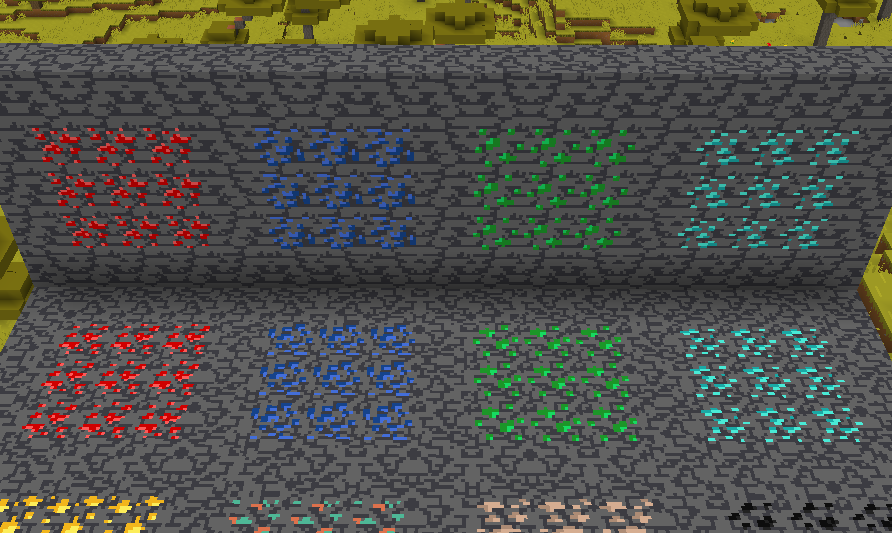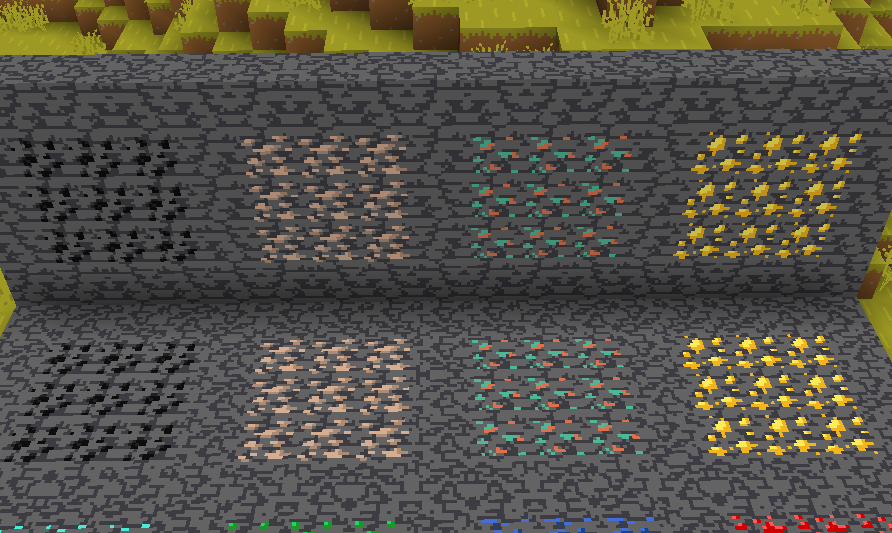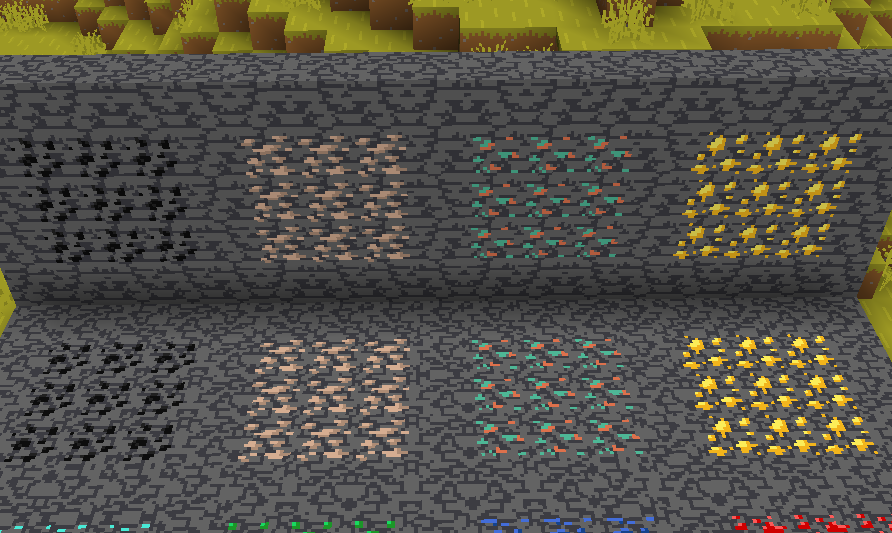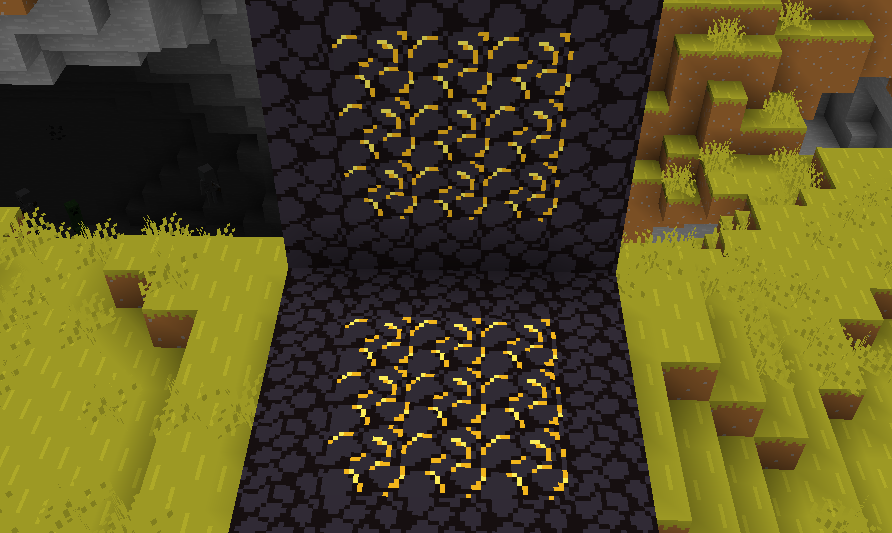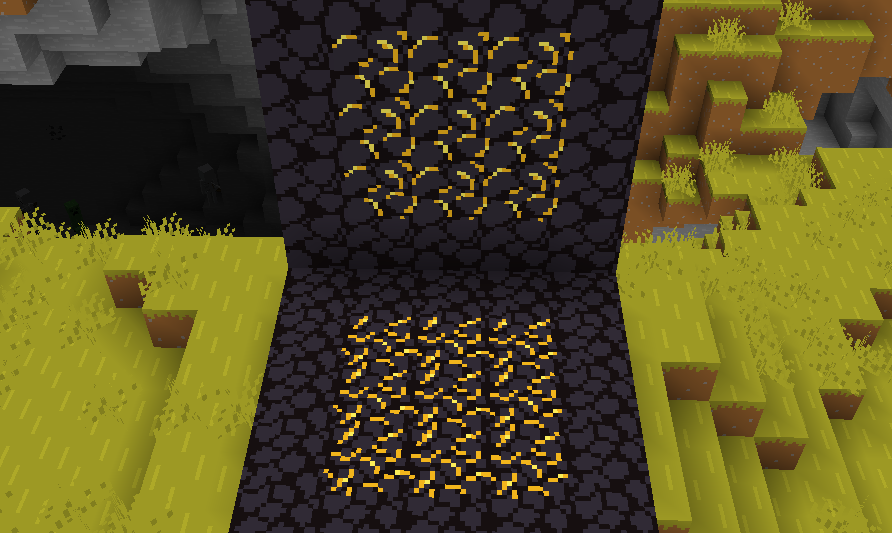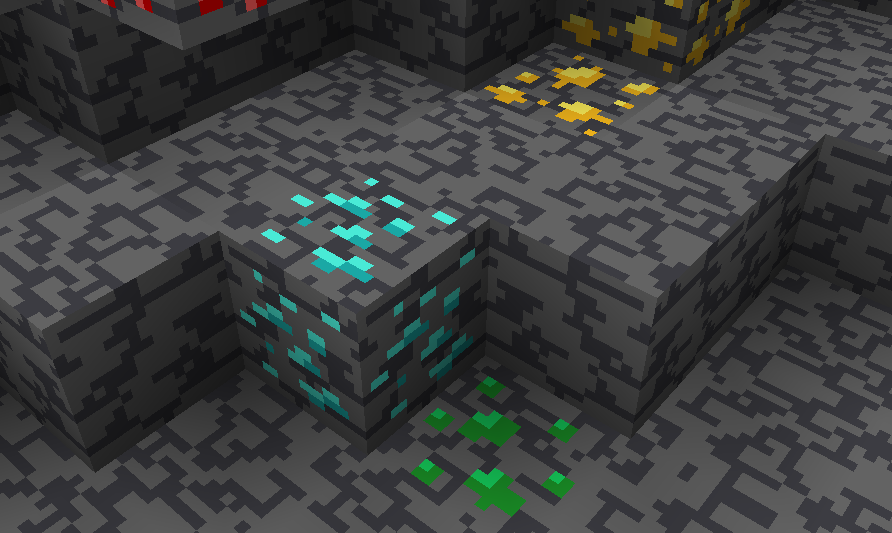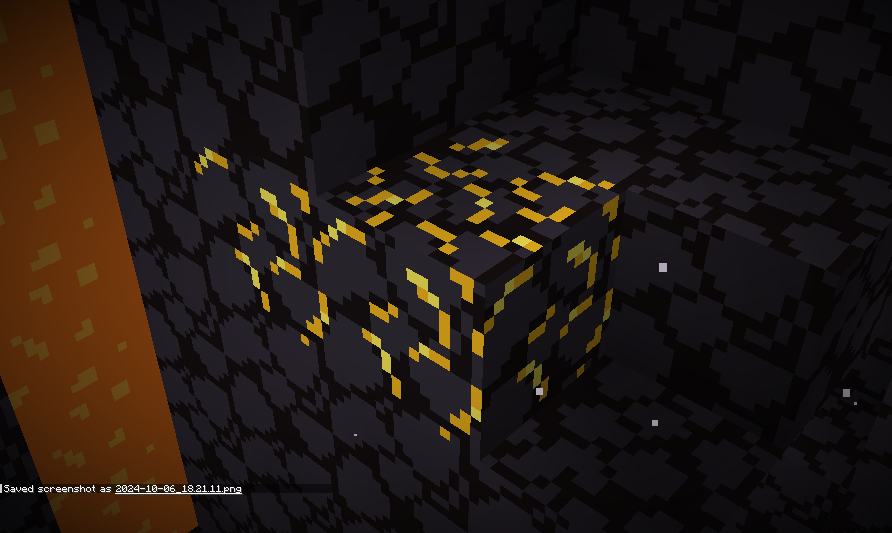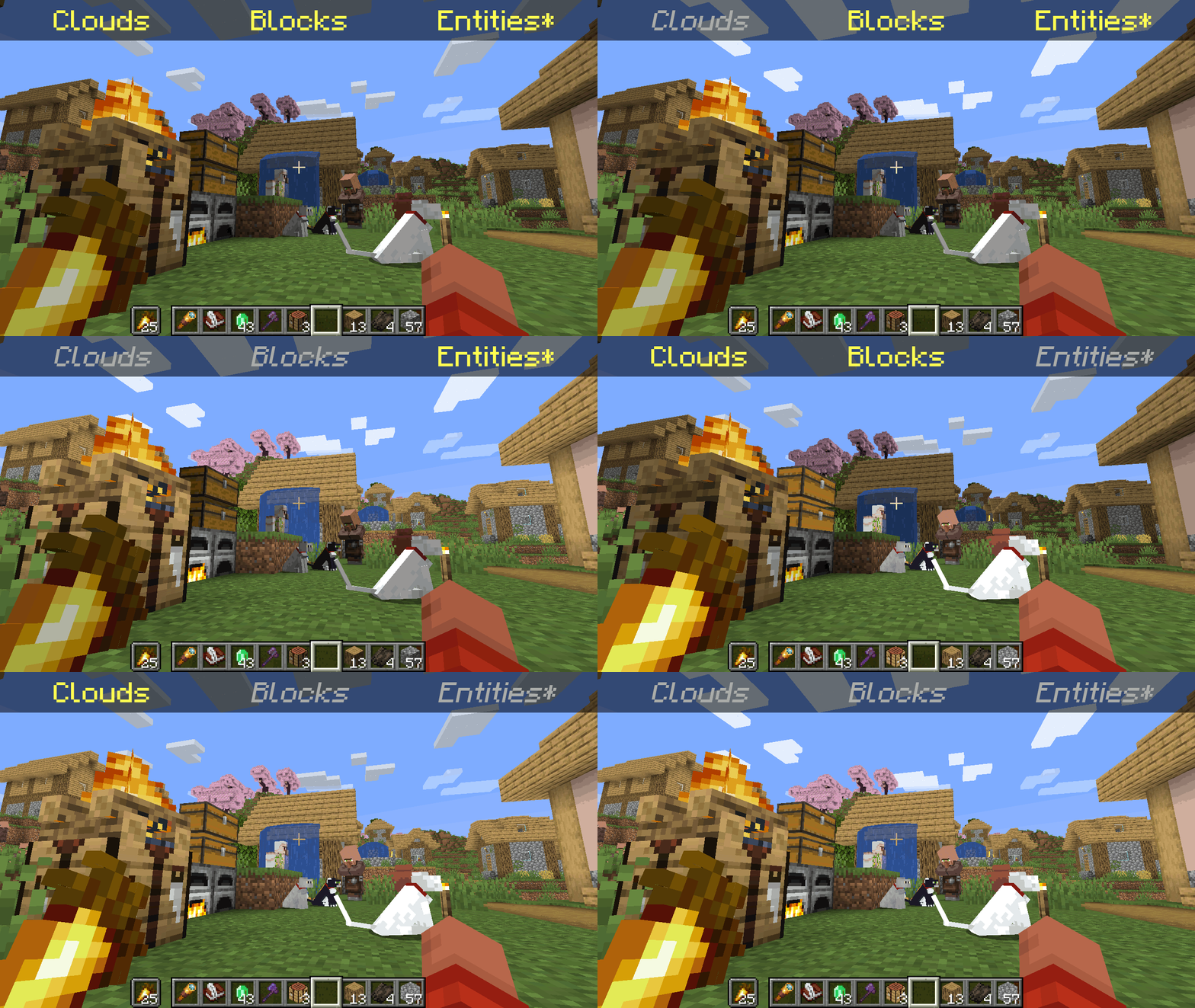
*Clarification that Entity shading is now stable and DOES NOT affect the inventory and in-game screens.
—
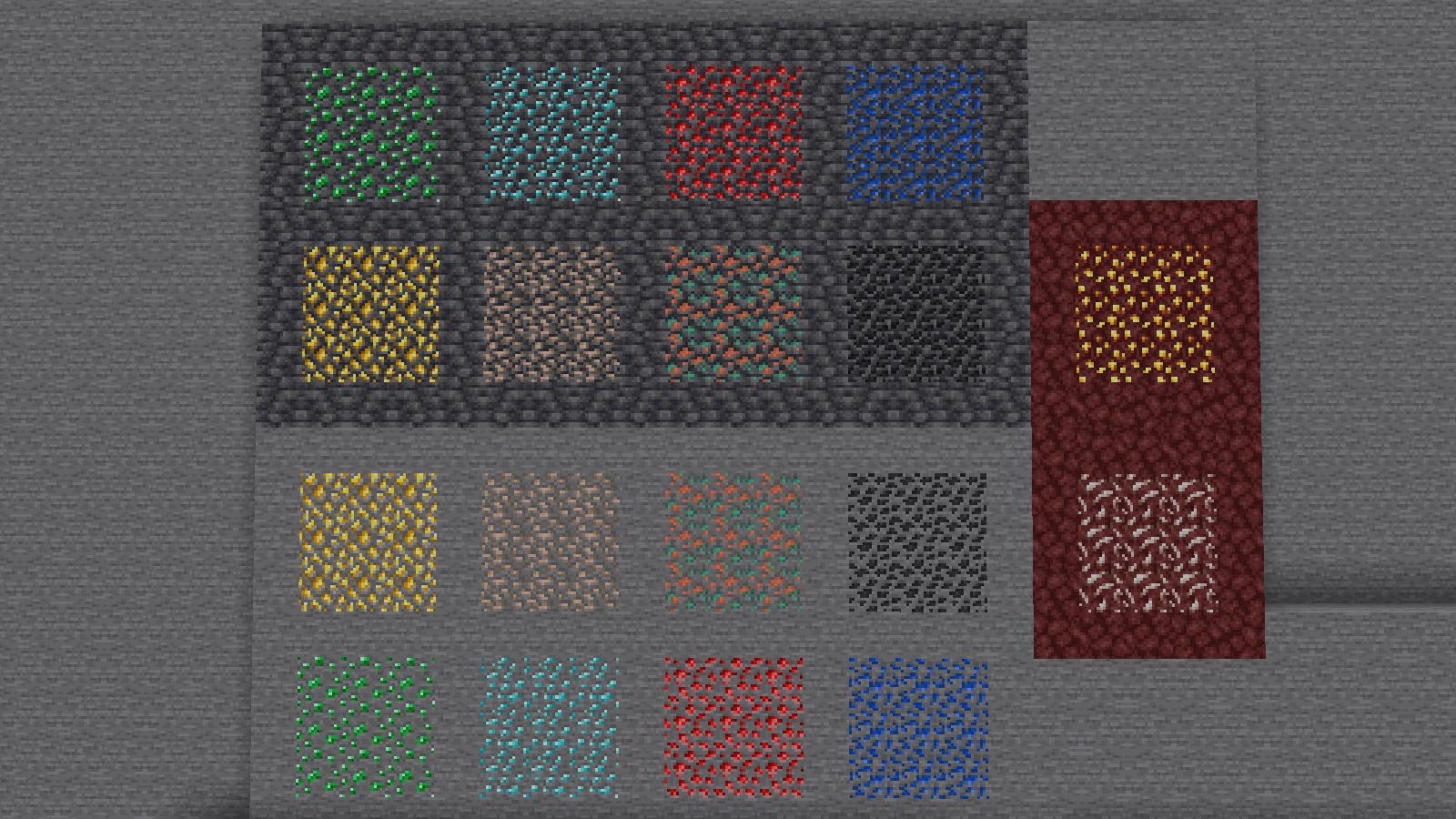
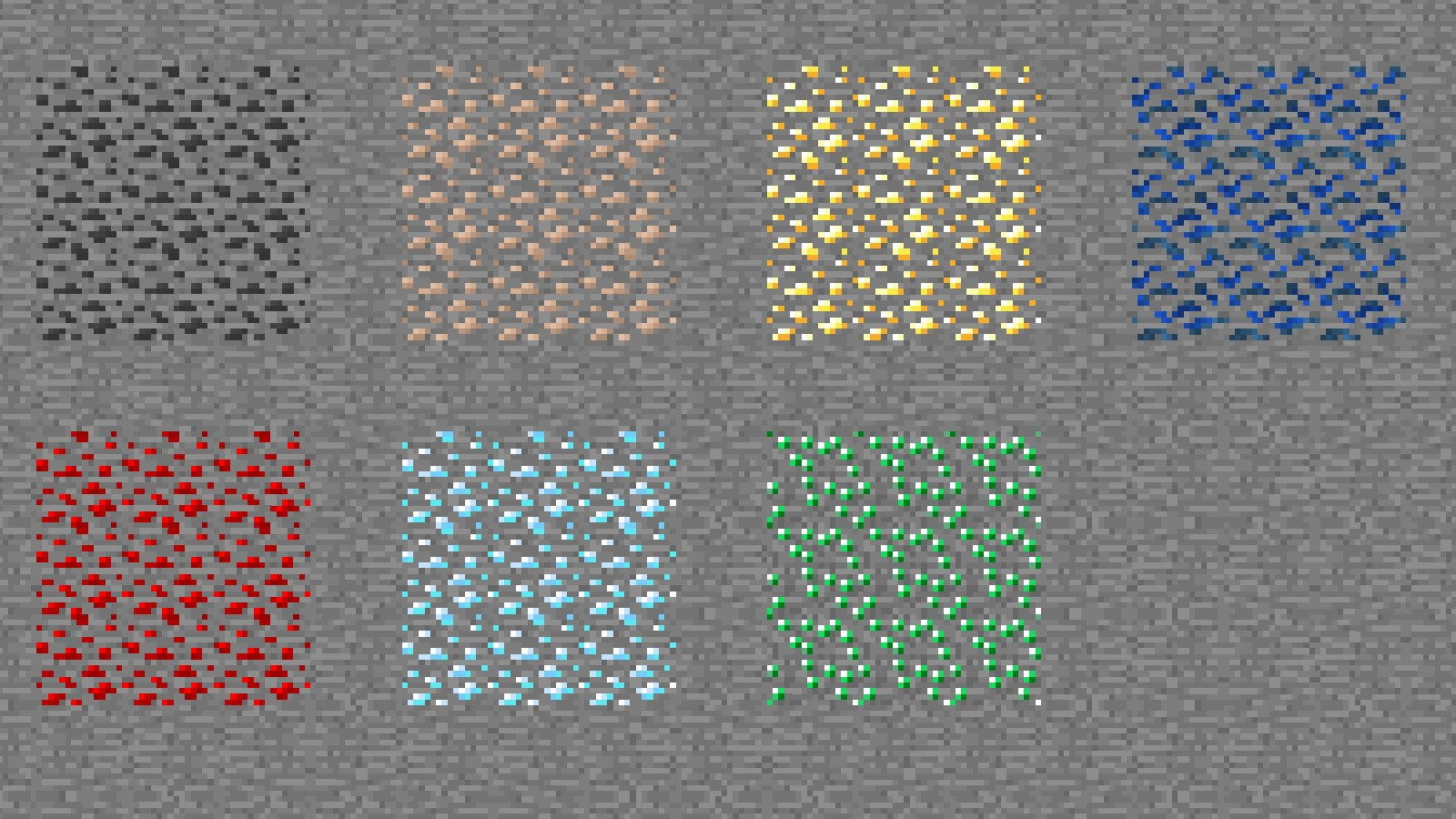
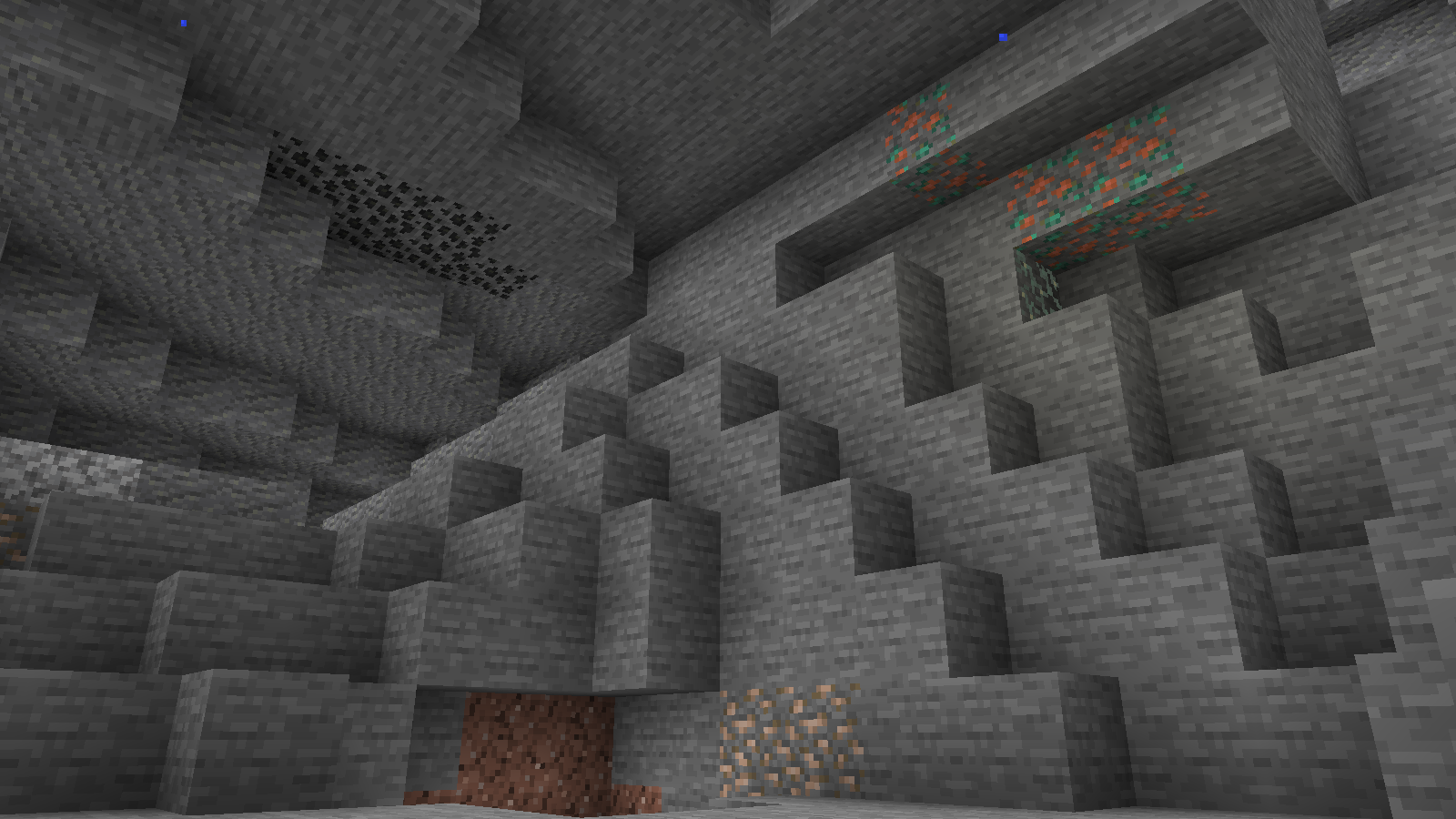
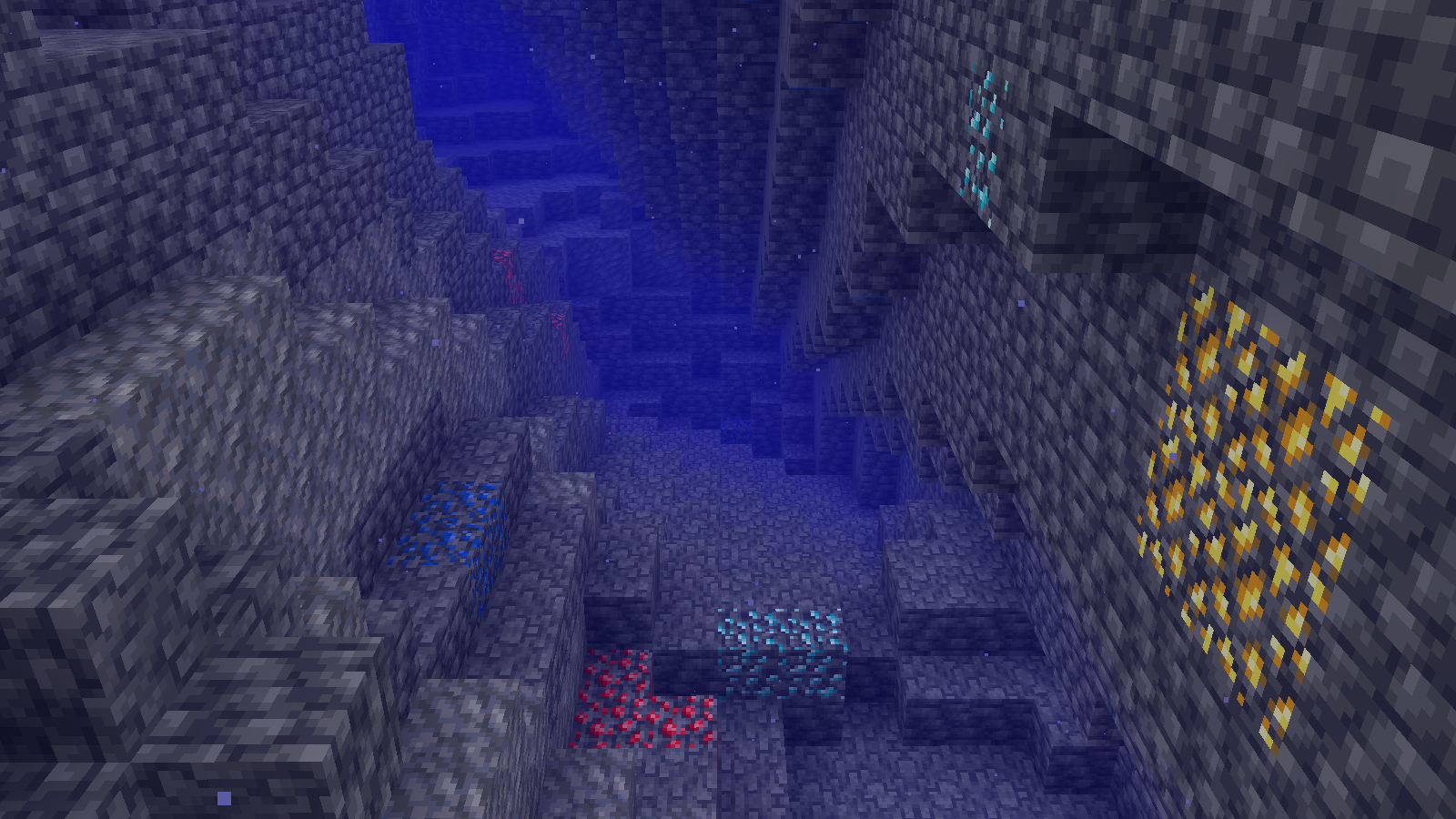
Simply No Shading is a [Fabric]-based [modification] (mod) for the [Minecraft] [client]. This mod removes the darkening on sides or faces (also known as [shading]) to in-game objects such as blocks, clouds, and entities as illustrated above.
[Fabric]: https://fabricmc.net
[modification]: https://minecraft.wiki/w/Mods
[Minecraft]: https://minecraft.net
[client]: https://minecraft.wiki/w/Mods#Client-based
[shading]: https://en.m.wikipedia.org/wiki/Shading
## Compatibility
Simply No Shading provides active compatibility for [BedrockIfy] and [Sodium]. Some mods that provide or replace stuff may work such as [Enhanced Block Entities] (EBE), where block entities act like blocks and are affected as such when toggling shading. Some mods that replace rendering are most likely incompatible; exceptions have active support such as Sodium, for example. One example of incompatibility is shaders, usually applied using [Iris], as they may not crash the game but would just render this mod ineffective when they are applied.
[BedrockIfy]: https://modrinth.com/mod/bedrockify
[Sodium]: https://modrinth.com/mod/sodium
[Enhanced Block Entities]: https://modrinth.com/mod/ebe
[Iris]: https://modrinth.com/mod/iris
## Similar Solutions
Simply No Shading is not the only effort to removing shading, there are other solutions such as:
– [Flat Lighting] is a simple Fabric mod that achieves the same results for blocks and supports Sodium.
– [internal-shaders](https://modrinth.com/shader/internal-shaders), though unlisted, is a simple Iris shader that removes shading on blocks and entities.
– [Lightingless] is a simple shader that removes shading on blocks and entities.
– [OptiFine]’s old lighting through the internal shader. Achieved by turning `Options > Video Settings > Shaders… > (internal) > Old Lighting` to `ON`.
– [New Lighting 1.18+ (Internal Shaders without Optifine)]. This resource pack achieves the similar results by setting the `shade` flag on block models to `false` (OFF).
[Flat Lighting]: https://modrinth.com/mod/flat-lighting
[Lightingless]: https://modrinth.com/shader/lightingless
[OptiFine]: https://optifine.net
[New Lighting 1.18+ (Internal Shaders without Optifine)]: https://www.planetminecraft.com/texture-pack/new-lighting-1-16/
## Features
Simply No Shading supports the following categories for toggling shading:
– Blocks — this includes blocks, liquids, and EBE‘s block entities
– Clouds — this includes clouds
– Entities ([`≥7.4.0`]) — this includes normal entities and block entities in the world
– ***Deprecated** Experimental Entities Built-in Resource Pack — this includes block entities, entities, and blocks, block entities, entities, and items in toasts (pop-ups, e.g. completing an [advancement]) and inventories and or Graphical User Interfaces (GUIs)*
[`≥7.4.0`]: https://modrinth.com/mod/simply-no-shading/version/7.4.0+mc1.21
[advancement]: https://minecraft.wiki/w/Advancement
## Configuration
Simply No Shading has a configuration screen and it’s accessible through:
– a key mapping. It’s unbound by default and can be bound at `Options > Controls > Keys > Simply No Shading > Open Config Screen`
– [Mod Menu]. `Mods > Simply No Shading > Configure…`
[Mod Menu]: https://modrinth.com/mod/modmenu
Simply No Shading stores its configuration as a formatted [JSON] file at `/config/simply-no-shading.json`.
[JSON]: https://en.m.wikipedia.org/wiki/JSON
[`1.2.0`]: https://modrinth.com/mod/flat-lighting/version/1.2.0
[core shaders]: https://minecraft.wiki/w/Shaders
[Fabric Loom]: https://github.com/FabricMC/fabric-loom
[MIT License]: https://github.com/simply-no-shading/blob/master/LICENSE
[Modrinth]: https://modrinth.com/mod/simply-no-shading/versions
[resource pack]: https://minecraft.wiki/w/Resource_Packs
## Versions
Simply No Shading follows semantic versioning. This mod aims to maintain the same feature across supported Minecraft versions. Given the version `X.Y.Z` where:
* `X` changes when breaking changes occur, such as with breaking config format changes.
* `Y` changes when features are added or changed (non-breaking).
* `Z` changes for bug and compatibility fixes and may not stay consistent across supported Minecraft versions.
Target versions is currently being reconsidered. Mod version `8.x` will likely only be maintained for the newest versions of the game. `7.x` will still remain maintained for bug-fixing and translations.
Simply No Shading aims to provide support for the latest minor updates to major releases along with some April Fool’s snapshots. All minor releases for the latest major version are supported. The latest snapshot versions also get temporary support before the next major release. Following are all those versions:
| # | Mod Version | Minecraft Version |
|—:|:———–:|:———————-:|
| 1 | `7.6.4` | `1.14.4` |
| 2 | `7.6.4` | `1.15.2` |
| 3 | `7.6.4` | `20w14infinite` |
| 4 | `7.6.4` | `1.16.5` |
| 5 | `7.6.4` | `1.17.1` |
| 6 | `7.6.4` | `1.18.2` |
| 7 | `7.6.4` | `22w13oneblockatatime` |
| 8 | `7.6.4` | `1.19.4` |
| 9 | `7.6.4` | `23w13a_or_b` |
| 10 | `7.6.4` | `1.20.1` |
| 11 | `7.6.4` | `24w14potato` |
| 12 | `7.6.4` | `1.20.6` |
| 13 | `7.6.4` | `1.21` |
| 14 | `7.6.4` | `1.21.1` |
| 15 | `7.6.4` | `1.21.2` |
| 16 | `7.6.4` | `1.21.3` |
| 17 | `7.6.4` | `1.21.4` |
| 18 | `7.6.4` | `25w14craftmine` |
| 19 | `7.6.4` | `1.21.5` |
| 20 | `7.6.4` | `1.21.6` |
| 21 | `7.6.4` | `1.21.7` |
| 22 | `7.6.4` | `1.21.8` |
| 23 | `7.6.6` | `1.21.9` |
| 24 |`8.0.0-alpha.1`| `1.21.10` |
| 25 |`8.0.0-alpha.3`| `1.21.11` |
| 26 |`8.0.0-alpha.3`| `26.1-snapshot-2` |
Simple Voice Chat
[Modrinth](https://modrinth.com/mod/simple-voice-chat)
|
[CurseForge](https://legacy.curseforge.com/minecraft/mc-mods/simple-voice-chat)
|
[Discord](https://discord.gg/4dH2zwTmyX)
|
[Wiki](https://modrepo.de/minecraft/voicechat/wiki)
|
[FAQ](https://modrepo.de/minecraft/voicechat/faq)
|
[Credits](https://modrepo.de/minecraft/voicechat/credits)
|
[API](https://modrepo.de/minecraft/voicechat/api)
# Simple Voice Chat
A proximity voice chat for Minecraft with a variety of [addons](https://modrepo.de/minecraft/voicechat/addons) that offer additional features and functionalities.
⚠️ **NOTE** This mod requires special setup on the server in order to work.
Please read the [wiki](https://modrepo.de/minecraft/voicechat/wiki/setup) for more information.

Please join the Discord if you have questions!
## Downloads
– [Fabric](https://modrinth.com/mod/simple-voice-chat/versions?l=fabric)
– [NeoForge](https://modrinth.com/mod/simple-voice-chat/versions?l=neoforge)
– [Forge](https://modrinth.com/mod/simple-voice-chat/versions?l=forge)
– [Bukkit/Spigot/Paper](https://modrinth.com/plugin/simple-voice-chat/versions?l=bukkit)
– [Quilt](https://modrinth.com/mod/simple-voice-chat/versions?l=quilt)
– [Velocity](https://modrinth.com/mod/simple-voice-chat/versions?l=velocity)
– [BungeeCord/Waterfall](https://modrinth.com/mod/simple-voice-chat/versions?l=bungeecord)
## Features
– Push to talk
– Voice activation
– Proximity voice chat
– Password protected groups
– Automatic voice activity detection
– Automatic microphone gain adjustment
– [Opus codec](https://opus-codec.org/)
– [RNNoise](https://jmvalin.ca/demo/rnnoise/) recurrent neural network noise suppression
– OpenAL audio
– Cross compatibility between Fabric, NeoForge, Forge, Quilt, Bukkit, Spigot and Paper
– Support for Velocity, BungeeCord and Waterfall
– Compatibility with [ModMenu](https://modrinth.com/mod/modmenu) (Use [ClothConfig](https://modrinth.com/mod/cloth-config) for a better configuration UI)
– Configurable push to talk key
– Microphone and speaker test playback
– Configurable voice distance
– Whispering
– Individual player volume adjustment
– Microphone amplification
– 3D sound
– AES encryption
– Audio recording with separate audio tracks
– A powerful [API](https://modrepo.de/minecraft/voicechat/api)
– Many [addons](https://modrepo.de/minecraft/voicechat/addons)
## Icons
| Icon | Description |
|:————————————:|——————————————————-|
|  | You are talking |
|  | You are whispering |
|  | Player is talking |
|  | Player is whispering |
|  | Microphone muted |
|  | Voice chat disabled |
|  | Voice chat not connected
Voice chat not installed |
## The GUI
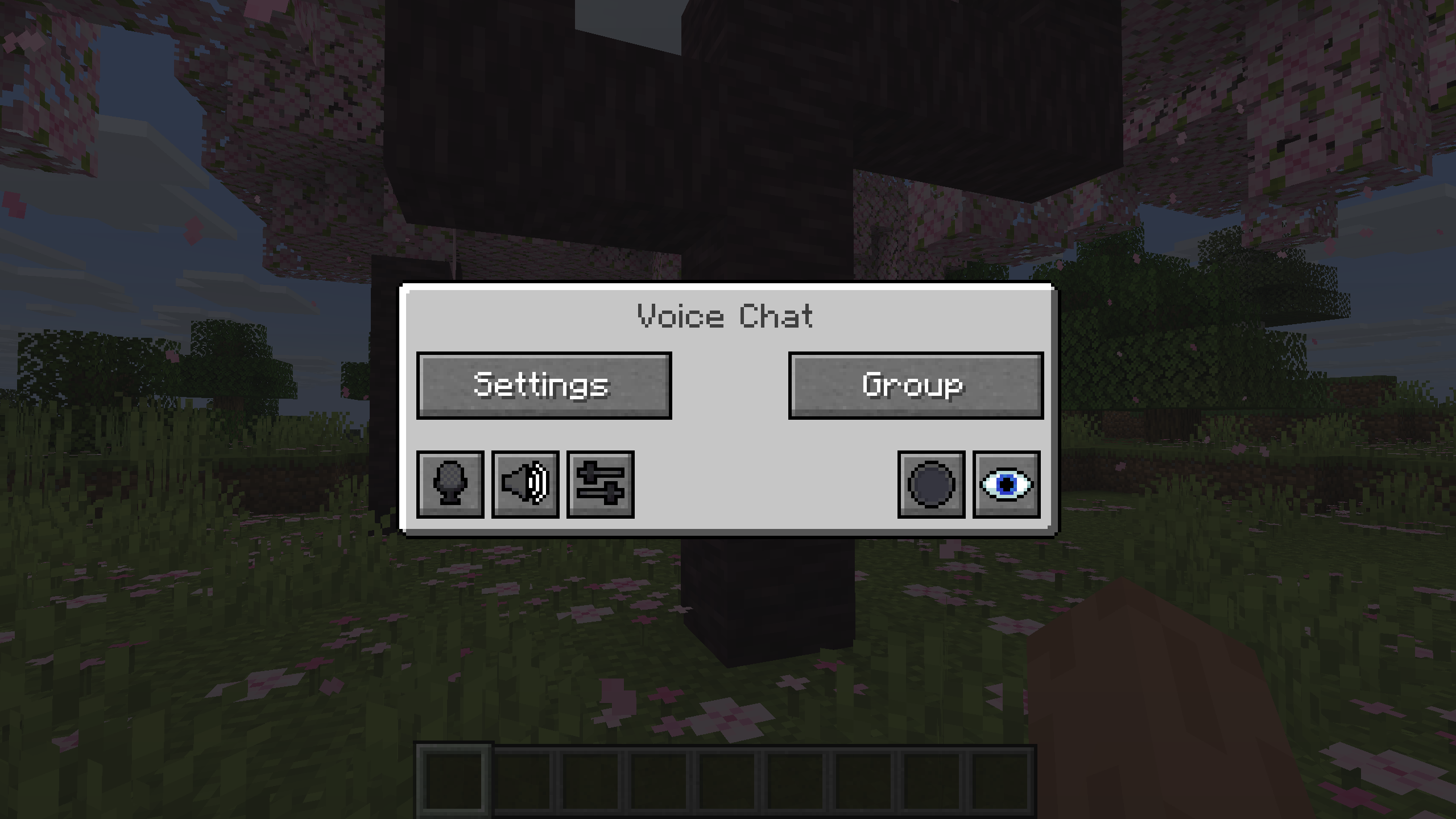
You can open the voice chat GUI by pressing the `V` key.
This allows you to open the settings, group chats, mute yourself, disable the voice chat, start/stop a recording and hide all icons.
### Group Chats
Group chats allow you to talk to players that are not in your vicinity.
To open the group chat interface, either press the group button in the voice chat GUI or just press the group key.
To create a new group, just type a name in the text field and press the button at the bottom.
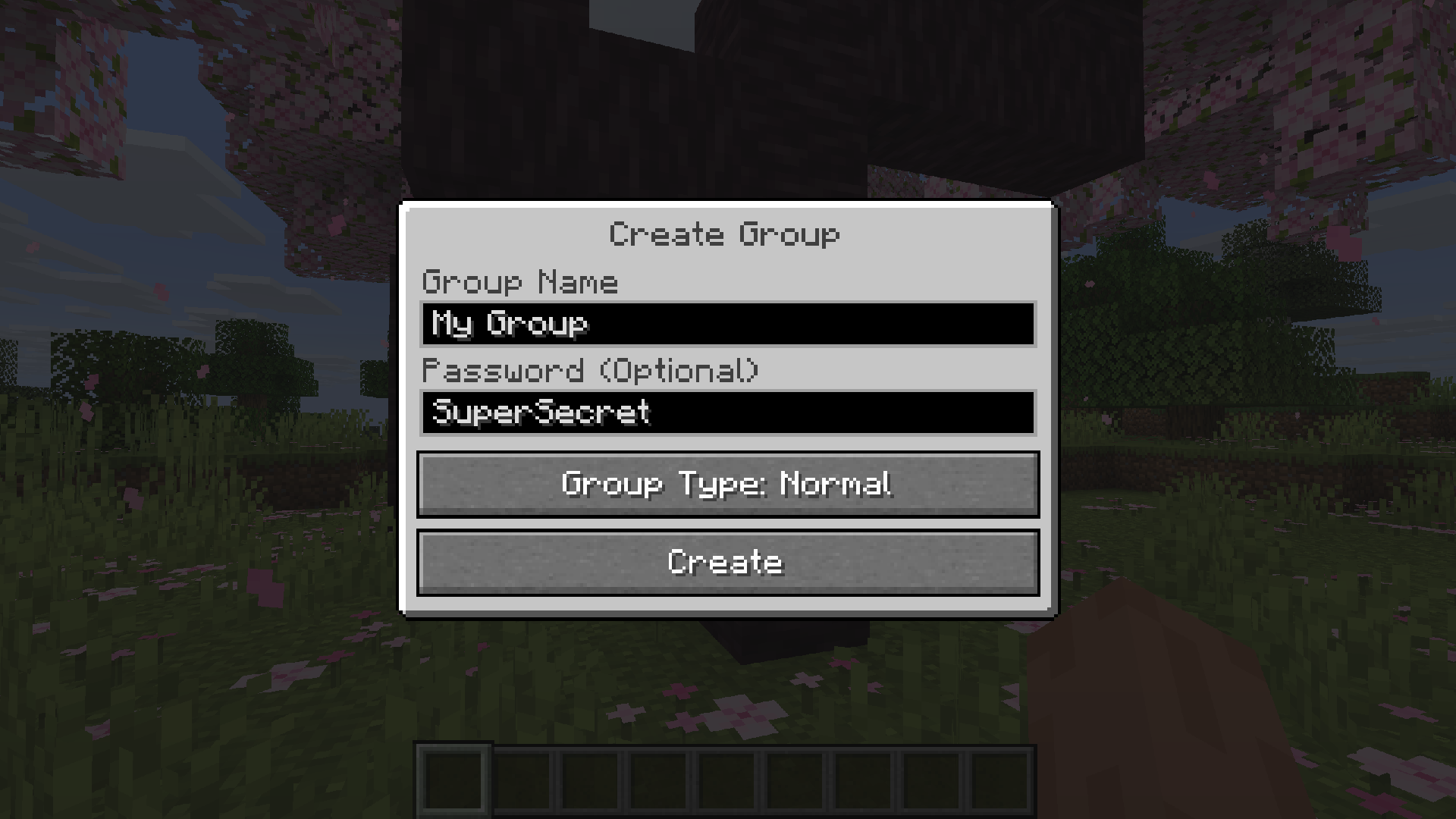
Creating or joining a group will bring you into the group chat interface.
You will also see the heads of the group members in the top left corner of your screen.
Talking players will be outlined.
You can disable these icons by pressing the third button from the left.
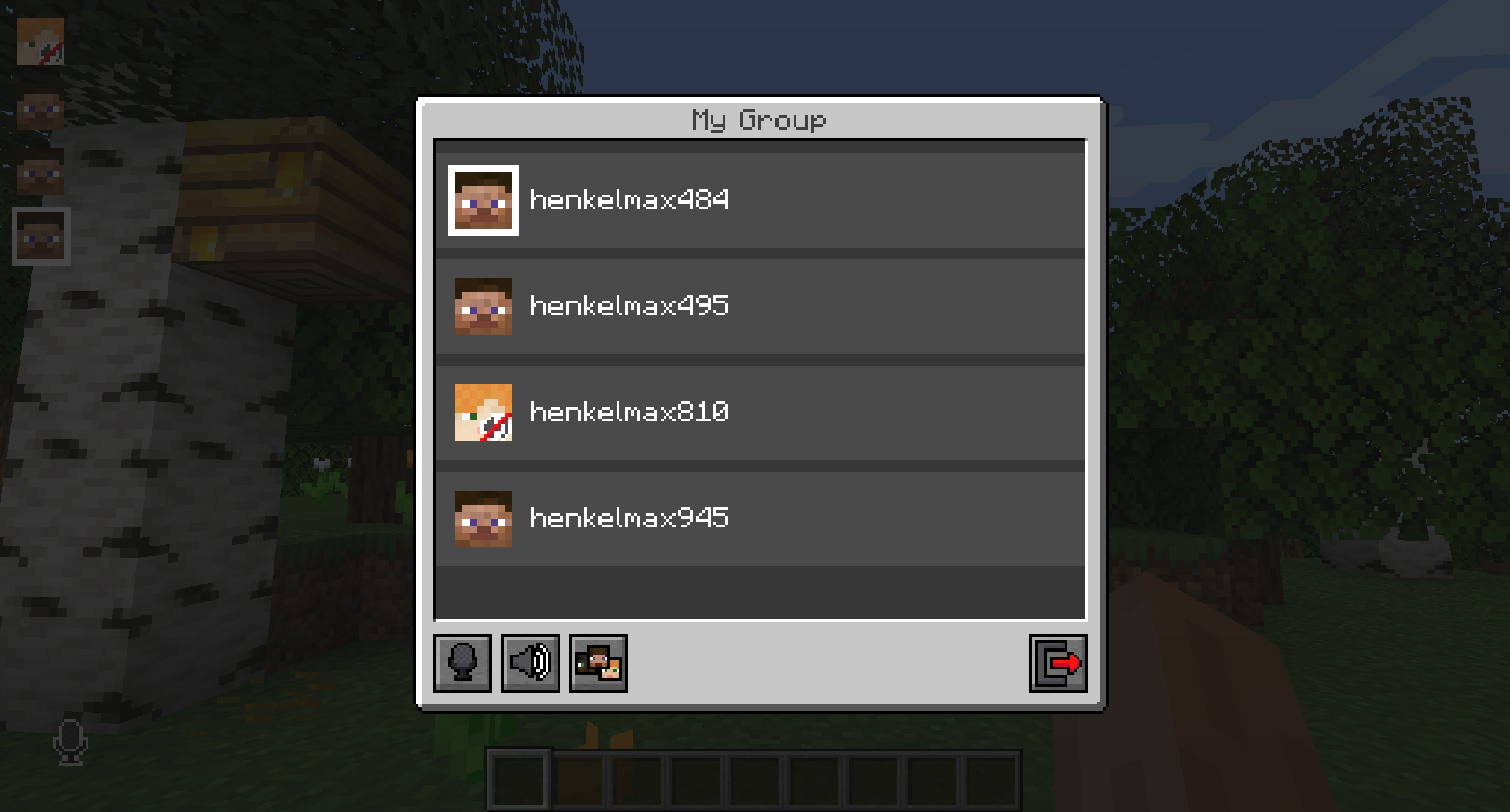
Players that are not in a group will see a group icon next to your head, indicating that you are in a group.
You can invite players to your group chat by entering the command `/voicechat invite ` or from the social interactions screen.
### Settings
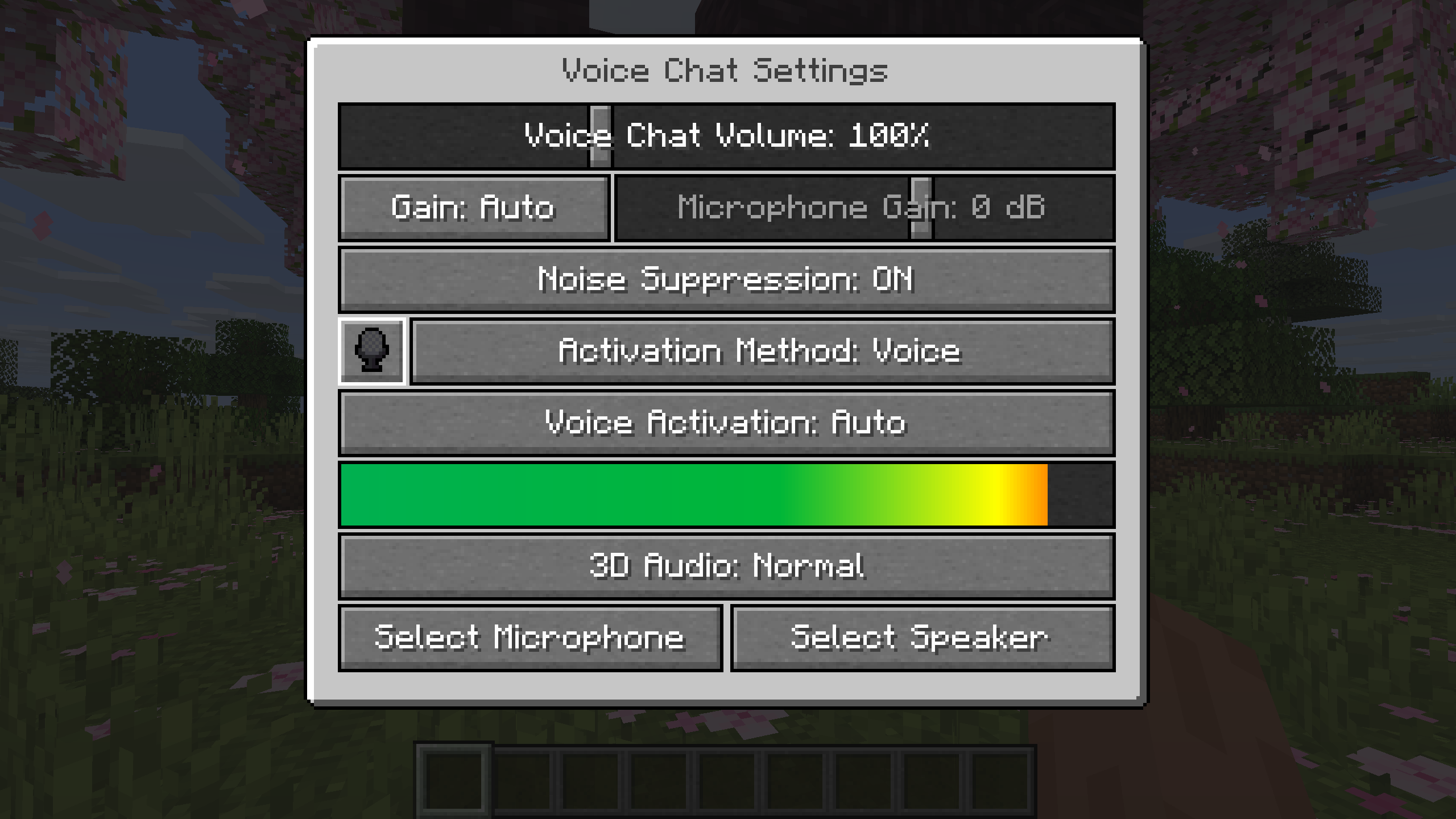
You can access the voice chat settings by pressing the `V` key and pressing the settings button.
This menu offers the ability to set up your voice chat audio settings.
By clicking the microphone button, you can test your microphone activation.
## Important Notes
You need to open a port on the server. This is port `24454` `UDP` by default.
Without opening this port, the voice chat will not work.
This port can be changed in the server config.
More information [here](https://modrepo.de/minecraft/voicechat/wiki/setup).
The voice chat is encrypted, but we don’t guarantee the security of it. Use at your own risk!
Simple Datapacks
## 📂 Simple Datapacks
The purpose of this mod is to simplify the ways of adding datapacks to the game. To do this, the mod creates a folder in the root directory of Minecraft called datapacks. In my opinion, the capabilities of datapacks are underestimated by players, mostly because not everyone understands how to install datapacks into the game. This is more difficult to do than to install a mod or resource pack, although many datapacks bring a lot of content to the game.
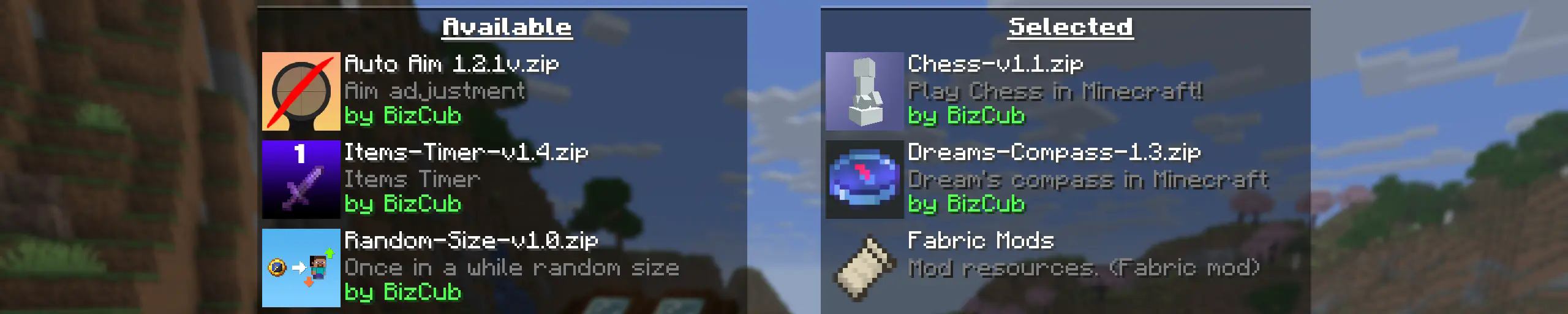
My goal is to make a mod that will help players with installing datapacks into the game so that they can get a new portion of unforgettable impressions.
## 💼 Usage

In order to launch a world with datapacks, you need to download any datapack that is compatible with the selected version of Minecraft, open and place the datapack in the datapacks folder, start creating a world and select the desired datapack from the list. However, when using Cloth Config, the mod settings specify the path to the downloads folder, so to use datapacks, you only need to download them, then simply open the datapack selection menu and enable the desired one.
## ✨ Features
Whenever possible, I added the most basic features for the mod that I could imagine.
Click to open
* Since the main thing for me is that as many players as possible start using datapacks, I made the mod available on 4 different loaders so that it can be launched from almost any modpack.
* The mod has a configuration. The values used by the mod can be changed in the mod menu (Fabric requires ModMenu), and can also be changed in the configuration file, which is available using the Cloth Config API.
* The mod allows players to add and load datapacks from different folders. To change the sources of these packs, you need to configure them in the mod settings. If you want to specify a folder in the game’s root directory, for example, “`my_datapacks“` instead of the full path “`C:Users{USERNAME}AppDataRoaming.minecraftmy_datapacks“`, simply enter the folder name in the field in the mod settings menu.
* By default, datapacks are loaded from the datapacks folder in the root directory and the downloads folder, allowing them to appear in the game immediately after installation (provided Cloth Config API is loaded; otherwise, only the datapacks folder will be used).
* The mod settings have two lists: one for required and one for optional datapacks. The first list specifies the paths to datapacks that are automatically applied when entering a world. The second list contains datapacks that remain inactive but can be enabled at any time using the “`/datapack enable“` command.
* The Simple Datapacks mod runs on the server. Since the mod settings are not accessible on the server, it automatically uses all datapacks from the datapacks folder.
* It’s possible to disable feature packs (experimental datapacks). If you don’t use feature packs, you can disable them to save space on the datapack selection screen. In the mod settings, function packages can be set to required, and then they will be applied when the world starts.
* Unlike similar mods, datapacks will continue to work in the world, even if you disable the mod. In the mod settings, you can enable copying datapacks to the world folder. In this case, the datapack will work without the mod, because the game will read it from the world.
## 🤝 Support

Simple Copper Pipes
REQUIRES FABRIC API
Copper pipes can quickly and easily transport items from one place to another! Simply build a pipeline and you’re good to go.
The part of the pipe with the protruding opening is the direction items will flow in. If there is no block in front of the pipe the items will shoot out, so be careful!
Pipes can also insert items into any block with an inventory like chests, hoppers, and barrels, and themselves.
Copper Pipes are crafted just how you think they’d be- three copper in a row, an empty row, and three more copper.
Moving And Dispensing Items:
If a Copper Pipe is pointing into air or water, it will automatically shoot out its items. To prevent this, placing something as simple as a Torch in front of it will suffice.
Copper Pipes will deposit their items into inventories like Chests, Barrels, and the Copper Fitting. They can also take out these items from those blocks, making them easy to use for intersections and storage.
Copper Pipes with Dispensers behind them will shoot items farther depending on their oxidization state and color, and Copper Pipes with Droppers behind them will shoot items out at a medium range, regardless of oxidization and color.
Copper Pipes that are being powered by Redstone will “shoot” specific items like Arrows, Splash Potions, and Snowballs, making them more versatile.
Waxed pipes are the fastest, while normal pipes are slightly slower.
Copper Fittings will prevent the flow of items whilst being powered.
Smoke And Water Leaking:
Copper Pipes are able to leak water and smoke under specific circumstances.
If a Pipe is Waterlogged or Water is placed directly behind the Pipe, the water will move along the Pipeline. This is visualized with drops of water falling from pipes.
Water will flow through up to 12 pipes, where it will then stop. By placing Copper Fittings in the Pipeline, you can renew the flow of water as much as you’d like.
Farmland can stay damp if under a leaking pipe that’s up to 12 blocks above it and Sugar Cane are able to
grow under these same circumstances, removing the need for you to place them next to water sources.
All mobs will be considered to be in water if under a pipe that’s up to 12 blocks above them, meaning that all mobs will be extinguished if under a pipe, and Endermen will be damaged by walking under a Leaking Pipe.
Smoke follows these same rules, needing a Lit Campfire to be placed behind the entry pipe. Copper Fittings will renew the flow of smoke.
Bee Hives and Bee Nests will count Smoking Pipes as Campfires, allowing Copper Pipes to be used in honey farming.
Oxidization, Waxing, & Lightning:
All Copper Pipes and Copper Fittings will oxidize over time. To prevent this, you can alt-click on one with a Honeycomb, or combine and Honeycomb and a Pipe/Fitting in a Crafting Table. Waxed Pipes will transport items faster, making them a more preferable choice.
Alt-clicking on a Pipe or Fitting will remove its wax, and if it’s unwaxed, will revert its oxidization stage by one.
Copper Pipes and Copper Fittings can de-oxidize from lightning, but you’ll have to set them up properly for it to work.
When a Lightning Rod is triggered on top of (or directly next to) a pipe or fitting, electricity will surge through the entire pipeline.
Each time a pipe or fitting receives electricity they’ll de-oxidize by one stage, and glowing pipes/fittings will glow.
If a Pipe or Fitting is completely oxidized, you can put it in a furnace to Corrode it.
Vibrations:
When a Copper Pipe’s opening is exposed to air, it will pick up Vibrations and send them through the pipeline, which can be used to distract Wardens or work with Sculk’s mechanics easier.
All Copper Pipes with an exposed opening will pick up Vibrations, though the Vibration particle will only appear if a Block or Entity that can listen to it is around; this can be controlled via tags, but keep in mind that this is purely visual- the Vibrations will still be emitted.
Note Blocks will also be picked up by pipes, which will also be sent through pipelines like vibrations.
Copper Fittings are not required to renew Vibrations as they can travel through entire pipelines on their own as of 1.10.
Other:
Alternate-Clicking on a pipe with a hoe will rotate it.
Pipes will bubble underwater.
(Maybe they’re not so simple after all..?)
[](https://tinyurl.com/3xhmk7fb)
Silent Horns
**Are you tired of hearing goat horns again and again?
Does your SMP friend annoy you with spamming goat horns while flying around you like a bug?**
This resourcepack will help you! 🤝
❌ There is currently no way to lower the volume of goat horn sounds exclusively, the only way is to lower the master game volume.
🔇 In this pack all goat horn sounds are replaced with silence, so you can enjoy peace without lowering your overall game volume all the way down.
### Troubleshooting
❓ If the horn sounds aren’t silenced after enabling resourcepack, you can try to rejoin the world/server or just relaunch the game entirely.
Silent Discs Plus
This Silent Discs resource pack is made specifically for use with redstone disk/jukebox ROMs. It not only silences all music discs, but also removes the “now playing” text and silences minecarts too
(Minecarts have a bad habbit of taking up the sound cap even if you can’t hear them, this pack fixes that)
Shorty Swords
Shortened Sword are Just Built Different! Aren’t they look hot?
Texture-pack makes swords a bit shorter. Supports almost **EVERY** ever existed Minecraft Version.