Mishang Urban Construction
# Mishang Urban Construction
Mishang Urban Construction is a mod related to building and decorations, which provides an array of useful blocks, including:
– Road blocks: can be painted lines to appear realistic, and standing on road blocks can accelerate; The road lines have various combinations, and can be automatically generated in some situations.
– Road marks: road marks that can be placed on the road, such as guide arrows; can also be placed on road slabs.
– Light: have various shapes, and have different colors: white, yellow, orange, cyan, green, and pink. There are full light blocks, as well as decorations that can be placed on wall, floor, or the ceiling.
– Sign blocks: have different styles, and compared to vanilla signs, signs in this mod can flexibly adjust parameters such as color, size and position.
– Handrail blocks: have various textures, outlook and connecting method, and can be placed on stairs.
– Blocks with customizable colors.
Moreover, the mod contains a series of useful tools, such as:
– Fast building tool: can quickly place multiple blocks on a plane.
– Force placing tool: places block ignoring placing restrictions and block updates.
– Tp tool: teleport to any place as you want.
– ID checking tool, block state tool, data tag tool: query properties or NBT of a block or entity or query the current biome.
– Explosion tool: click to create an explosion.
– Rotating or mirroring tool: click on a block to rotate or flip it.
– ……
Detailed information of this mod can be seen in GitHub or MC模组百科.
This mod **depends on Fabric API**, and since mod version 1.4.0, **no longer** depends on BRRP (Better Runtime Resource Pack) mod.
Only Fabric version. There’s no Forge version of this mod.
Please also refer to [the update log](UpdateLog-en.md).
This mod is published under the LGPLv3 license, which you must follow when propagating this mod.
Welcome to join Tencent QQ group **587928350** to communicate. You can also report issues in GitHub.
Mirror Shield
# Mirror Shield
This resource pack replaces the default shield with a custom 3D model.
The design uses a mirror theme.
No OptiFine required. Vanilla compatible.
## More Shield Themes
– Black
– Blue
– Creeper
– Dark Red
– Navy Blue
– Rabbit
– Red
Mining Looks Like a Spiral
Mining looks like a spiral.
Ever get tired of the same old boring mining animation? This resource pack replaces the default block-breaking animation with a smooth spiral effect, giving every block you mine a satisfying twist.🌀
Compatible with most resource packs.
MineZRoy’s Avontuur – Music Disc
Changes music disc 13 to a very good song about MineZRoy. 100% recommend it!
MineCore
# ⛏️MineCore
MineCore is a resource pack designed for players who want to maximize their mining efficiency while maintaining a clean, competitive style. Whether you’re into UHC, hardcore survival, or speedrunning, this pack gives you the visual advantage you’ve been looking for.
## 🎯 Pack Objective
– Optimize **ore visibility** in all conditions
– Improve the **readability of underground textures**
– Provide a **smooth, clear, and efficient** mining experience
## 💎 Key Features
– **Enhanced and contrasted** ore textures
– **Simplified** stone and cave blocks for better detection
– Minimalist HUD for **better focus**
– **Slightly modified** mining sounds for more responsiveness
## ⚙️ Compatibility
– Works with **1.8+ up to 1.20+**
– Compatible with **Optifine**, **Lunar**, **Badlion**, and other PvP clients
– No mods required, **plug-and-play**
## 🧠 Who is it for? – **Tryhard** players in UHC, Bedwars, Skywars, or survival
– Speedrunners who want to **spot veins quickly**
– Builders looking for a **clean and readable** base
## 📦 Bonus
– Lightweight version for **small builds**
– Pack regularly **updated**
– Available in **FR & EN**
## 🚀 Why MineCore?
Because mining is more than just a click. It’s a strategy, a race against time, a quest for precision. **MineCore** gives you the visual tools to dominate the depths.
🔗 Download it, gear up, and dig like never before.
**MineCore** – Mining, tryhard version.
MineGIT
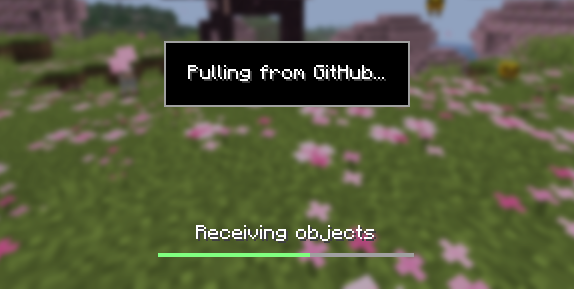
### Cloud sync for Minecraft worlds!
Sync and back up your worlds between multiple devices! Fully integrated into the Minecraft client for a seamless experience when loading, saving, and downloading worlds from the cloud.
## How does it work?
Worlds that you select are uploaded to your GitHub account as repositories. Every time you quit to the title screen, a commit of the current state of your world is created and pushed to the repository on GitHub. Whenever the world is loaded, the mod will check if any new versions of the world are available in the cloud, and if so, they will be downloaded to your device.
Since this mod uses Git internally, it also means that only the files in your world save folder that you modify will be uploaded and downloaded each time, saving storage space and internet bandwidth.
## How do I set it up?
There are several steps to setting up this mod, which include creating a personal access token for GitHub, as well as choosing the worlds you would like to enable MineGIT for.
### Video guide:
### Creating a GitHub personal access token
In order to do the first-time setup, you will need to generate a GitHub personal access token through the following steps:
1. Create an account on GitHub if you do not have one already (https://github.com)
2. Navigate to the page to create a personal access token
3. Click `Generate new token`
4. Enter any name (such as MineGIT) under `Token name`
5. Scroll to `Expiration` and set it to `No expiration` (so that you do not have to repeat this process when the token expires)
6. Under `Repository access` choose `All repositories`
7. Under `Permissions`, click `Add permissions` and select `Administration` and `Contents`
8. Set `Access` on the `Administration` and `Contents` lines to `Read and write`
9. Press `Generate token` and copy the generated token to be pasted into Minecraft later (the generated token should start with `github_pat_` and be followed by a long string of letters and numbers)
### Setting up in-game
Once the mod is installed and you are in-game, do the following steps to link your GitHub account with the mod:
1. Click on the cloud button on the bottom left corner of the world creation or world selection screen (If the button does not appear, you have already previously linked your account; see the section below entitled ‘Reconfiguring account linking’)
2. Enter your GitHub username and personal access token (PAT) that you created in the previous step on the new page that appears
3. Press the button labeled `Test credentials` to make sure you’ve entered the information properly
4. You may now exit the screen and proceed to either enable sync for a world or clone an existing one
#### Reconfiguring account linking
If you have already previously set up account linking and would like to change settings afterwards, you have a couple of options to get back to the configuration screen:
– **Configure through ModMenu:** If you have ModMenu installed, simply find the mod in the mods list and open the configuration from there
– **From the world clone screen:** There is a button in the top right corner of the world cloning screen that will open the configuration screen
– **From the world selection screen:** By holding alt and clicking on the world sync button on the bottom left of the world selection screen, you will be brought back into the configuration screen
### Enabling sync for a world
World syncing needs to be enabled individually for each world you would like to sync to your GitHub account. To enable sync for a world, do the following:
1. Select a world on the world selection screen
2. Press the cloud button in the bottom left of the screen labeled `Enable world sync`
3. Confirm your decision on the next screen
This process will create a new repository named `minegit_[world folder name]` on your GitHub account, initialize a Git repository in your world save folder, and push its current state to GitHub. From this point forward, loading the world will pull the world’s latest changes from GitHub, and exiting the world will push changes to GitHub.
You can now download this world on another device to effectively sync changes between them through the next step: cloning.
### Downloading a world on a different device (Cloning)
Cloning a world will download the exact state of the world as it was last saved to GitHub. Use the following steps to clone a world:
1. Navigate to github.com in a web browser
2. Click on your profile picture in the top right corner and then `Repositories`
3. Find the repository corresponding to the world you would like to clone and copy its name
4. Back in Minecraft, click on the button with an arrow pointing downwards labelled in the bottom left corner of either the world selection screen or world creation screen
5. Paste the name of the repository you copied earlier and press `Clone`
6. You are now able to load the world like normal and have changes be synced across your devices!
### Tips & Tricks
– If you want to exit a world without pushing it to GitHub (for example, if you wanted to restart Minecraft and load the same world without having to wait for changes to be pushed), you can hold `Alt` while clicking `Save and Quit to Title`. This will skip the ‘pushing to GitHub’ step.
– Git keeps a list of all of the worlds changes every time you exit the world. This is useful, since if you have a little knowledge of how to use the Git command line interface you can rollback your world to a previous version!
– If you want to save some storage space taken up by the size of the Git repository on your computer, or make the world quicker to clone on other devices, use the `Prune World Commits` button in the edit world menu. This will delete all of the old versions of your world, leaving only the most recent one.
## Report an issue
If you run into bugs, crashes, or simply have a suggestion on how to improve the mod, please feel free to open an issue on the mod’s issue tracker!
Please include the current Minecraft version, Fabric version, mod version, and any relevant game logs when submitting an issue.
Lava Realistic Textures PBR/POM
## Lava PBR
This is a Texture Pack for lava in Minecraft, which gives it a realistic look.
### **Installation:**
1. Download
2. Install
3. Load thid lava Textures AFTER any Texture Pack or standalone
### !!IMPORTANT!!
If you want it to look like on the screenshots/video, you **MUST**:
1. install **Sodium** OR **Optifine**
2. install the **Shader** of Your choice from the list below
3. **enable **PBR**** in **Shaders settings** (it is usually disabled by default).
### **Compatible Shaders:**
1. BLISS
2. Complementary Reimagined
3. Kappa
4. KappaPT
5. Nostalgia
6. NostalgiaVX
7. SoftVoxels
8. Photon
9. SEUS PTGI HRR 3
10. IterationRP
11. IterationT
12. Sundial
### **Image Comparison**
Lava Vanilla vs Lava Textures 512x + Shaders + PBR ON
### **Comparison Video**
Minecraft Movie Iron Golem
This is a simple resourcepack that changes the look of the Iron Golem with the Iron Golem from the Minecraft Movie Event from Bedrock(Includes cracked golem visuals).
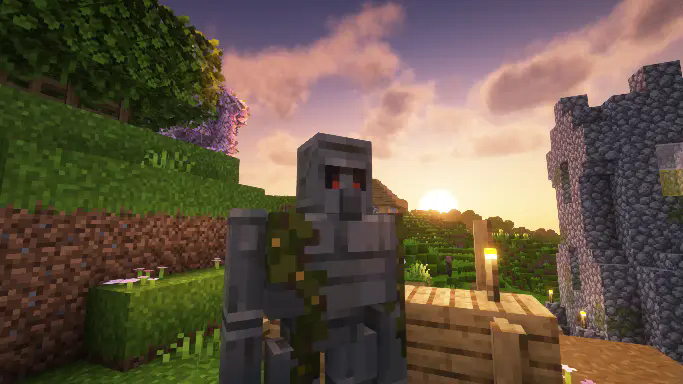
This resourcepack doesn’t change anything else in the game, and it does not change sounds for the Iron golem, just visual changes.
if you use Fresh Animations, i have also made compatible version of this same resourcepack here.
Mindful SMP Resources
# Mindful SMP Resource Pack
This resource pack is to be used with Mindful Optimized
MI-PBR
A minimal PBR resource pack for the Modern Industrialization mod. Requires a shader supporting “Lab” or “Old/seus” PBR.
This project is still an early work-in-progress so not all blocks are complete.