Rebalanced Music
# Rebalanced Music
Tweaked version of [Balanced Music](https://modrinth.com/resourcepack/balanced-music). Older tracks now have an equal chance of playing compared to newer tracks (where applicable).
Yeets the non-menu music from the menu, and evens out the weight of newer music. The new music is great, but it plays instead of the old tracks far too often. Seriously, why does Rubedo have a weight of 6?
### Important:
If you have other resource packs that change music or sounds, put them above this. This pack uses the `replace` option to remove music, and will remove any music added if placed above that pack.
Changes
Entries in **bold** are subject to change.
Entries in _italics_ are not applicable as of the latest Minecraft: Java Edition snapshot.
Entries in ~~strikethrough~~ are not applicable as of the latest stable Minecraft: Java Edition version.
Menu Music: Menu Music + Update Music -> Menu Music (1.18+)
Basalt Deltas: So Below weight 7 -> 1 (1.16+)
Crimson Forests: Chrysopoeia weight 7 -> 1 (1.16+)
Nether Wastes: Rubedo weight 6 -> 1 (1.16+)
Soul Sand Valley: So Below weight 7 -> 1 (1.16+)
Badlands: Crescent Dunes weight 2 -> 1 (1.20+)
Bamboo Jungle: Bromeliad weight 2 -> 1 (1.20+)
Cherry Grove:
* Below and Above weight 2 -> 1 (1.21.6+)
* ~~_Bromeliad weight 3 -> 1 (1.20-1.21.5)_~~
* ~~_Echo in the Wind weight 3 -> 1 (1.20-1.21.5)_~~
* ~~_Featherfall 3 -> 1 (1.21-1.21.5)_~~
Desert:
* ~~_Crescent Dunes weight 3 -> 1 (1.20-1.21.5)_~~
* Fireflies weight 2 -> 1 (1.21.6+)
Dripstone Caves:
* Eld Unknown weight 2 -> 1 (1.21+)
* Endless weight 2 -> 1 (1.21+)
* pokopoko weight 2 -> 1 (1.21+)
* Wending weight 2 -> 1 (1.18+)
Flower Forest: Featherfall weight 2 -> 1 (1.21+)
Forest: Broken Clocks weight 2 -> 1 (1.21.6+)
Frozen Peaks: Stand Tall weight 2 -> 1 (1.18+)
Grove: Lilypad weight 2 -> 1 (1.21.6+)
Lush Caves:
* ~~_Aerie weight 1 -> 2 (1.19-1.21.5)_~~
* ~~_Firebugs weight 1 -> 2 (1.19-1.21.5)_~~
* ~~_Labyrinthine weight 1 -> 2 (1.19-1.21.5)_~~
* ~~_Left To Bloom weight 2 -> 1 (1.18-1.18.2)_~~
* ~~_Left To Bloom weight 4 -> 2 (1.19-1.21.5)_~~
* O’s Piano weight 2 -> 1 (1.21.6+)
Jungle: Bromeliad weight 3 -> 1 (1.20+)
Meadow: One More Day weight 2 -> 1 (1.18+)
Old Growth Taiga:
* Aerie weight 1 -> 3 (1.19+)
* Firebugs weight 1 -> 3 (1.19+)
* Labyrinthine weight 1 -> 3 (1.19+)
Sparse Jungle: Bromeliad weight 2 -> 1 (1.20+)
Stony Peaks:
* Eld Unknown weight 2 -> 1 (1.21+)
* Stand Tall weight 2 -> 1 (1.18+)
Versioning scheme
The version name consists of the minimum supported stable Minecraft: Java Edition version followed by the iteration of the resource pack for that version of Minecraft: Java Edition. If there is no supported stable Minecraft: Java Edition version, then the minimum supported Minecraft: Java Edition version is used instead.
For example, version 1.16.2 v1 means that it is the first iteration of the resource pack to support at least Minecraft: Java Edition version 1.16.2. Meanwhile, version 21w39a v2 means that it is the second iteration of the resource pack to support at least Minecraft: Java Edition version 21w39a.
The maximum supported Minecraft: Java Edition version is specified in the changelog of the respective version of the resource pack.
Reasonable Sorting
# Reasonable Sorting
如果看不懂英文,可以阅读[中文版](https://www.mcmod.cn/class/4522.html)。
**This mod supports Fabric, Quilt and Forge. Please pay attention to the compatible mod loader and game version before choosing which to download. 本模组支持Fabric、Quilt和Forge。选择要下载的文件之前,请留意兼容的模组加载器和游戏版本。**
Did you find that, in Creative Mode, it’s quite a hard work to find in the creative inventory anything you want, as the sorting of them is so messy? Install this mod, and your creative inventory will be beautifully sorted! You will discover that all stairs and slabs follow their base blocks, and fence gates are transferred to decoration blocks and follow their relevant fence. Colorful blocks are sorted in the gradient color order.
You may config your custom sorting rules and item group transfer rules.
The mod **depends on Cloth Config mod**, without which this mod cannot work. Besides, for Fabric and Quilt version, **it’s recommended to install Mod Menu** to configure.
The Fabric version of this mod depends on Fabric API. The Quilt version of this mod (for 1.18.2 and above) depends on Quilt Standard Libraries.
Since version 2.0.0, this mod does not work with Extended Block Shapes mod of version 1.5.2 or lower (yet still no conflict). Please wait for newer versions of Extended Block Shapes mod.
The Quilt version of this mod is under construction.
## Configuration
You can configure this mod through Mod Menu.
### Sorting
**Enable sorting**
ON by default. If OFF, all the sorting works as vanilla, and following configurations will not work.
**Sorting influence range**
Defines in what cases the mod has influence. If you don’t know the meaning, just remain the default value. Supported values:
– Registry: All iterations of the Minecraft’s registry will be affected. This may affect more situations, such as mods that list blocks or items. However, it may bring out some instabilities, such as potential registry mismatch when you join servers.
– Inventory only: Only affect your Creative Mode inventory. Other situations will not be affected by the mod.
**Sorting calculation type**
Defines when to calculate the sorting. If you don’t know the meaning, just remain the default value. Supported values:
– Standard: Sorting of content (such as items) is calculated completely when the game starts or the config is loaded, and will be re-calculated when modifying the configs. This is the preferred way because it reduced unnecessary calculation in each iteration. (This option has no effect if your using Forge and meanwhile the value of “Sorting influence range” is “Registry”.)
– Semi real-time: The combination rules of content are calculated when the game starts, the config is loaded, or when modifying configs. However, the sorting result is still calculated in each iteration. It may cause a slight lag when you open your creative inventory.
– Real-time: The combination rules of content and the sorting result is calculated in each iteration of registry. It may cause a lag when you open your creative inventory.
**Debug mode**
If enabled, more detailed information of the mod will be logged. You may enable it when you’re researching this mod or find any problems.
**Enable default item sorting rules**
ON by default. This mod has some installed item sorting rules. For instance, Ice, Packed Ice and Blue Ice are sorted together.
**Custom sorting rule**
Empty by default. You can have custom sorting rules by typing item id. In the mod config screen, click the “+” on the left, and you will see an unapparent text box on the below. Type one rule in it. The syntax of a rule is: multiple item ids are separated with a space. For example, `dirt white_wool diamond_block` means that Dirt, White Wool and Diamond Block become together, in which White Wools and Diamond Block follow Dirt.
**Variants following base blocks**
In Minecraft, many blocks have their **variants**. For example, of Oak Planks, the “stairs” variant is “Oak Stairs” and “slab” variant is “Oak Slab”, which also means, Oak Planks is the **base block** or Oak Stairs, Oak Slab etc. You can specify some variants which will follow their base blocks.
The default syntax is, multiple block variant names are separated with a space. Available variant names are displayed in the mod config screen. By default `stairs slab`, which means, all stairs and slabs follow their base blocks.
Take notice that changing item sorting does not affect which item group they belong to. To change item groups you need also to config **Variant transfer rules**.
**Fence gate follows fence**
ON by default. Makes all fence gate blocks follow their corresponding fence blocks. Requires **Fence gates in decorations** otherwise their still appear in “Redstone” item group and does not take effect.
**Fancy color sorting**
Sort colored blocks and items (such as wool, glazed terracotta, bed, banner) in a gradient order, like what is looks in Minecraft 1.19.3.
**Avoid affecting block registries**
OFF by default. When ON, only the item registry, including block items (such as blocks in the Creative inventory) are affected by options above, and block registries (such as blocks in the Debug Mode) are not affected. This can to some extent avoid block mismatch if you are joining a server. This option has no effect if you set ‘Sorting Influence Range’ to ‘Inventory only’.
Note: If “sorting influence range” is set to “inventory only”, this config will take no effect.
### Item group transfer
**Enable item group transfer**
ON by default. If OFF, all items appear in the item groups they belong to in vanilla, and following configs will not work.
**Buttons in decorations**
**Fence gates in decorations**
**Swords in tools**
**Doors in decorations**
The meaning of the four entries above is obvious. By default, “Fence gates in decorations” is ON, and others are OFF.
**Custom item group transfer rules**
Empty by default. Similar to custom sorting rules, one rule every line, and add a new rule by clicking “+”. The syntax of each rule is: item id, space, the item group to transfer to. For example, `redstone_block building_blocks` will transfer Redstone Block to “Building Blocks” item group.
**Custom variant transfer rules**
Empty by default. Similar to above. Syntax: variant name, space, and the item group to transfer to. For example,`cut transportation` transfers all cut blocks to “Transportations”.
**Custom regex transfer rules**
Empty by default. Similar to above. Syntax: regex, space, and the item group to transfer to. For example, `.+?button transportation` transfers to all items which identifier ends with `button` to “Transportations”.
**Custom tag transfer rules**
Empty by default. Similar to above. Syntax: tag id, space, and the item group to transfer to. For example, `flowers transportation` will transfer items in `#minecraft:flowers` to “Transportation” item group.
## Technical details
The essence of item sorting is “specify a leading item and multiple following items; the following items will appear right after the leading item”. To make an example, for rule `dirt white_wool diamond_block`, the dirt is a leading item, and white wool and diamond block will appear right after the dirt, instead of the place they should have been.
An item may not follow multiple items, otherwise it only follows one of them. For example, if both the two rules `dirt white_wool` and `grass_block white_wool` are defined, the white wool will right after *one of* the dirt and grass block, which means, items will not duplicate.
Items can follow recursively. In default situation, for instance, according to the “variants following base blocks” rule, oak stairs and oak slab appear after the oak planks. And according to “default item sorting rule”, petrified oak slab appear after the oak slab. Therefore, you may see the combination of “oak planks – oak stairs – oak slab – petrified oak slab”.
Items *may not follow mutually or loopy*. For example, if both `dirt white_wool` and `white_wool dirt` are defined, both dirt and white wool may not disappear (you can find errors in the log). Danger of dead loop may exist. You should avoid this.
About item group transfer, the transferred items do not appear in the former item groups. However, one item can be transferred to multiple groups.
Raised
*Take control of the position of your GUI and fix the broken hotbar selection texture!*
### Move around the GUI!
Raised lets you move around both vanilla and modded GUI layers (that are supported)!
Want the hotbar closer to the middle of the screen? Raised has got your back! Take control of a layer and move it where you please! Control them individually or sync them to make the entire in-game GUI move together!
### Working with mods!
Raised allows mods to register layer entries for their own GUI overlays for you to configure their movement. However, Raised can also natively work with mods in several ways that do not require their support!
Any mod that registers their (Neo)Forge overlay via the respective registry is automatically captured and added to Raised’s layer registry. This allows you to individually control the layers of many mods without any special support!
Any mod that renders its overlay solely via a (Neo)Forge render event for one of the vanilla layers that Raised supports will be moved along with that vanilla layer. Much the same on Fabric, any mod that injects its overlay render within the scope of Raised’s targets in the code will also be moved!
### Set it up however you like!
You can edit the layer configurations directly from the config, from a suite of commands, or from the options screen (openable via `~` by default or from the (Neo)Forge mods screen). Please note that the options screen limits the amount that a layer may be displaced to accommodate the use of slider controls. For unlimited displacement, use commands or directly edit the config!
### Get the goods!
You can find releases of Raised on both *[Modrinth]* and *[CurseForge]* and also access development builds on *[GitHub]*!
Raised supports Fabric 1.16+, Forge 1.16+, and NeoForge 1.20.2+.
### Figure it all out!
You can delve into the *[wiki]* for details or submit a *[bug report]* if something isn’t quite right!
Still need something? Head on over to the *[discussions]* forum for support, to read announcements, or discuss anything about the mod!
[Modrinth]: https://modrinth.com/mod/raised
[CurseForge]: https://www.curseforge.com/minecraft/mc-mods/raised
[GitHub]: https://github.com/yurisuika/raised
[wiki]: https://github.com/yurisuika/raised/wiki
[bug report]: https://github.com/yurisuika/raised/issues
[discussions]: https://github.com/yurisuika/raised/discussions
[Discord]: https://discord.gg/0zdNEkQle7Qg9C1H
Rail Recipe Rebalance

## Are you for re-ail?
You know what really steams my engine? **Rails**. Specifically, how _expensive_ they are.
Rails are not a bad method of transportation, especially early-game. They’re pretty fast, and can even be automated using redstone, making them an immersive choice!
There’s just one problem: accessibility. During the period of a world that they would be useful (pre-elytra), most people don’t have a surplus of ingots to spend on tracks. I mean, just for regular, unpowered rails, it costs roughly 1 ingot for 3 blocks of track.

That’s what this recipe change aims to fix. By making rails more affordable, it’s now a more realistic goal to make a train between your friend’s base!
## Available wherever the tracks take you!
**Rail Recipe Rebalance** is available all the way from version **1.15** to **26.1**, and will continue to be updated for newer versions! You can install it as a datapack, or as a mod for your favorite modloader!
Additionally, RRR aims to add compatibility with mods, and currently adds new recipes for the following mods:
> – **[Copper Rails](https://modrinth.com/mod/copperrails)**
> – **[Create](https://modrinth.com/mod/create)**
*If you would like to request a mod to be supported, DM me at* **palm1**!
## Try these couplings!
Rails get even better with these amazing projects, and they are highly recommended for use with this pack!
### Server
> – **[Linkart](https://modrinth.com/mod/linkart-refabricated)** – Link your minecarts together!
> – **[Fast Minecart](https://modrinth.com/mod/fast-minecart)** – Double the speed of minecarts!
### Client and Server
> – **[Copper Rails](https://modrinth.com/mod/copperrails)** – Adds two new rail types in the vanilla style!
> – **[Create](https://modrinth.com/mod/create)** – Allows you to couple minecarts, control rail speed, and create custom multi-block trains!
## You May Also Like
[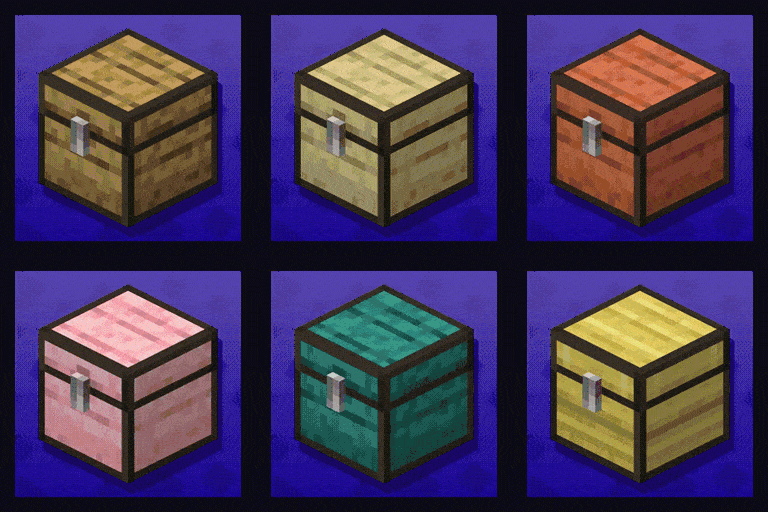 ](https://modrinth.com/datapack/planked-chests)
[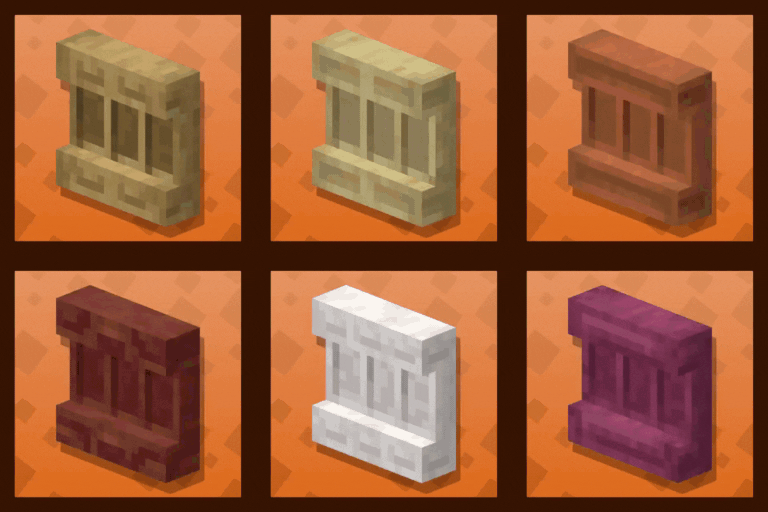 ](https://modrinth.com/datapack/backported-shelves)
QDAA
Implements really simple antialiasing via *super-sampling*, also known as SSAA.
## Huh?
Antialiasing is often implemented via “FXAA”, “TAA”, “MSAA”, etc. All of these methods are approximations, but they’re very fast. FXAA and TAA are basically just really fancy blurs, and MSAA can only smooth polygon edges; pixelated textures are totally missed out on, which is most of what Minecraft is.
Super-sampling is the most pure, accurate, and expensive form of antialiasing. The entire scene is rendered at a higher resolution, and then downscaled for presentation. It’s also the easiest to implement.

For example, if you’re playing in a 1280×720 window, then QDAA will render the game at *2560×1440* instead, and then resize it to 1280×720 before it’s drawn to the screen.
This mod reuses functionality in Minecraft that handles macOS Retina displays, so it should be quite compatible, except with other mods that modify how the framebuffer is drawn to the screen. It also technically optimizes the final render step, replacing a normal quad render with a blit.
Notably, due to how this works, **QDAA can even antialias GUIs**, improving readability of rotated text and smoothing the edges of 3D item models. Shaders only work on the world.
## Versions
2.0 is an xplat redesign of QDAA based on the old “Simple” version, which works on 1.21.1+. Historically, QDAA is available in both “Simple” and “Configurable” versions, which are v1.1 and v1.2 due to having no foresight.
### Simple
Really basic implementation of just the AA. ~~Works on any version with Blaze3D, pinky promise. Will likely never need updating. Remind me if I forget to tag new versions.~~ Mojang refactored how their framebuffer code works, so it broke. Yay. 2.0 exists to fix this.
**Note**: 1.16 and earlier only [*sorta*](https://blob.jortage.com/blobs/7/3d4/73d4a6b5e2bb3172856992ccddbdf281b17105075ad07be9f4919d75dea913d9a4f7249196e40ef061a653354dd617942f9897668e07dad5bd497f65c3bcceb9) work. Only 1.18 and higher is supported.
### Configurable
More “full-fledged” mod with a config screen and runtime toggling. Potentially useful to ship in modpacks off-by-default. Highly version-dependent due to usage of GUIs. Likely won’t receive updates, I regret it.