SKN’s Loopy Ores
Summary
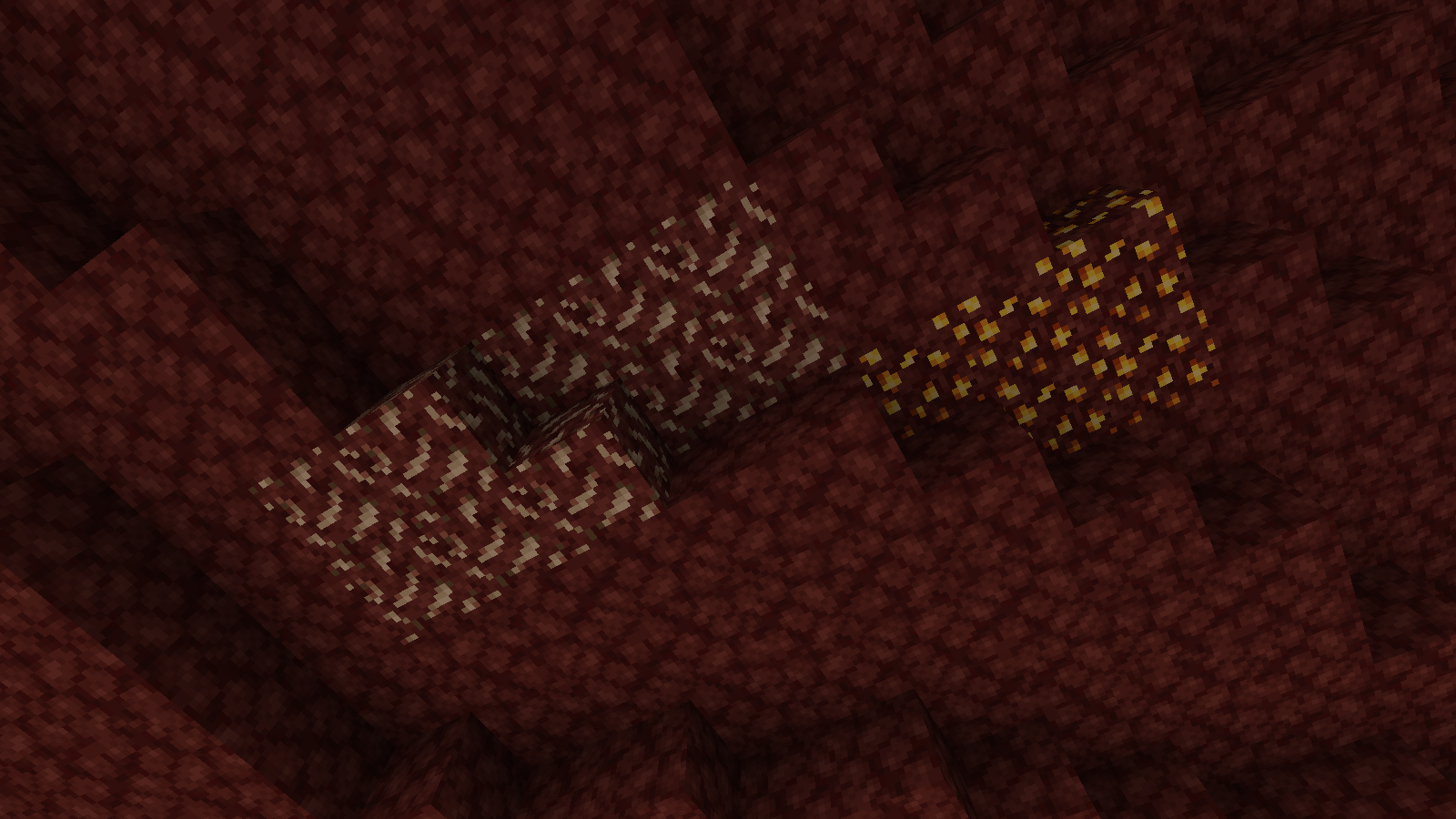
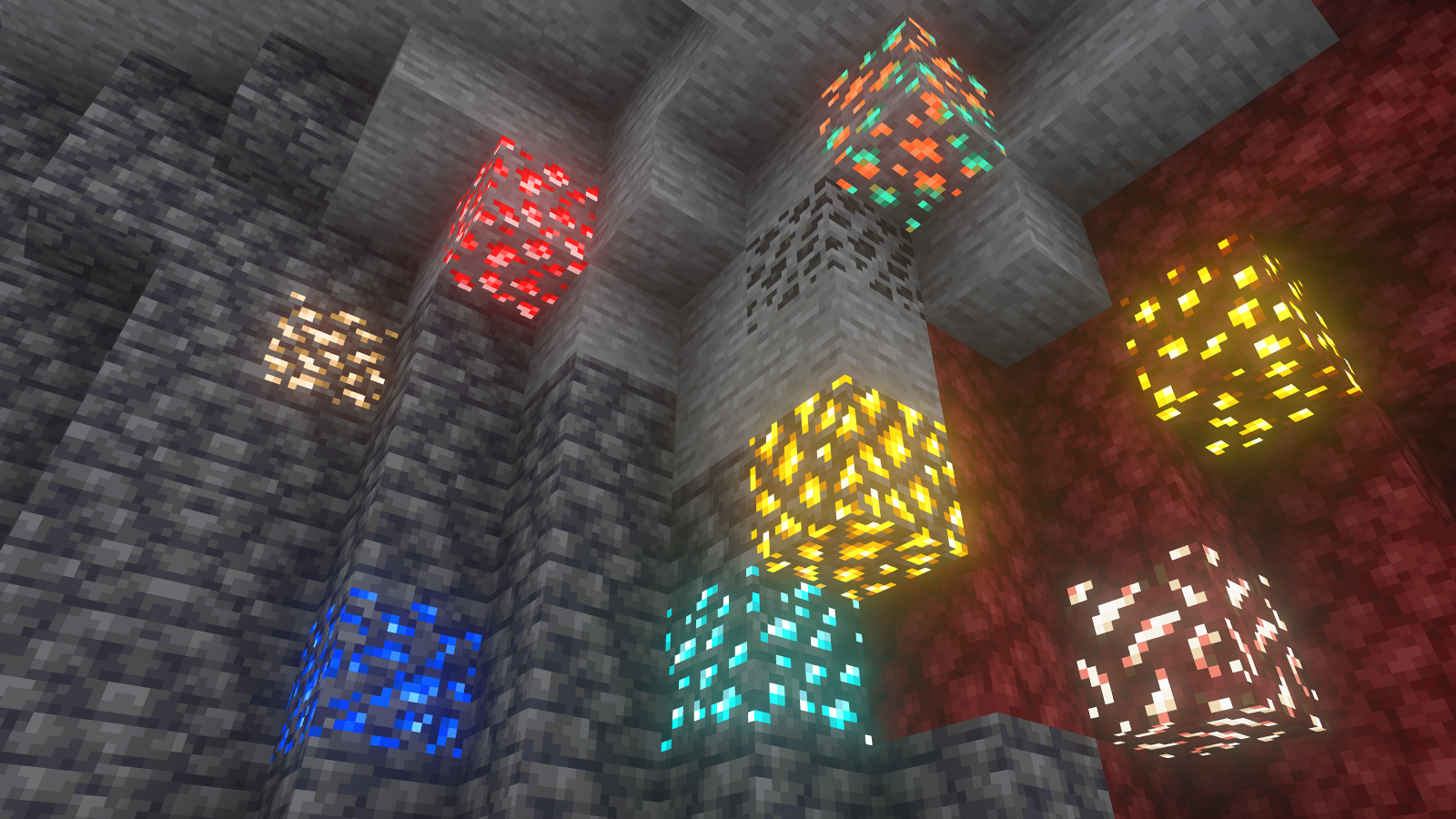
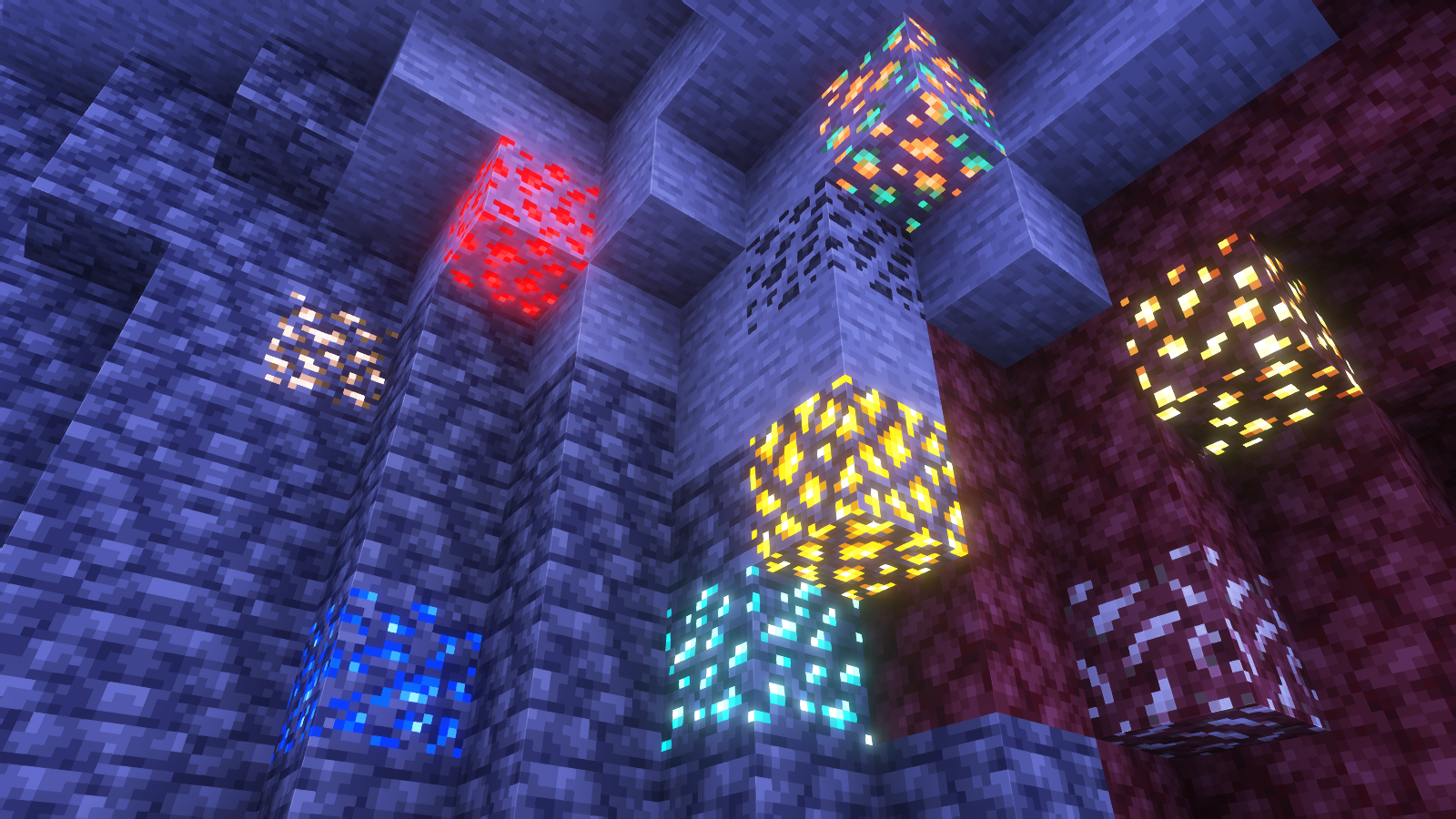
Vanilla ore textures have always seemed very “contained” in their blocks. You could draw a grid using the blocks themselves. This texture pack connects all those lonely ores together, albeit in a pretty rugged way.
This also functions as a more awesome version of all the “ore outline” resource packs.
I didn’t touch gilded blackstone or ancient debris because they’ve all been pretty cool textures already, and I wouldn’t be changing much. I included them in screenshots in the gallery, but I did not change them.
Images
All Ores Affected
1.19-Latest
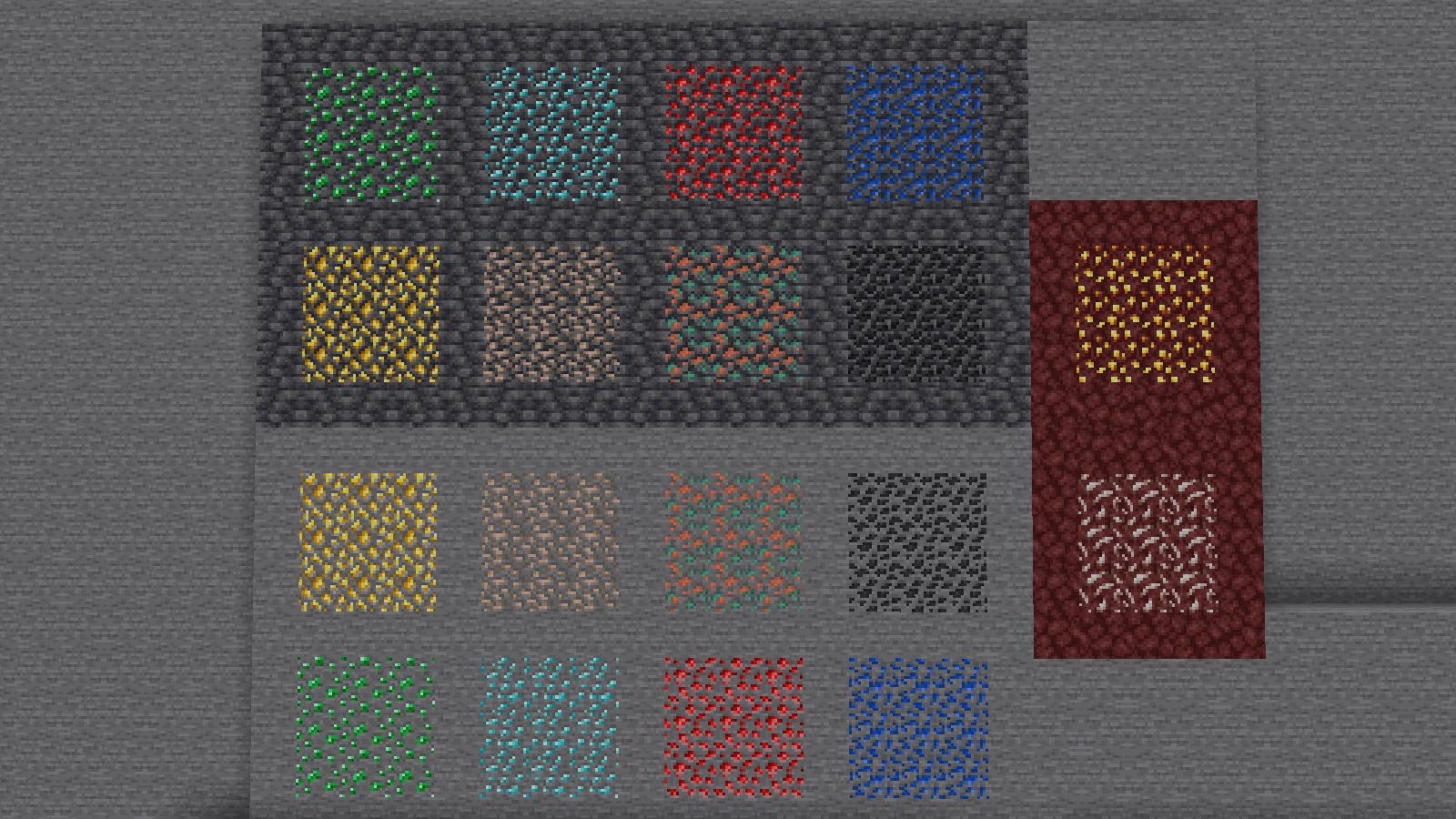
1.6-1.8.9
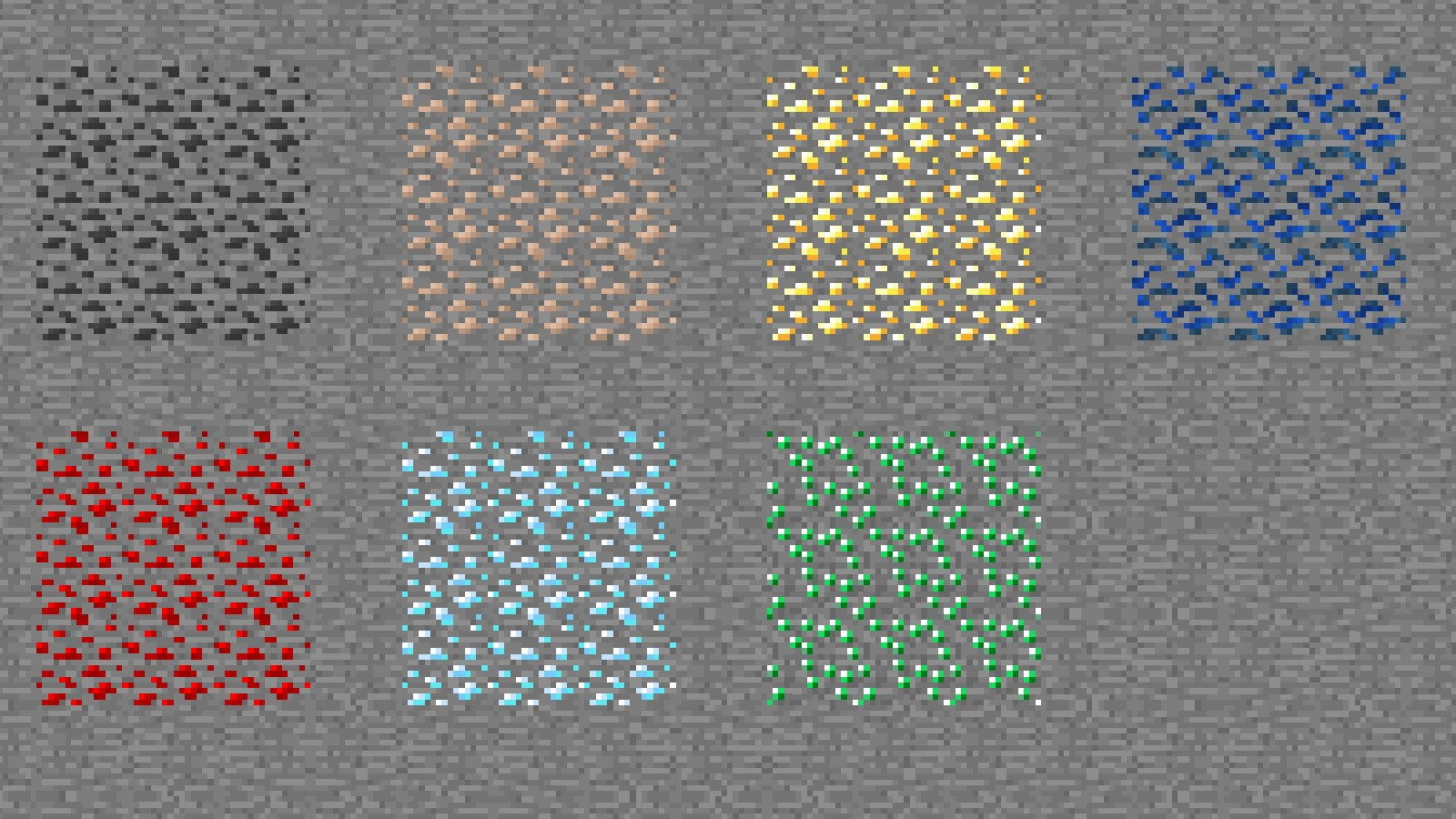
Ingame Screenshots
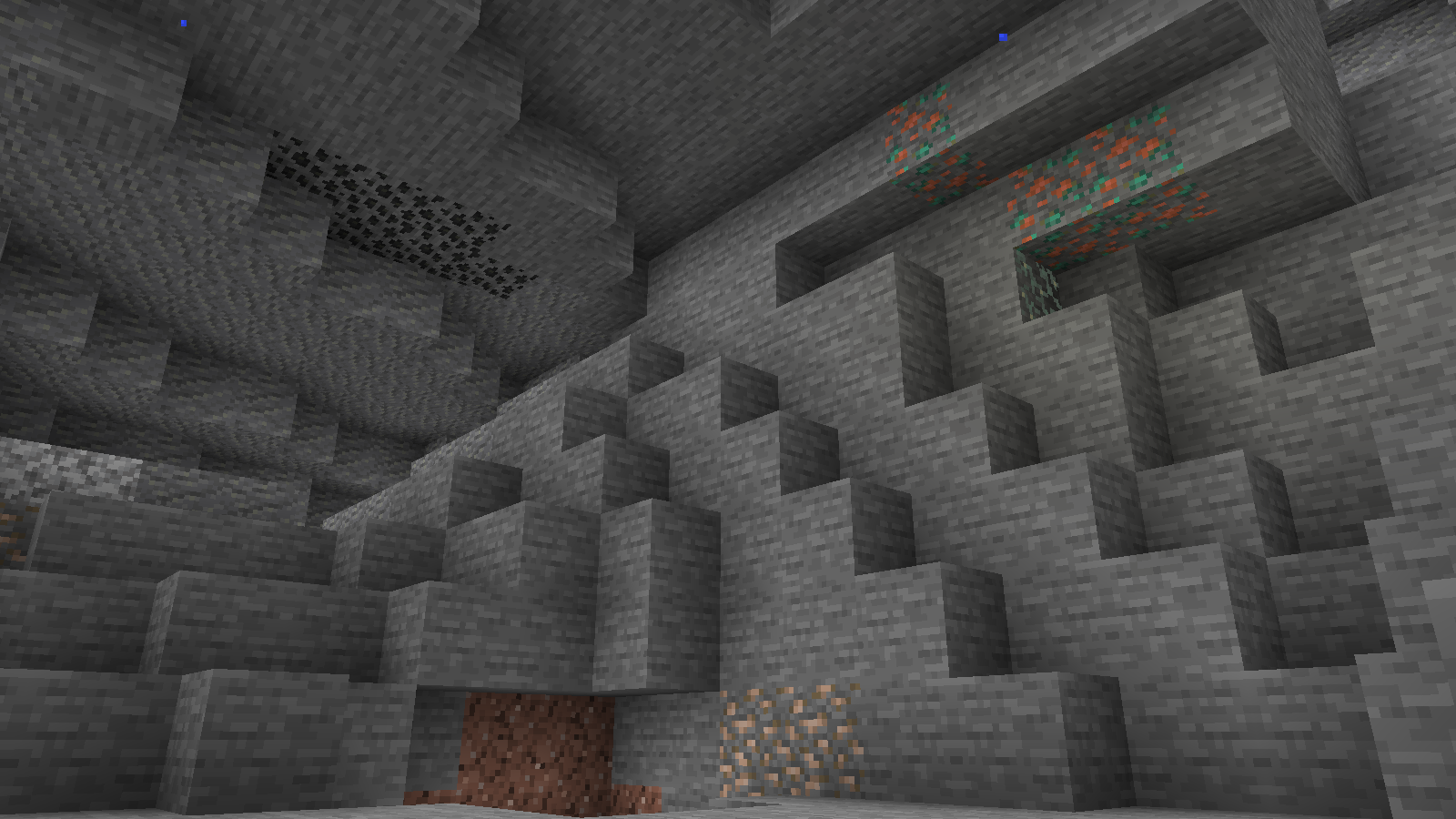
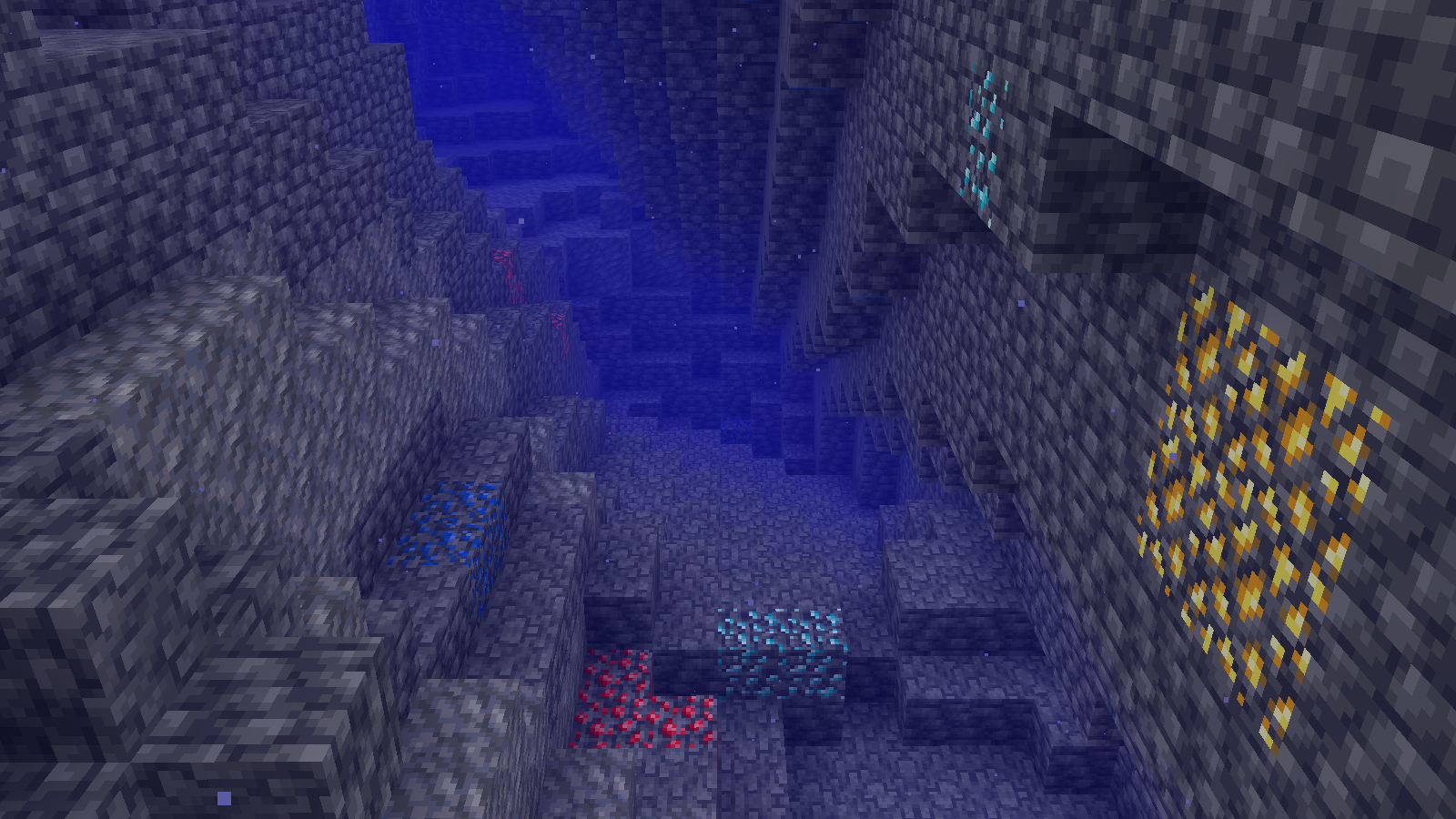
Shader Preview
Solas
Complementary Reimagined
None
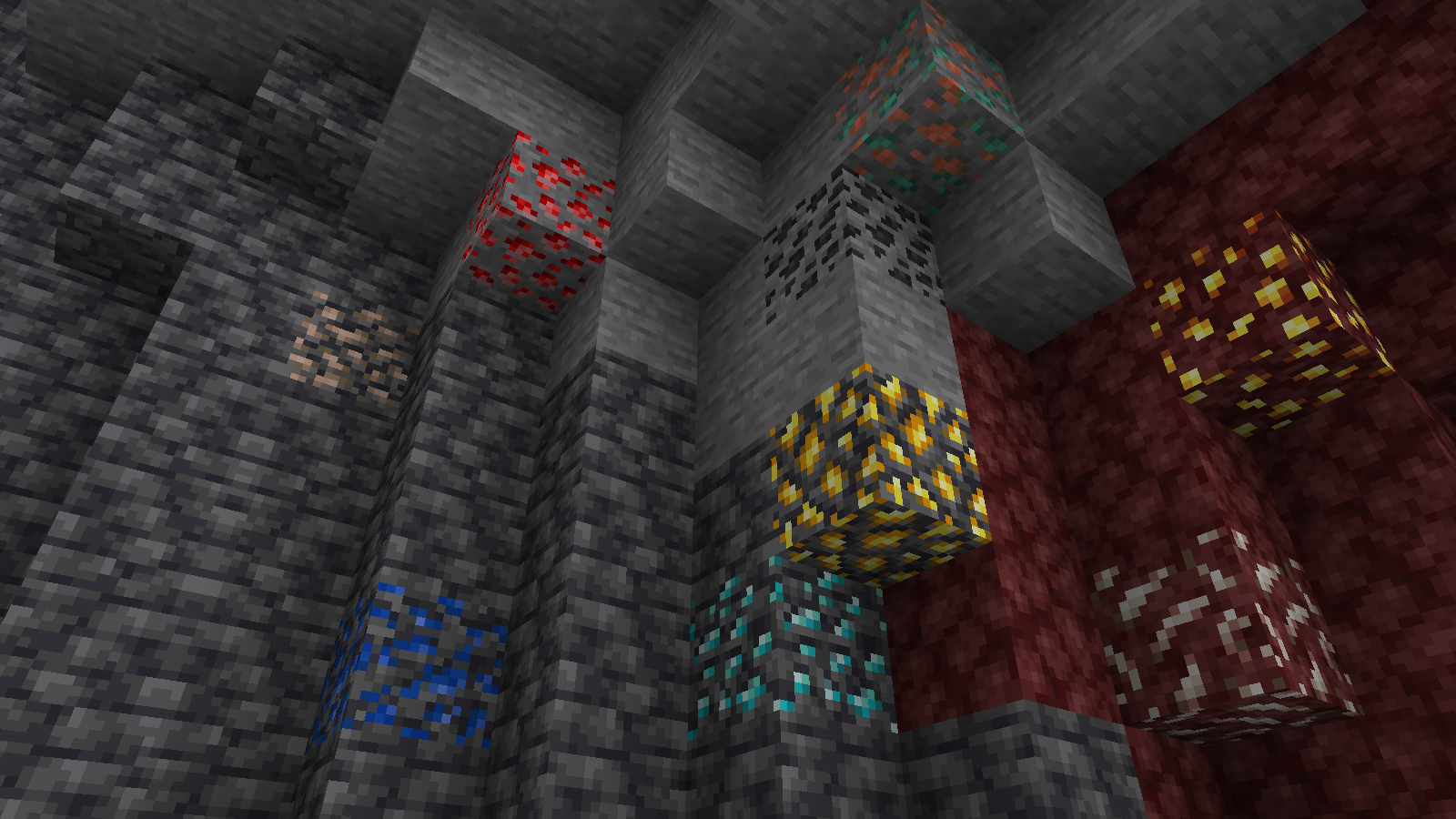
All shaders used are linked in the gallery with their corresponding images.
If you have any questions, comments, or ideas, please check out the wiki link and post them there.
Sit down everywhere!
This data pack allows you to sit down everywhere you want using the new (1.19.4) /ride command.
# How to Use
### /trigger Sit
If you want to stop sitting, just press your sneak key (shift by default).
Simple Voice Chat
[Modrinth](https://modrinth.com/mod/simple-voice-chat)
|
[CurseForge](https://legacy.curseforge.com/minecraft/mc-mods/simple-voice-chat)
|
[Discord](https://discord.gg/4dH2zwTmyX)
|
[Wiki](https://modrepo.de/minecraft/voicechat/wiki)
|
[FAQ](https://modrepo.de/minecraft/voicechat/faq)
|
[Credits](https://modrepo.de/minecraft/voicechat/credits)
|
[API](https://modrepo.de/minecraft/voicechat/api)
# Simple Voice Chat
A proximity voice chat for Minecraft with a variety of [addons](https://modrepo.de/minecraft/voicechat/addons) that offer additional features and functionalities.
⚠️ **NOTE** This mod requires special setup on the server in order to work.
Please read the [wiki](https://modrepo.de/minecraft/voicechat/wiki/setup) for more information.

Please join the Discord if you have questions!
## Downloads
– [Fabric](https://modrinth.com/mod/simple-voice-chat/versions?l=fabric)
– [NeoForge](https://modrinth.com/mod/simple-voice-chat/versions?l=neoforge)
– [Forge](https://modrinth.com/mod/simple-voice-chat/versions?l=forge)
– [Bukkit/Spigot/Paper](https://modrinth.com/plugin/simple-voice-chat/versions?l=bukkit)
– [Quilt](https://modrinth.com/mod/simple-voice-chat/versions?l=quilt)
– [Velocity](https://modrinth.com/mod/simple-voice-chat/versions?l=velocity)
– [BungeeCord/Waterfall](https://modrinth.com/mod/simple-voice-chat/versions?l=bungeecord)
## Features
– Push to talk
– Voice activation
– Proximity voice chat
– Password protected groups
– Automatic voice activity detection
– Automatic microphone gain adjustment
– [Opus codec](https://opus-codec.org/)
– [RNNoise](https://jmvalin.ca/demo/rnnoise/) recurrent neural network noise suppression
– OpenAL audio
– Cross compatibility between Fabric, NeoForge, Forge, Quilt, Bukkit, Spigot and Paper
– Support for Velocity, BungeeCord and Waterfall
– Compatibility with [ModMenu](https://modrinth.com/mod/modmenu) (Use [ClothConfig](https://modrinth.com/mod/cloth-config) for a better configuration UI)
– Configurable push to talk key
– Microphone and speaker test playback
– Configurable voice distance
– Whispering
– Individual player volume adjustment
– Microphone amplification
– 3D sound
– AES encryption
– Audio recording with separate audio tracks
– A powerful [API](https://modrepo.de/minecraft/voicechat/api)
– Many [addons](https://modrepo.de/minecraft/voicechat/addons)
## Icons
| Icon | Description |
|:————————————:|——————————————————-|
|  | You are talking |
|  | You are whispering |
|  | Player is talking |
|  | Player is whispering |
|  | Microphone muted |
|  | Voice chat disabled |
|  | Voice chat not connected
Voice chat not installed |
## The GUI
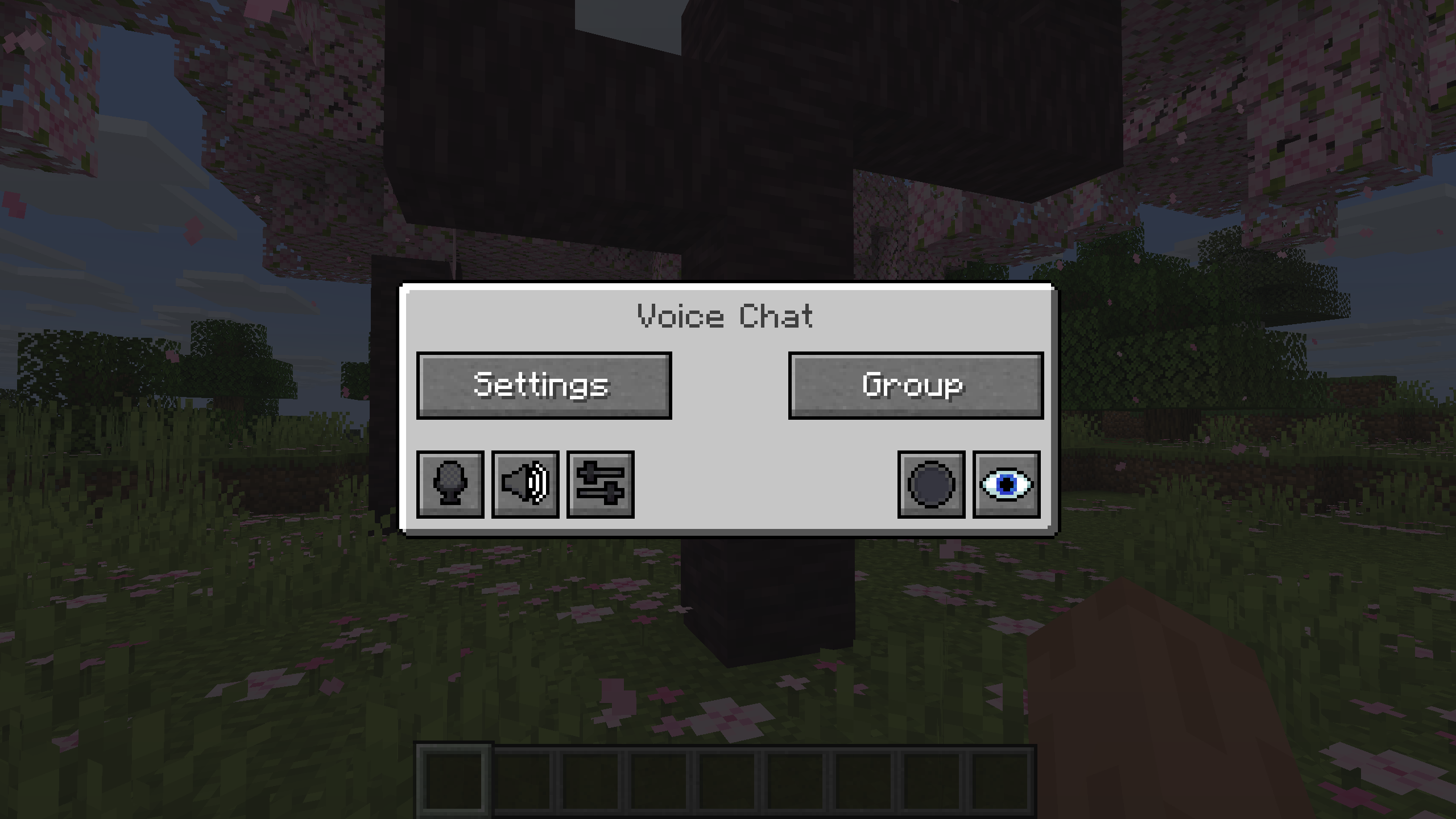
You can open the voice chat GUI by pressing the `V` key.
This allows you to open the settings, group chats, mute yourself, disable the voice chat, start/stop a recording and hide all icons.
### Group Chats
Group chats allow you to talk to players that are not in your vicinity.
To open the group chat interface, either press the group button in the voice chat GUI or just press the group key.
To create a new group, just type a name in the text field and press the button at the bottom.
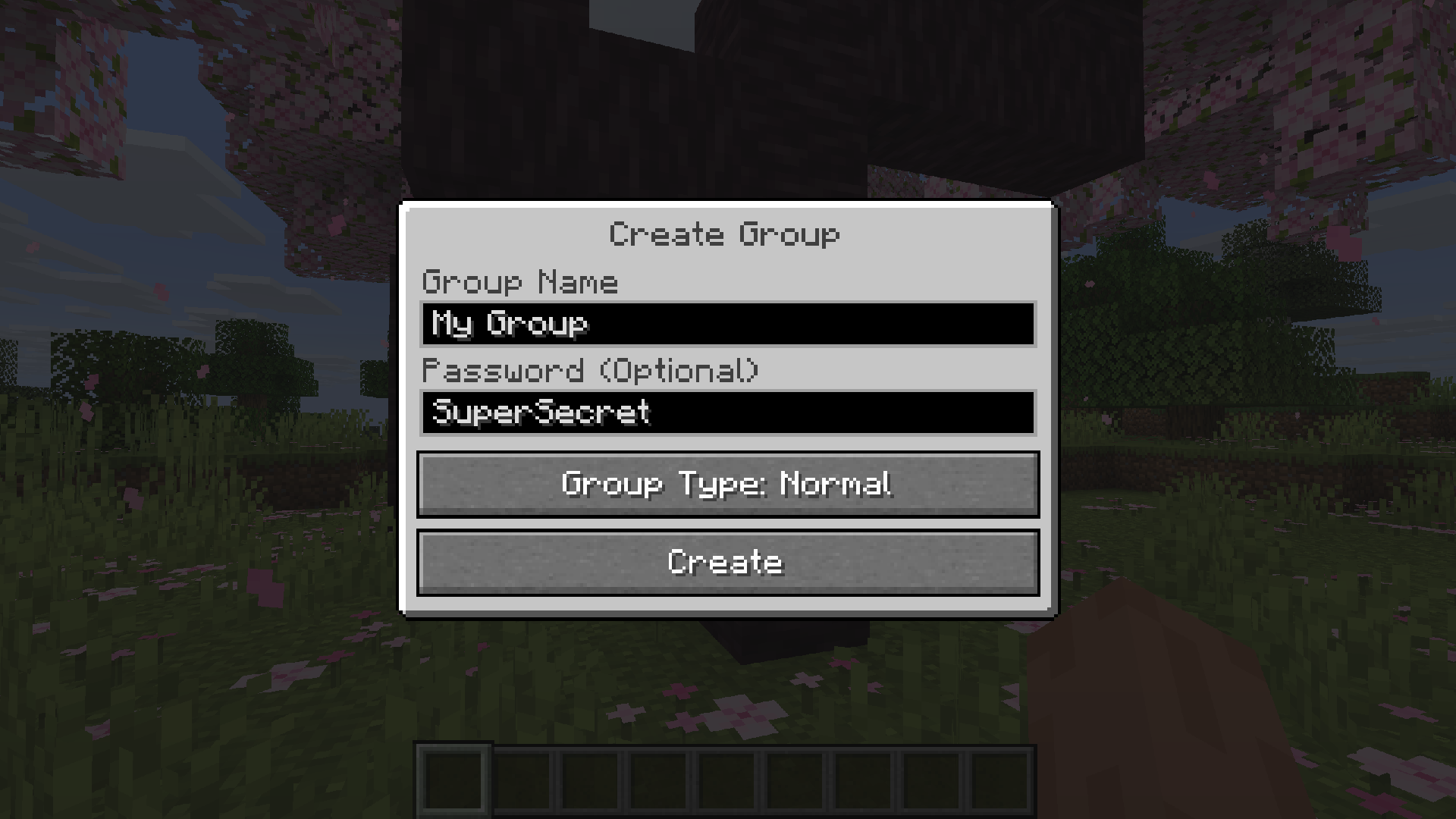
Creating or joining a group will bring you into the group chat interface.
You will also see the heads of the group members in the top left corner of your screen.
Talking players will be outlined.
You can disable these icons by pressing the third button from the left.
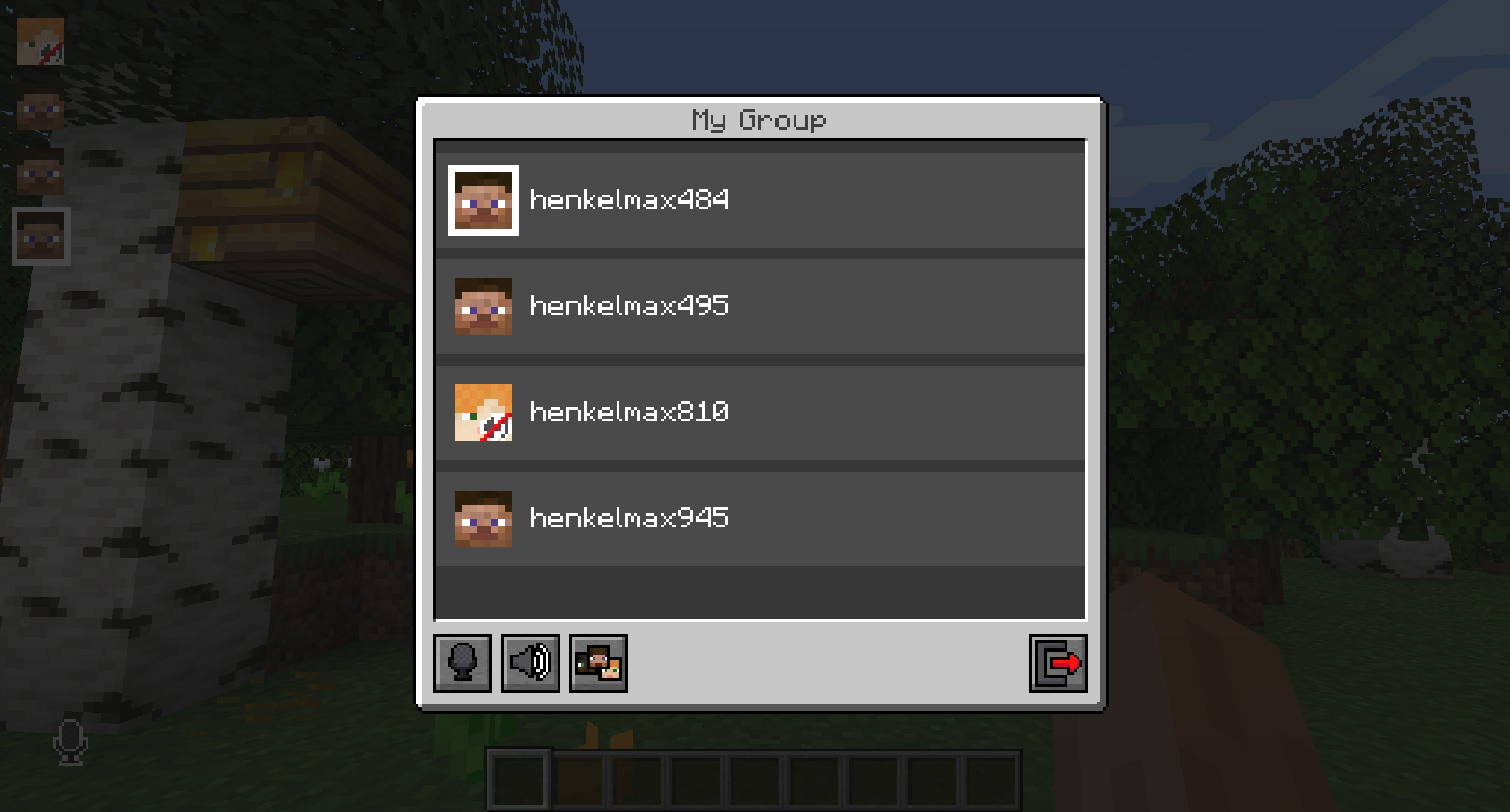
Players that are not in a group will see a group icon next to your head, indicating that you are in a group.
You can invite players to your group chat by entering the command `/voicechat invite ` or from the social interactions screen.
### Settings
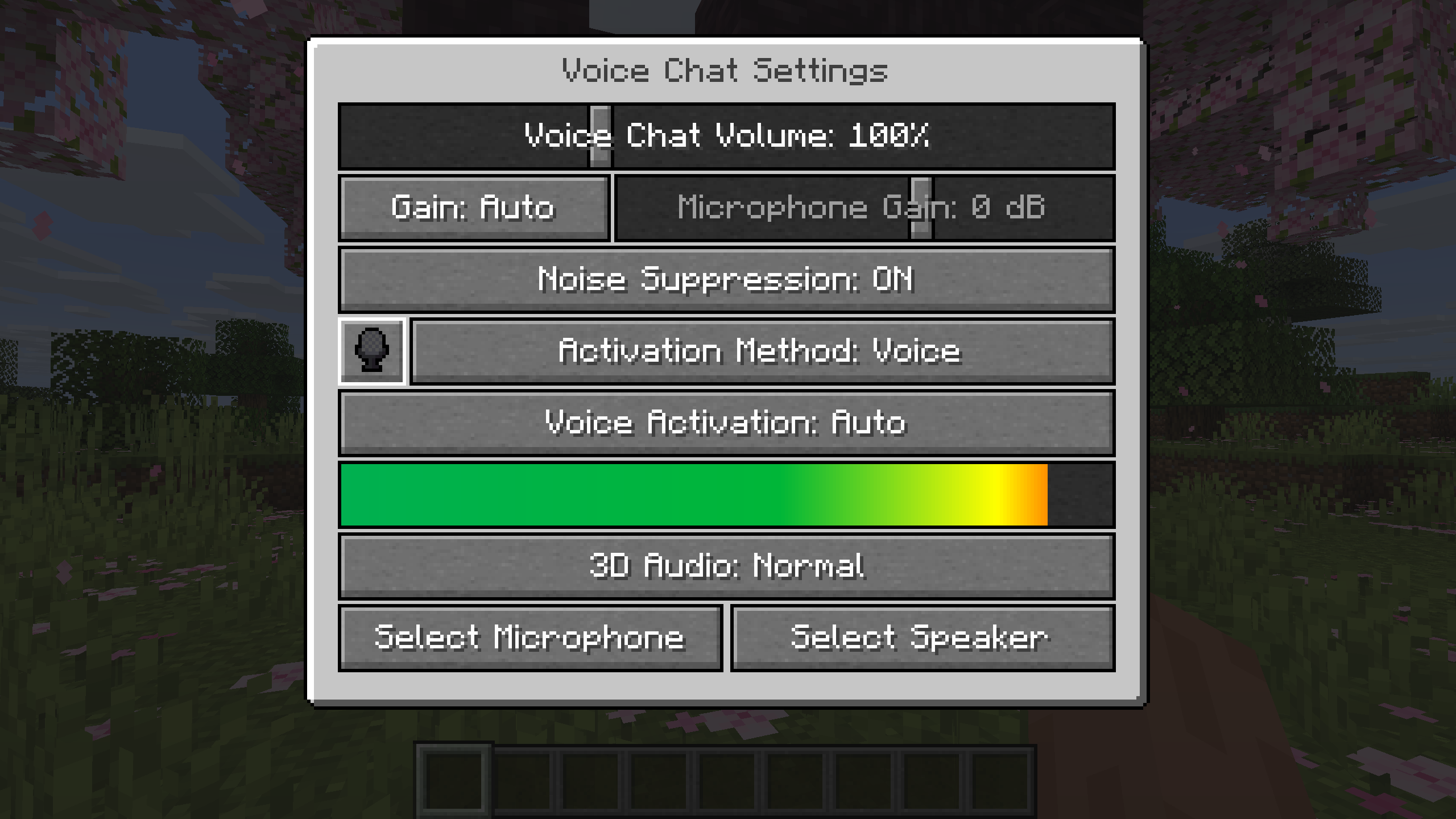
You can access the voice chat settings by pressing the `V` key and pressing the settings button.
This menu offers the ability to set up your voice chat audio settings.
By clicking the microphone button, you can test your microphone activation.
## Important Notes
You need to open a port on the server. This is port `24454` `UDP` by default.
Without opening this port, the voice chat will not work.
This port can be changed in the server config.
More information [here](https://modrepo.de/minecraft/voicechat/wiki/setup).
The voice chat is encrypted, but we don’t guarantee the security of it. Use at your own risk!
Simple Displays
### Intended & Designed for Creative Use or by Server Operators Only.
#### Feedback & Bug Reports
To Provide Feedback or a Bug Report, please submit [a form here.](https://forms.gle/mxkBa3EfEdKTgBRC7)
## Operator Status
Operator Only Mode is set to on by default. As an operator run `/function sdsetting:oponly` to toggle it off & on. While Op Only mode is on, commands can only be run by `/function sdfunction:[command]` by typing that and without the /trigger.
#### Regular Simple Displays
Simple Displays is a datapack that you can include in your world! It adds multiple /trigger commands, which are the main interactions with this datapack. The commands are the following:
| Item Display Entity | Text Display Entity | Block Display Entity |
| ——– | ——– | ——– |
|/trigger ToggleBrightness|/trigger ToggleBrightness|/trigger ToggleBrightness|
|/trigger CycleItemBillboard|/trigger CycleTextBillboard|/trigger CycleBlockBillboard|
|/trigger CycleItemRotation|/trigger CycleTextRotation|/trigger CycleBlockRotation|
|/trigger CycleItemScale|/trigger CycleTextScale|/trigger CycleBlockScale|
|/trigger KillItemDisplay|/trigger KillTextDisplay|/trigger KillBlockDisplay|
|/trigger PlaceItemDisplay|/trigger PlaceTextDisplay|/trigger PlaceBlockDisplay|
|/trigger PrecisePlaceItemDisplay|/trigger PrecisePlaceTextDisplay|/trigger PrecisePlaceBlockDisplay|
|/trigger ReplaceItemDisplay|/trigger ReplaceTextDisplay|/trigger ReplaceBlockDisplay|
|/trigger CycleItemStyle|||
#### Operator Only Custom Commands:
*These Commands are more complicated commands that allow for more dynamic selection of things for Display Entities. This is only available for **1.20.3 and Higher**.* Replace X with one of the listed or custom variables.
Operator Only Custom Command Descriptions
– `/function sdcustom:place_custom_block {block:X}` (Any Block id. No need to add Minecraft:)
– `/function sdcustom:place_custom_item {item:X}` (Any Item id. No need to add Minecraft:)
– `/function sdcustom:place_custom_text {text:X,color:X}` (Text: What you want on the display, Color: [Legacy Minecraft Colors](https://minecraft.wiki/w/Formatting_codes))
– `/function sdcustom:precise_custom_block {block:X}` (Any Block id. No need to add Minecraft:)
– `/function sdcustom:precise_custom_item {item:X}` (Any Item id. No need to add Minecraft:)
– `/function sdcustom:precise_custom_text {text:X,color:X}` (Text: What you want on the display, Color: [Legacy Minecraft Colors](https://minecraft.wiki/w/Formatting_codes))
– `/function sdcustom:replace_custom_text {text:X,color:X}` (Text: What you want on the display, Color: [Legacy Minecraft Colors](https://minecraft.wiki/w/Formatting_codes))
– `/function sdcustom:set_custom_billboard {type:X,billboard:X}` (type: entity – Make sure to add _display -, billboard: fixed, vertical, horizontal, or center)
– `/function sdcustom:set_custom_scale {type:X,scale:X}` (type: entity – Make sure to add _display -, Scale of Entity)
– `/function sdcustom:set_full_custom_scale {type:X,scale1:X,scale2:X,scale3:X}` (type: entity Make sure to add _display , Scale: X, Y & Z of Entity)
#### Item Display Entity:
*Item Displays are entities that display items in multiple ways. This datapack uses commands to add, modify, and change these item displays in a simplified way. You can place them and modify these entities in 5 ways, item it displays, size, style, rotation, and billboard!*
Item Display Command Descriptions
– **CycleItemBillboard**: `Cycles the “Billboard” of Item Displays (From Fixed > Vertical > Horizontal > Center > Fixed).`
– **CycleItemRotation**: `Cycles the “Rotation” of Item Displays (From South > West > North > East > South)`
– **CycleItemScale**: `Cycles the “Scale” of Item Displays (From 1x > 2x > 8x > 16x > -1x > -2x > 1x).`
– **KillItemDisplay**: `Kills Item Display Directly next to you.`
– **PlaceItemDisplay**: `Places an Item Display at the center of the block of where you are (and uses your held item).`
– **PrecisePlaceItemDisplay**: `Places an Item DIsplay at where you are (and uses your held item).`
– **ReplaceItemDisplay**: `Replaces the Item of the nearest Item Display (uses your held item).`
– **CycleItemStyle**: `Cycles Rendering Style of Item Displays (From Fixed > Third Person > First Person > Head > GUI > Ground > Fixed)
#### Block Display Entity:
*Block Displays are entities that display blocks in multiple ways. This datapack uses commands to add, modify, and change these block displays in a simplified way. You can simply place them and modify these entities in 4 ways, block it displays, size, rotation, and billboard! Note, Block Displays only display blocks with hitboxes, blocks such as redstone dust and rails won’t be placed*
Block Display Command Descriptions
– **CycleBlockBillboard**: `Cycles the “Billboard” of Block Displays (From Fixed > Vertical > Horizontal > Center > Fixed).`
– **CycleBlockRotation**: `Cycles the “Rotation” of Block Displays (From South > West > North > East > South)`
– **CycleBlockScale**: `Cycles the “Scale” of Block Displays (From 1x > 2x > 8x > 16x > -1x > -2x > 1x).`
– **KillBlockDisplay**: `Kills Block Display Directly next to you.`
– **PlaceBlockDisplay**: `Places a Block Display at the center of the block of where you are (and uses the item directly below you).`
– **PrecisePlaceBlockDisplay**: `Places a Block DIsplay at where you are (and uses the item directly below you).`
– **ReplaceBlockDisplay**: `Replaces the Block of the nearest Block Display (and uses the item directly below you).`
#### Text Display Entity:
*Text Displays are entities that display text in many ways. This datapack uses commands to add, modify, and change these text displays in a simplified way. You can simply place them and modify these entities in 4 ways, text it displays, size, rotation, and billboard!*
Text Display Command Descriptions
– **CycleTextBillboard**: `Cycles the “Billboard” of Text Displays (From Fixed > Vertical > Horizontal > Center > Fixed).`
– **CycleTextRotation**: `Cycles the “Rotation” of Text Displays (From South > West > North > East > South)`
– **CycleTextScale**: `Cycles the “Scale” of Item Displays (From 1x > 2x > 8x > 16x > 1x).`
– **KillTextDisplay**: `Kills Text Display Directly next to you.`
– **PlaceTextDisplay**: `Places a Text DIsplay at the center of the block of where you are (and uses your held item’s name).`
– **PrecisePlaceTextDisplay**: `Places a Text DIsplay at where you are (and uses your held item’s name).`
– **ReplaceTextDisplay**: `Replaces the Text of the nearest Text Display (uses your held item’s name).`
Simple Datapacks
## 📂 Simple Datapacks
The purpose of this mod is to simplify the ways of adding datapacks to the game. To do this, the mod creates a folder in the root directory of Minecraft called datapacks. In my opinion, the capabilities of datapacks are underestimated by players, mostly because not everyone understands how to install datapacks into the game. This is more difficult to do than to install a mod or resource pack, although many datapacks bring a lot of content to the game.
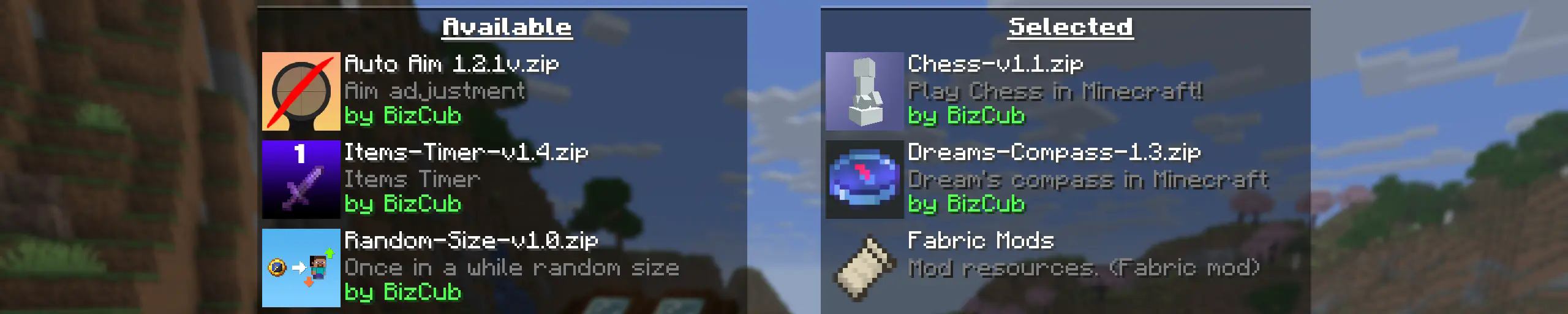
My goal is to make a mod that will help players with installing datapacks into the game so that they can get a new portion of unforgettable impressions.
## 💼 Usage

In order to launch a world with datapacks, you need to download any datapack that is compatible with the selected version of Minecraft, open and place the datapack in the datapacks folder, start creating a world and select the desired datapack from the list. However, when using Cloth Config, the mod settings specify the path to the downloads folder, so to use datapacks, you only need to download them, then simply open the datapack selection menu and enable the desired one.
## ✨ Features
Whenever possible, I added the most basic features for the mod that I could imagine.
Click to open
* Since the main thing for me is that as many players as possible start using datapacks, I made the mod available on 4 different loaders so that it can be launched from almost any modpack.
* The mod has a configuration. The values used by the mod can be changed in the mod menu (Fabric requires ModMenu), and can also be changed in the configuration file, which is available using the Cloth Config API.
* The mod allows players to add and load datapacks from different folders. To change the sources of these packs, you need to configure them in the mod settings. If you want to specify a folder in the game’s root directory, for example, “`my_datapacks“` instead of the full path “`C:Users{USERNAME}AppDataRoaming.minecraftmy_datapacks“`, simply enter the folder name in the field in the mod settings menu.
* By default, datapacks are loaded from the datapacks folder in the root directory and the downloads folder, allowing them to appear in the game immediately after installation (provided Cloth Config API is loaded; otherwise, only the datapacks folder will be used).
* The mod settings have two lists: one for required and one for optional datapacks. The first list specifies the paths to datapacks that are automatically applied when entering a world. The second list contains datapacks that remain inactive but can be enabled at any time using the “`/datapack enable“` command.
* The Simple Datapacks mod runs on the server. Since the mod settings are not accessible on the server, it automatically uses all datapacks from the datapacks folder.
* It’s possible to disable feature packs (experimental datapacks). If you don’t use feature packs, you can disable them to save space on the datapack selection screen. In the mod settings, function packages can be set to required, and then they will be applied when the world starts.
* Unlike similar mods, datapacks will continue to work in the world, even if you disable the mod. In the mod settings, you can enable copying datapacks to the world folder. In this case, the datapack will work without the mod, because the game will read it from the world.
## 🤝 Support

Silent Horns
**Are you tired of hearing goat horns again and again?
Does your SMP friend annoy you with spamming goat horns while flying around you like a bug?**
This resourcepack will help you! 🤝
❌ There is currently no way to lower the volume of goat horn sounds exclusively, the only way is to lower the master game volume.
🔇 In this pack all goat horn sounds are replaced with silence, so you can enjoy peace without lowering your overall game volume all the way down.
### Troubleshooting
❓ If the horn sounds aren’t silenced after enabling resourcepack, you can try to rejoin the world/server or just relaunch the game entirely.
Silent Discs Plus
This Silent Discs resource pack is made specifically for use with redstone disk/jukebox ROMs. It not only silences all music discs, but also removes the “now playing” text and silences minecarts too
(Minecarts have a bad habbit of taking up the sound cap even if you can’t hear them, this pack fixes that)
Sign Models
# Sign Models
This Minecraft resource pack provides usable entity models through Custom Model Data, allowing map makers and creators to display entities in ways that were previously limited. The pack is designed to be used in other resource packs, allowing users to cherry-pick the pieces they need.
### Custom Model Data
Each model is tied to the item form of itself.
The types are as follows:
| Type | Model Data Number | Sign Item |
| :—: | :—: | :—: |
| Sign | `2669000` | Normal Sign |
| Wall Sign | `2669001` | Normal Sign |
| Sign Post | `2669002` | Normal Sign |
| Wall Hanging Sign | `2669000` | Hanging Sign |
| Hanging Sign | `2669001` | Hanging Sign |
| Attached Hanging Sign | `2669002` | Hanging Sign |
For example, the following command could be used to summon a cherry hanging sign display:
`/summon minecraft:item_display ~ ~ ~ {item: {id: “minecraft:cherry_hanging_sign”, Count: 1b, tag: {CustomModelData: 2669000}}}`
Show Me What You Got
# Show Me What You Got
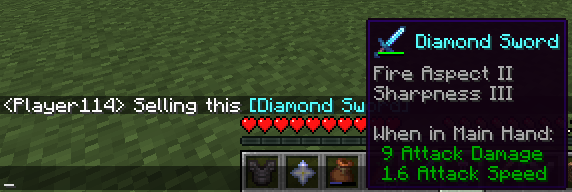
A simple mod which allows displaying your items to other users in chat.
While in your inventory, hold ctrl and then press your chat key while hovering over an item to share it. (so **Ctrl+T** by default).
Your chat window will open with the linked item inside. Feel free to write a message before or after the item (or both) before sending!
## Client or Server?
The mod _should_ be installed on the client _and_ the server in order to function properly.
Clients without the mod can still see items shared by others with the mod in chat, but can’t share items themselves and also won’t see the shared item’s texture in the tooltip. If you use this mod on your client and try to share an item on a server without the mod installed, you will just send text with the item name.
Shorty Swords
Shortened Sword are Just Built Different! Aren’t they look hot?
Texture-pack makes swords a bit shorter. Supports almost **EVERY** ever existed Minecraft Version.