BuildCraft Silicon
The silicon submodule as provided by [BuildCraft](https://modrinth.com/mod/buildcraft).
This submodule provides higher-technology construction blocks powered by specialized Lasers, such as:
* the Advanced Crafting Table, a powerful auto-crafting block,
* the Assembly Table and the Integration Table, used as a more advanced step in crafting high-tech BuildCraft blocks and items.
Note that the [BuildCraft](https://modrinth.com/mod/buildcraft) project contains the complete mod in single-JAR format – but not all versions are available in this format; likewise, not all versions are available in this multi-JAR submodule format.
Licensing information is provided in the full version’s description above.
BuildCraft Factory
The factory submodule as provided by [BuildCraft](https://modrinth.com/mod/buildcraft).
This submodule adds single-block, smaller-scale machines, such as the following:
* **Mining Well** – 1×1 vertical mining block,
* **Pump** – liquid extraction block,
* **Auto Workbench** – low-tier automatic crafting block,
* **Tank**,
* **Flood Gate**,
* **Chute**,
* **Distiller** and **Heat Exchanger**.
Note that the [BuildCraft](https://modrinth.com/mod/buildcraft) project contains the complete mod in single-JAR format – but not all versions are available in this format; likewise, not all versions are available in this multi-JAR submodule format.
Licensing information is provided in the full version’s description above.
BuildCraft Energy
The energy submodule as provided by [BuildCraft](https://modrinth.com/mod/buildcraft).
This submodule provides content such as:
* Oil fields in world generation,
* MJ/RF-generating engines:
* the low-power Redstone Engine, usable only with specialized low-power consumers,
* the soild fuel-based Stirling Engine,
* the liquid fuel-based Combustion Engine.
Note that the [BuildCraft](https://modrinth.com/mod/buildcraft) project contains the complete mod in single-JAR format – but not all versions are available in this format; likewise, not all versions are available in this multi-JAR submodule format.
Licensing information is provided in the full version’s description above.
BuildCraft Core
The core/library submodule as provided by [BuildCraft](https://modrinth.com/mod/buildcraft).
This submodule provides shared code used by other BuildCraft submodules, as well as some blocks/items shared between them (crafting component items, area marker blocks, etc). Notably, the mod’s Wrench item is provided by this submodule, which is often well-supported by other mods.
Note that the [BuildCraft](https://modrinth.com/mod/buildcraft) project contains the complete mod in single-JAR format – but not all versions are available in this format; likewise, not all versions are available in this multi-JAR submodule format.
Licensing information is provided in the full version’s description above.
BuildCraft Builders
The builders submodule as provided by [BuildCraft](https://modrinth.com/mod/buildcraft).
This submodule adds BuildCraft’s Builders – blocks which allow the construction of user-provided schematics within a world using resources gathered from that world. To create a Schematic, the Architect Table is utilized. Schematics created in this way can be imported and exported using the Blueprint Library and shared with others online.
Note that the Builders only really became fully stable in a multiplayer context with more recent versions for Minecraft 1.7.10.
Note that the [BuildCraft](https://modrinth.com/mod/buildcraft) project contains the complete mod in single-JAR format – but not all versions are available in this format; likewise, not all versions are available in this multi-JAR submodule format.
Licensing information is provided in the full version’s description above.
BrighterAccessibility
# BrighterAccessibility
## Overview
**Compatible with Distant Horizons**
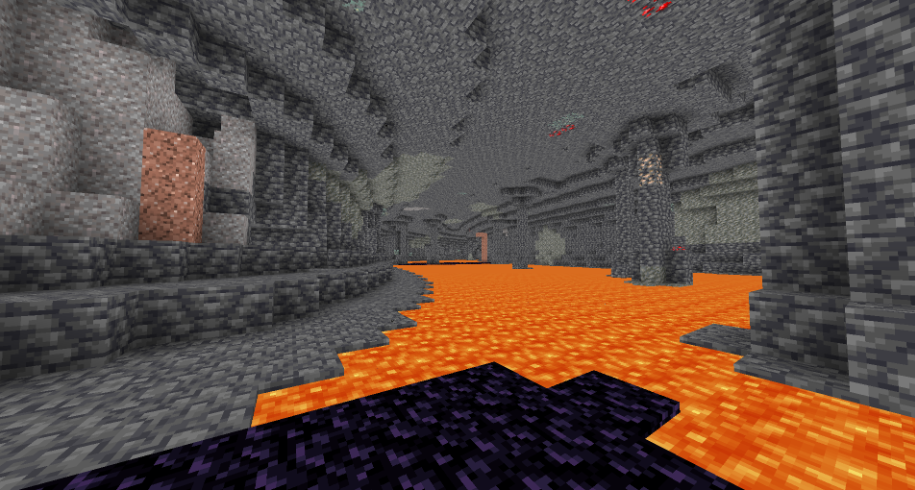
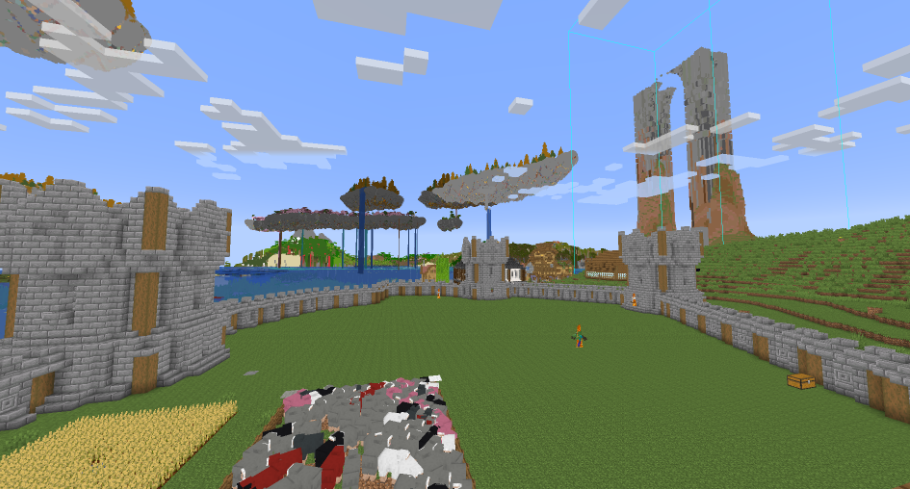
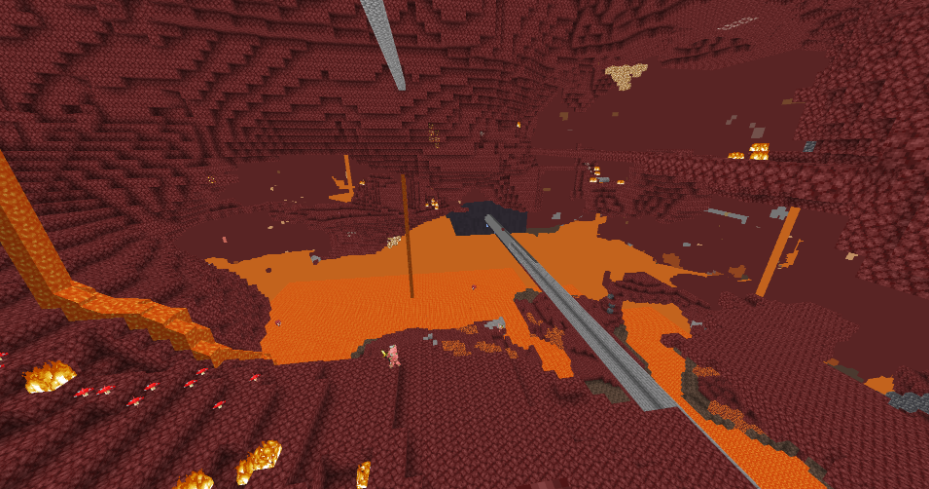
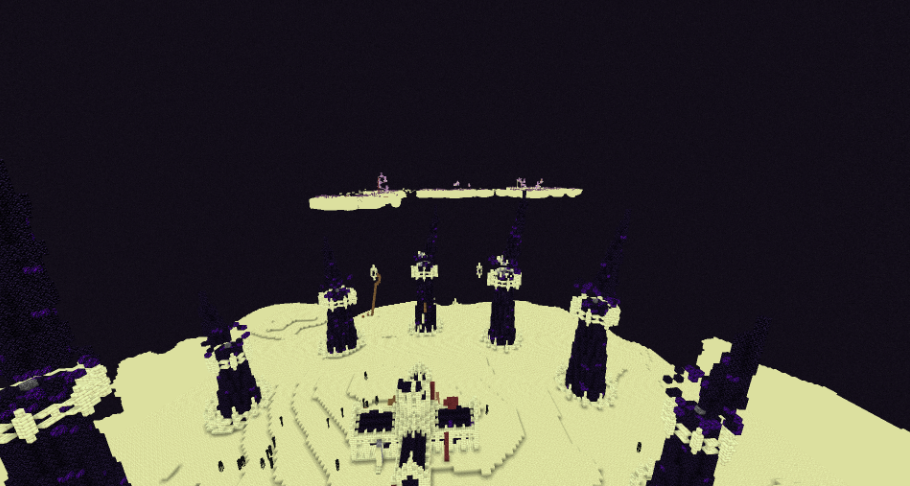
**BrighterAccessibility** is a custom shader designed to enhance visibility for visually impaired players by making the world brighter. This shader aims to improve accessibility.
## Installation
1. Download the `BrighterAccessibility.zip` file from the link provided.
2. Extract the contents into your Minecraft shaderpacks folder.
3. Launch Minecraft and select the BrighterAccessibility shader from the iris shaders menu.
## Usage
Once installed, the shader will automatically adjust the brightness levels, making dark areas easier to see for visually impaired players. Enjoy a more accessible Minecraft
### This shader is intended solely for accessibility purposes. It should not be used to gain gameplay advantages. If you have any concerns or feedback, please reach out to me.
###
## Screenshots
Blue TNT
Just a very simple resource pack that makes TNT blue 😀
Blue Poppy
A resource pack I made to make poppies blue 😀
If the .zip file doesn’t work, try unzipping it and use the raw folder.
Blue Pack
This Resource pack combines all my Blue texture packs into one! Current blue blocks:
– **TNT**
– **TNT Minecart**
– **Poppy**
– **Furnace Flame**
BlockMessage
# BlockMessage
BlockMessage is a simple Velocity plugin for temporarily blocking player connections during server maintenance or emergencies.
It allows you to restrict server access with a single command, displaying custom messages to players in both the server list (MOTD) and upon connection attempts.
## Features
– Command-Based Blocking: Toggle connection blocking on and off in real-time with the /block command, no server restart required.
– Custom Kick Message: Fully customize the message shown to blocked players in config.yml. Multi-line messages and color codes are supported.
– Custom MOTD: Change the MOTD (server description), version name, and player count displayed in the server list while blocking is active. This makes it easy to inform players about maintenance at a glance.
– Permission Control: Restrict command usage to administrators with the blockmessage.command.admin permission.
– Persistent Settings: The plugin’s state is saved in config.yml, so your settings will be maintained even after restarting Velocity.
Configuration (default.yml)
The plugins/blockmessage/config.yml file is generated on the first startup.
“`
# =================================================================
# BlockMessage Plugin Configuration (Default Profile Template)
# This file will be copied to profiles/default.yml if it doesn’t exist.
# =================================================================
# Enable or disable the entire plugin for this profile.
# If false, no players will be blocked and the MOTD will not be changed when this profile is active.
enabled: true
# The message displayed to players when they are blocked from joining.
# This is a list of strings, where each string represents a new line.
# You can use ‘&’ for color codes.
block-message:
– “&cThis server is currently in maintenance mode.”
– “&ePlease try again later.”
# Configuration for the custom MOTD (Message of the Day) shown in the server list.
block-motd:
# Enable or disable the custom MOTD when the plugin is enabled in this profile.
enabled: true
# The first line of the MOTD.
line1: “&cServer is in Maintenance”
# The second line of the MOTD.
line2: “&eWe will be back soon!”
# The maximum player count to display. Set to -1 to use the server’s default from bungee config.
max-players: 0 # Set to 0 to override Bungee default and show ‘Maintenance’ count
# The online player count to display. Set to -1 to use the server’s default from bungee config.
online-players: 0 # Set to 0 to override Bungee default and show ‘Maintenance’ count
# Players in this list will not be blocked, even if the plugin is enabled in this profile.
# This is useful for allowing admins to join during maintenance.
# Names are case-insensitive during checks, but stored as entered.
whitelist:
– “AdminPlayer1”
– “AnotherAdmin”
“`
Color Codes
“`
&0 Black
&1 Dark Blue
&2 Dark Green
&3 Dark Aqua
&4 Dark Red
&5 Purple
&6 Gold
&7 Gray
&8 Dark Gray
&9 Blue
&a Green
&b Aqua
&c Red
&d Pink
&e Yellow
&f White
“`
Formatting Codes
“`
&k Obfuscated (scrambled text)
&l Bold
&m Strikethrough
&n Underline
&o Italic
&r Reset Formatting
“`
# Installation
1. Download the latest .jar file from the Releases page.
2. Place the downloaded .jar file into your Velocity server’s plugins folder.
3. Start or restart your Velocity server.
4. Edit the plugins/blockmessage/config.yml file as needed.
`© 2025 MichiJP. All Rights Reserved.`